
Adding an HFSS Solution Setup (General Mode and IC Mode)
For HFSS Terminal Solution types, select two HFSS solution setups: auto and advanced. The auto setup offers a simplified interface where you can balance between accuracy and speed without many configurations. Advanced provides greater control of the solution setup in exchange for more complex configurations. For more information about HFSS solutions, see HFSS Solution Setup .
To define bounding computational regions, see HFSS 3D Model Extents.
For HFSS setups, there is an extra solution “Adaptive Pass” to plot S-parameter data for all adaptive solutions. The primary sweep is “pass” which can be swept from 1 to the number of adaptive passes in the setup.
Complete these steps to add an HFSS Solution setup to a project in General or IC mode.
- Open the Setup window by doing one of the following:
- From the Simulation ribbon tab, click HFSS > Advanced.

- Right-click Analysis in the Project Manager window and select Add HFSS Solution Setup > Advanced.
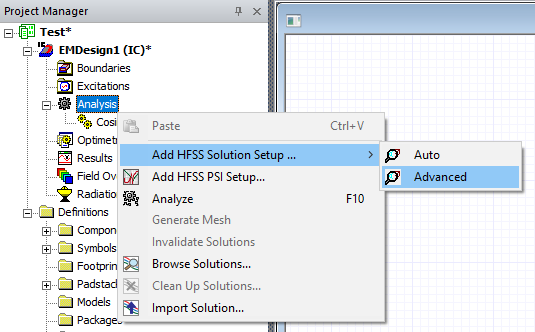
- From the Simulation ribbon tab, click HFSS > Advanced.