
Object-Oriented Property Scripting
Object-oriented scripting enhances scripting in AEDT by allowing object-oriented access to retrieve or modify object properties. The primary gain is the ease with which properties of various existing objects in an AEDT project or design can be read, modified, and set. This feature also allows for much less code to be written to access object properties and enables much more readable code for users, avoiding complex array input.
This topic covers the following:
- Logic/syntax
- Basic attributes of project and design properties
- Example Scripts
Object-Oriented Scripting
There are five basic functions in object-oriented scripting for retrieving and setting properties:
- GetChildNames()
- GetChildObjects()
- GetPropNames()
- GetPropValue()
- SetPropValue()
At a high level, use GetChildNames() to determine what object instances exist for a given object. An example is shown below to demonstrate for an AEDT Project shown that has two Designs.
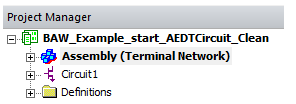
If you open the Command Window that allows for executing python code, you first define the Project Object, oProject, and the Design Object, oDesign, as shown:

Once the objects have been defined, you can use GetChildNames() to learn what object instances exist for each. As an example, observe the Child Names of oProject, and you see a list of the Designs in the AEDT Project, per the GUI.

As another example, retrieve the names of the Object Instances available in oDesign, to see the various objects associated with a Design setup:

These names are what you would expect based on the Project Manager Layout:
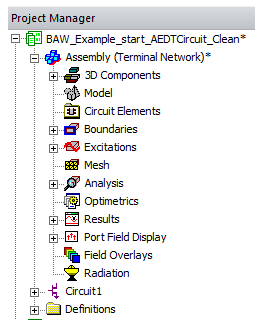
In the Project Manager above, any object that has the ‘+’ symbol is populated with children that you can query. Once you know the name of the object you want, you can instance it via the GetChildObject() command. This defines the instance to the desired object. As an example, set an instance for the Excitations:

You now have an object, oExcitations defined to be the oDesign Child Object ‘Excitations’. What does this mean? If you expand the Excitations dialogue in the Project Manager, you expect that the Child Names of this object would be the names of the Excitations as defined, in this case six ports:
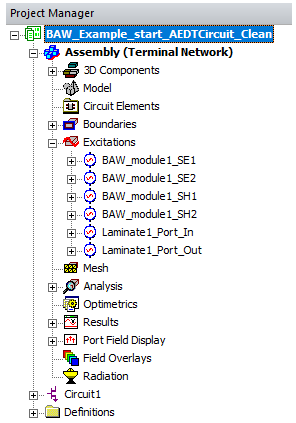

There is clear logic to the Object Child Names as the children of the oExcitations object as the ports that have been defined in HFSS. Looking at the Project tree can help you to conceive and retrieve desired information.
Expand the first port to see its expected Child Object, its Terminal, in the Project Manager Window:
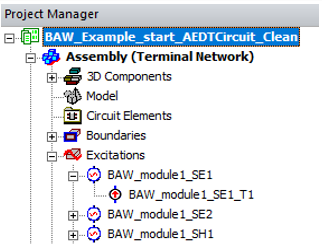
Through scripting, first define the Port Object (in this example, oPort) using the ‘GetChildObject()’ command for the first port, ‘BAW_module1_SE1.’ Then determine its Object Child Name, the terminal definition:

As the use and logic for GetChildNames() and GetChildObject() have been demonstrated, you can now explore the properties of each of these objects, if they exist. The function to determine what properties exist is GetPropNames(). Use this to determine what properties exist to be retrieved or modified for a given object. The properties available are readily identifiable in the Property window, by default located beneath the Project Manager window. For example, if you select a given port object, ‘BAW_module1_SE1’ the Property window populates as shown:
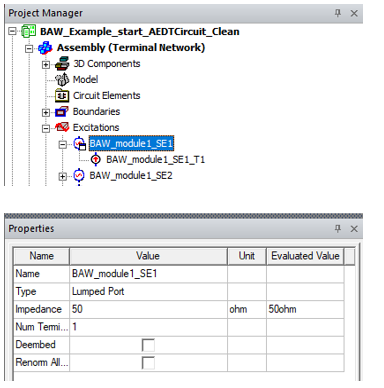
If you execute the GetPropNames() function on the previously defined object, oPort, you see the same Property Names as available in the Properties window:

Once you identify the desired object and you know the desired property, you can access the value via GetPropValue(). For example, if you want to retrieve the name of the object oPort:

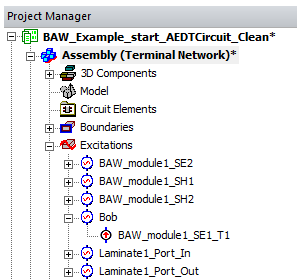
To change the value of the property, use the SetPropValue() function. The arguments for this function are (‘Property Name’,’New Value’). For example, to change the name of the port to ‘Bob’:

This function returns a Boolean ‘True’ if successful. The Project Manager window updates accordingly:
This approach for retrieving and setting properties is general and can be used for many aspects of an Ansys Electronics Desktop simulation. This Object-Oriented method of property identification and modification operates only on existing objects. Object-Oriented scripting cannot create new instances; you must revert to the functions in a given Module to do that. Not all Children of a given object may be accessible via the GetChildNames() command just yet. An example is given for Material property modification later in this App Note. However, if you need specific objects you can reference details in the Scripting Help or reach out to an Application Engineer.
Material Properties and Examples
This section discusses the material properties and how to access and modify them. Because materials are globally defined, the objects are children of the Project, oProject, as shown below:

All materials with a Project Definition, or assigned to an object, in the Project are accessible. For example, assume you want to see the conductivity of ‘copper.’ Follow the same flow as in the previous section:
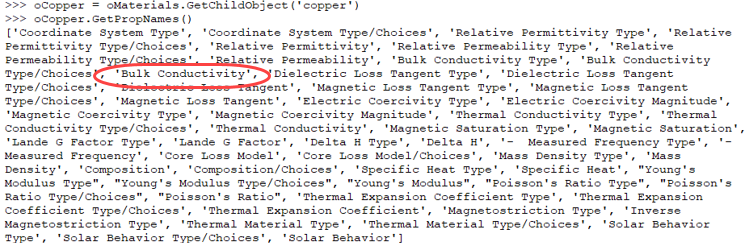
The Material Property of interest is "Bulk Conductivity." So you create a "Cond" object to store the value and use the GetPropValue function to obtain in. Then name the Cond object to see the value:

To change the conductivity, use the SetPropValue() function as shown below:

Body Properties and Modification
The following example shows how to retrieve the properties of a Body in the model, in this case a Region object. Once you identity the desired property, you can modify it as needed.

Retrieving Variables
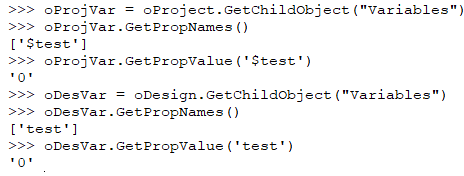
Retrieving defined variables in a Design or Project is a common effort for automation. There are two types of variables, Design and Project. Project variables are preceded with a ‘$’ symbol and are retrieved in the Project object as it is globally defined to all Designs. Design variables do not have any preceding symbols and are retrieved in the Design object as their scope is limited to a given Design. The following example demonstrates the retrieval of Project Variable names and values, and then Design variable names and values.:
Retrieve Datasets and Values
The GetChildObject, GetChildTypes and GetChildNames functions operate on the oDesktop objects. This allows you to retrieve and view datasets and values. The dataset script wrapper store all values internally in SI units, and converts them back to user-supplied units when you request non-SI property values.For example, if you assigned a dataset to the example OptimTee project in HFSS, you could use these functions in the command window:
>>>oDesktop.GetChildTypes()
['Projects']
>>>oDesktop.GetChildNames()
['OptimTee']
>>>arrProjectNames = oDesktop.GetChildNames()
>>>tp = oDesktop.GetChildObject('OptimTee')
>>>tp.GetChildTypes()
['Design', 'Project Data']
>>>tp.GetChildNames('Project Data')
['Variables', 'Materials', 'Surface Materials', 'Datasets']
>>>ds = tp.GetChildObject('datasets')
>>>ds.GetChildNames()
['$ds1']
>>>ds1=ds.GetChildObject('$ds1')
>>>ds1.GetPropValue('[:,:]')
[[1.0, 4.0], [2.0, 5.0], [3.0, 6.0]]
>>>ds1.GetPropSIValue()
[[1.0, 4.0], [2.0, 5.0], [3.0, 6.0]]
>>>ds1.DimUnits
>>>ds1.DimUnits = ['mm','mm']
>>>ds1.DimUnits
['mm', 'mm']
>>>ds1.GetPropSIValue()
[[0.001, 0.0040000000000000001], [0.002, 0.0050000000000000001], [0.0030000000000000001, 0.0060000000000000001]]
>>>ds1.GetPropValue('[:,:]')
[[1.0, 4.0], [2.0, 5.0], [3.0, 6.0]]
GetSolutionData API
Many users want to use scripts to extract solution data from Ansys Electronics Desktop for custom Post Processing. Scripting includes a new method to do this without having to export data to a file and then re-import it for use in a script. The new function is accessible via the “ReportSetup” Module. The function call is “GetSolutionDataPerVariation()”. A code snippet to extract Terminal S Parameter data is shown:
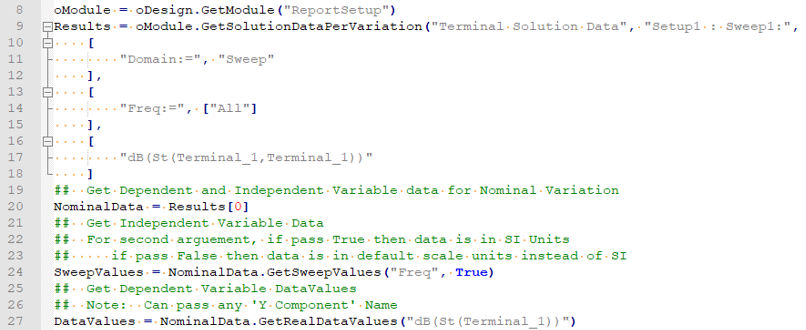
The above code shows how you can extract the Dependent and Independent data to variables for easy manipulation. For more information on other functions available for this, see GetSolutionDataPerVariation.
Summary
Scripting has been advancing in Ansys Electronics Desktop to better allow you to customize and automate their repetitive or complex simulations. The ability to easily retrieve and set property values via the Object-Oriented scripting allows for ease or both writing and reading. The ability to extract solution data within a script execution is a new functionality that markedly enables more advanced post processing.
Object oriented property scripting presents an easy to use, intuitive and object oriented representation of the data model. The framework supports query of objects and their properties including the edits of the data model in an object oriented fashion. With the new scripting framework, data exposure is intuitive and provides maximum coverage.
Each exposed script object supports the following COM functions:
- GetName
- Return name of the object as text string
- e.g. name of a design, solve setup, boundary, etc
- GetChildTypes
- An object can have different types of children.
- Return array of text string. Can be empty if the object’s children are NOT categorized into different types.
For example, a design object has 3 children types. The following examples show how the commands run in the Tools > Open Command Window for IronPython.
>>> design.GetChildTypes()
['Module', 'Editor', ‘Design Data’]
- GetChildNames
- Input: [String – Type]. Default = “Module” and “Editor” for design script object. ‘All’ for other script objects.
- Return an array of immediate children’s names, of a given type if specified
For example, a Mechanical design object has these children.
>>> design.GetChildNames()
['Boundaries', 'Excitations', 'Optimetrics', 'Results', '3D Modeler']
Four of the children are of “Module” type
>>> design.GetChildNames("module")
['Boundaries', 'Excitations', 'Optimetrics', 'Results']
- GetChildObject
- Input: String -- Object path. The path may include multiple generations.
- Return the child object if found
For example,
>>> d = project.GetChildObject("hfss")
>>> d.GetChildObject("3d modeler").GetChildNames()
['Box1', 'Box1_1', 'Box1_1_1']
>>> project.GetChildObject("hfss/3d modeler").GetChildNames()
['Box1', 'Box1_1', 'Box1_1_1']
- GetPropNames
- Input: [BOOL - IncludeReadOnly] -- default to true
- Return an array of the object’s properties
For example,
>>> geom = project.GetChildObject("hfss/3d modeler").GetChildObject("Box1")
>>> geom.GetPropNames()
['Name', 'Material', 'Material/SIValue', 'Material/EvaluatedValue', 'Solve Inside', 'Orientation', 'Orientation/Choices', 'Model', 'Group', 'Display Wireframe', 'Material Appearance', 'Color', 'Color/Red', 'Color/Green', 'Color/Blue', 'Transparent']
-
GetPropValue
- Input: String – Property Path. The path may include multiple generations.
- Return the property value as VARIANT
For example,
>>> geom.GetPropValue("material")
'"vacuum"’
>>> geom.GetPropValue("xsize")
'3mm'
>>> op.GetPropValue("attach to original object")
False
-
• SetPropValue
- Input: String – Property Path. The path may include multiple generations.
- Input: String – Data. New value of the property.
- Return -- True if property data is updated successfully. False if failed to assign the new value.
For example,
>>> geom.SetPropValue("model", False)
>>> boxcmd.SetPropValue("ysize", "4mm")
-
GetPropEvaluatedValue (<PropName>)
For example,
oVar = oDesign.GetChildObject(" Variables/var")
oVar.GetPropEvaluatedValue()
-
GetPropSIValue (<PropName>
For example,
oCreateBox = oDesign.GetChildObject("3D Modeler/Box1/CreateBox:1")
oCreateBox.GetPropValue("xSize")
return "length / 2"
oCreateBox.GetPropEvaluatedValue("xSize")
return '0.4mm'
oCreateBox.GetPropSIValue("xSize")
return 0.0004
Additional Details Specific to AEDT Solvers
“3D Modeler” of 3D products and “Machine” of RMxprt are exposed as “Editor” type children of a design script object.
“Variables” and “Design Settings” are exposed as “Design Data” type children of a design script object.
The following “Module” types are exposed as “Module” type children of a design script object.
HFSS
- Boundaries, Excitations, Circuit Elements, Hybrid Regions, Analysis, Radiation, Field Overlays, Optimetrics, Results
HFSS 3D Layout
- Boundaries, Excitations, Circuit Elements, Analysis, Radiation, Field Overlays, Optimetrics, Results
Maxwell 3D/2D
- Boundaries, Excitations, Analysis, Field Overlays, Optimetrics, Results
RMxprt
- Analysis, Field Overlays, Optimetrics, Results
Q3D
- Boundaries, Nets, Analysis, Optimetrics,
Q2D
- Boundaries, Conductors, Analysis, Field Overlays, Optimetrics,
Icepak
- Thermal, Monitor, Mesh, Analysis, Field Overlays, Optimetrics, Results
Mechanical
- Boundaries, Excitations, Analysis, Field Overlays, Optimetrics, Results
Circuit
- Optimetrics, Results
Circuit Netlist
- Results
EMIT
- Coupling
Simplorer/Twin Builder
- Analysis, Optimetrics, Results
Additional details on Boundaries/Excitations
Each design type presents its boundaries/excitations data in the project tree as different groups. For example, an HFSS design has Boundaries, Excitations, Circuit Elements and Hybrid Regions while a Icepak design has just a “Thermal” project tree folder.
These module script objects do not have properties
>>> project.GetChildObject("icepak/thermal").GetPropNames()
[]
GetChildTypes of these module script objects returns the types of its immediate children
>>> d = p.GetChildObject("q2d")
>>> d.GetChildObject("conductors").GetChildTypes()
['NonIdealGround', 'SignalLine']
GetChildNames of these module object returns its immediate children
>>> p.GetChildObject("icepak/thermal").GetChildNames()
['Source1', 'Resistance1', 'ConductingPlate1', 'Source2', 'Resistance2', 'ConductingPlate2', 'Source3', 'Resistance3', 'ConductingPlate3']
GetChildNames can be invoked with a “type” and the returns will be filtered by that given type.
>>> p.GetChildObject("icepak/thermal").GetChildNames("resistance")
['Resistance1', 'Resistance2', 'Resistance3']
Children of a module object are scriptable objects and have properties.
>>> port = p.GetChildObject("hfss/excitations/1")
>>> port.GetPropNames(False)
['Name', 'Deembed', 'Deembed Dist', 'Renorm All Terminals']
You can query/edit these properties
>>> port.GetPropValue("deembed")
False
>>> port.SetPropValue("deembed", True)
True
>>> port.GetPropValue("deembed")
True
A boundary/excitation script object can also have children. For example, HFSS terminal is a child of its port. Q3D source/sink can be children of a net.
>>> port.GetChildNames()
['Box1_T1']
>>> port.GetChildTypes()
['Terminal']
>>> p.GetChildObject("q3d/nets/s2").GetChildNames()
['Source2', 'Sink2']
>>> p.GetChildObject("q3d/nets/s2").GetChildTypes()
['Sink', 'Source']
3D component encapsulation
These script interfaces are compliant with encapsulation. For example,
- Design.GetChildObject(“boundaries”).GetChildNames() will not return component boundaries
- SetPropValues of component excitations can only be used to edit post processing settings such as 'Deembed', 'Deembed Dist' of a HFSS port.
Additional details on Solve setup
All solve setups are children of the “Analysis” script object. This parent script object is also of the type “Module”.
>>> d = oDesktop.GetActiveProject().GetChildObject("hfss")
>>> d.GetChildNames()
['Boundaries', 'Excitations', 'Hybrid Regions', 'Circuit Elements', 'Analysis', 'Optimetrics', 'RadField', 'Results', '3D Modeler']
>>> setups = d.GetChildObject("analysis")
This module script object has no property
>>> setups.GetPropNames()
[]
The children of this module script object in a 3D design is not categorized into different types because the solve setup type is one-to-one to the solution type of a 3D design.
>>> setups.GetChildTypes()
[]
The children of this module script object in a 3DLayout and Simplorer/TwinBuilder design is categorized into different solve setup types, such as “Transient”, “AC” and “DC” in a Simplorer/TwinBuilder design and “HFSS”, “PlanarEM”, “SIwave” in a 3D layout design.
A solve setup script object can also have children. Children are typically frequency sweeps.
>>> setup.GetChildNames()
['Sweep', 'Sweep1', 'Sweep2']
>>> setup.GetChildTypes()
['Discrete', 'Interpolating']
>>> sweep1 = setup.GetChildObject("sweep")
Related Topics
Example: GetPropNames and GetPropValues for Layered Impedance Boundary Script