
Viewing a Matrix Table
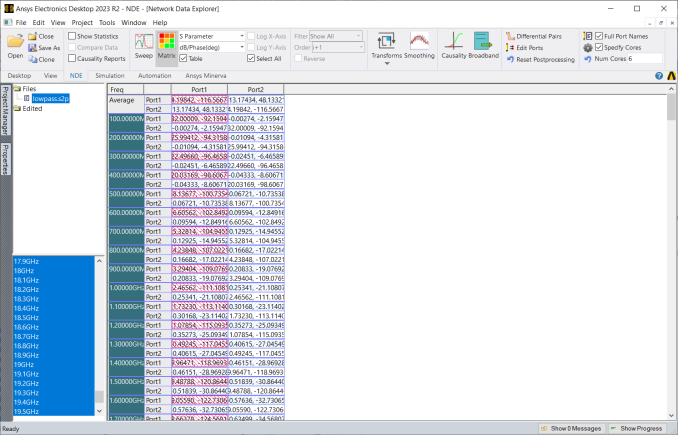
To view the S, Y or Z matrix:
- On the NDE ribbon, click Matrix.
- Click the Table check box.
- Use the Parameter type drop-down menu to select S parameter, Y parameter, Z parameter, or another choice.
- Choose a format from the drop-down menu, for example dB or Mag.
- In the Cell and Frequency Selection pane, select frequencies to display or click the Select All check box on the NDE ribbon to select all frequencies. The S, Y, or Z matrix displays.
- Hover over a cell to see more information in a tool tip.
- Right click to see a right click menu with other commands.
Maximum values are highlighted in red stripes. If Select Transpose is enabled, transposes are highlighted in red stripes as well.
Minimum values are highlighted in blue stripes.
Selected cells appear in solid blue. If Select Transpose is enabled, the transpose is highlighted in blue as well.
Double-clicking a cell switches to a matrix cell view, in which values for all frequencies for that cell are displayed. The double-clicked frequency is highlighted with solid red shading
Complex values are compared using their modulus. When multiple frequencies are selected, the data display depends on the Multiple Frequency Statistics setting.