
Generating Reports For Monostatic RCS
If you create a design contains both SBR+ Regions and Incident Plane wave you can then create reports for Monostatic RCS. The example projects for HFSS includes an example RCS project that demonstrates this.
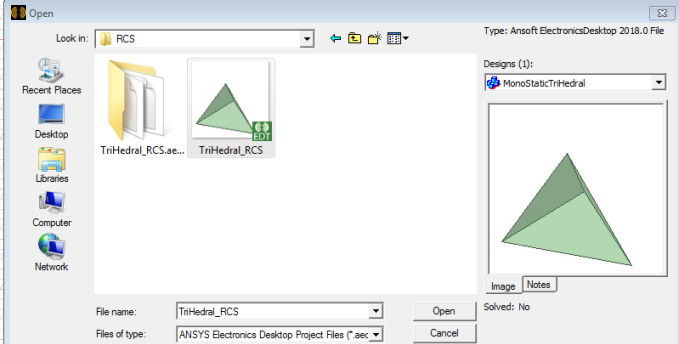
In the case of non-SBR+ projects:
- The new Monostatic report type works with non-SBR+ cases as well.
- For old version projects with Monostatic RCS report already defined it will still work but cannot be modified. The modify dialog will have far fields but not Monostatic RCS in the category column.
The RCS example design includes an SBR+ Hybrid Region as well as an incident plane wave: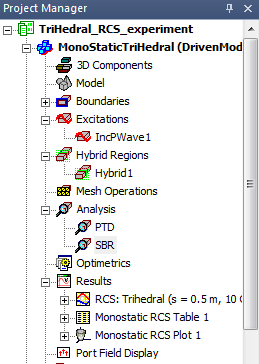
Designs with these elements include a selection for RCS Type as Monostatic or Bistatic.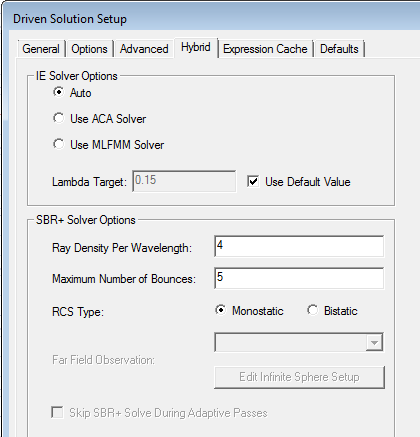
Selecting Monostatic permits you to create Monostatic Reports. In this case, the Infinite Sphere setup is disabled because the solver uses the direction of the Incident Plane wave to calculate the solution.
Monostatic RCS Reports
The process for generating Monostatic RCS Plots is as follows--
-
Solve a design containing SBR+ Hybrid Regions and an Incident Plane wave with no other excitations.
-
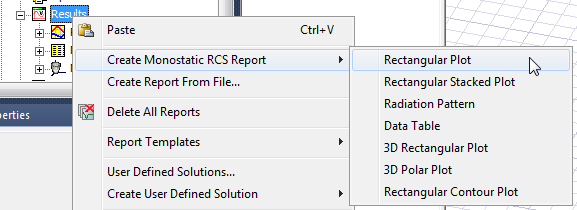
Right-click Results > Create Characteristic Mode Data Report > Rectangular Plot to open the Report dialog.
-
In the Context panel you can select the solution, but you do not need to select any geometry when using SBR+ and Monostatic RCS. Select the Category as Monostatic RCS to see a Quantity list for Monostatic traces you can create.
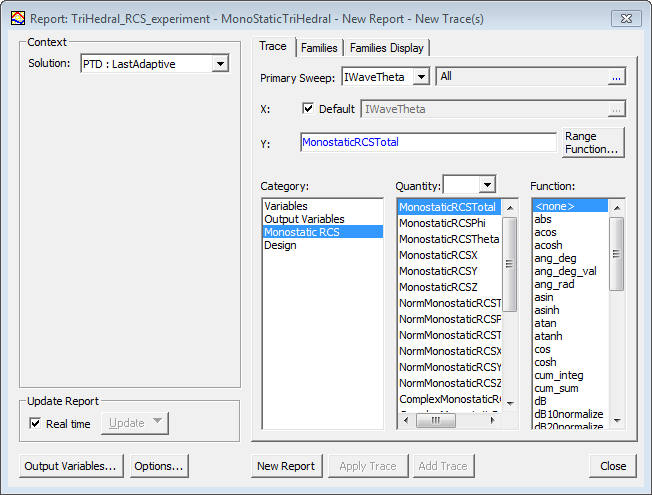
-
You can choose between Freq, IWaveTheta and IWavePhi variables for specifying sweeps.