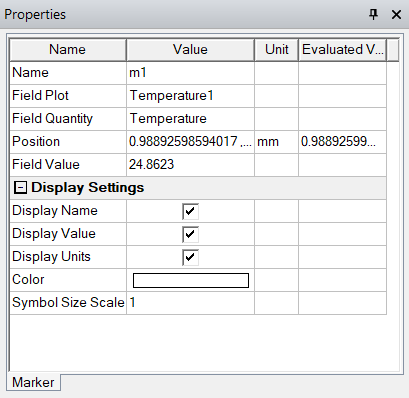
Editing Field Plot Markers
To edit field plot markers:
- In the marker table, click on the marker you wish to edit. The marker in the 3D Modeler window and its row in the table are highlighted. The properties of the marker are displayed in the Properties window.
- You can edit the following marker properties:
- Name: Specify the name that appears next to the marker in the 3D Modeler window.
- Display Name: Toggle to show or hide the marker's name.
- Display Value: Toggle to show or hide the marker's value.
- Display Units: Toggle to show or hide the marker's units.
- Color: Click the color to change the marker's color in the Color dialog box.
- Symbol Size Scale: Enter a different number to adjust the size of the marker in the 3D Modeler window.
- Optionally, when a marker is selected, press the Delete key to delete the marker and its corresponding entry in the marker table.
Note:
Press Ctrl and select multiple marker rows in the table to edit marker properties simultaneously.