Create Surface Mesh Summary
You can use the HFSS > Fields > Create Surface Mesh Summary... command or the equivalent command on the short-cut menu on the Field Overlays icon in the Project tree to create a report of mesh statistics on selected surfaces or lists of surfaces.
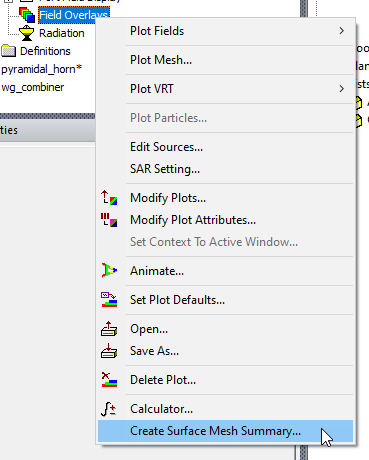
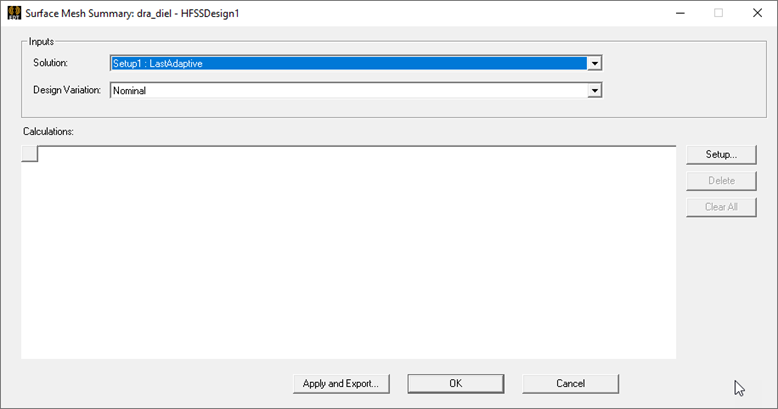
This command opens a dialog box in which you specify the Solution and Design Variation to use.
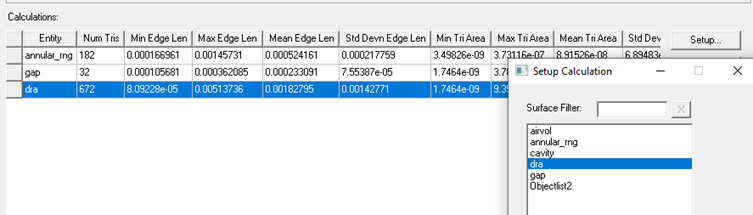
Select the Setup... button to open the Setup Calculation window, in which you specify the objects or lists for which to calculate mesh statistics. If the number of objects is large, you can use the Surface Filter text box to narrow the search.
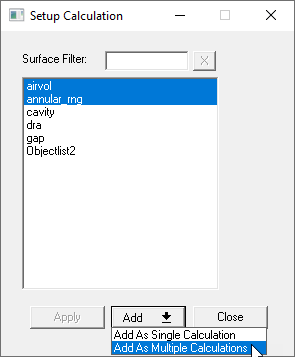
When you have made your selection, you can Add as a Single Calculation or Add as Multiple Calculations. The Calculations are displayed in table format, according to the Setup specified. If there is no mesh solution, the panel show only the selected entity name and a warning message reports “Failed to load surface mesh results”.
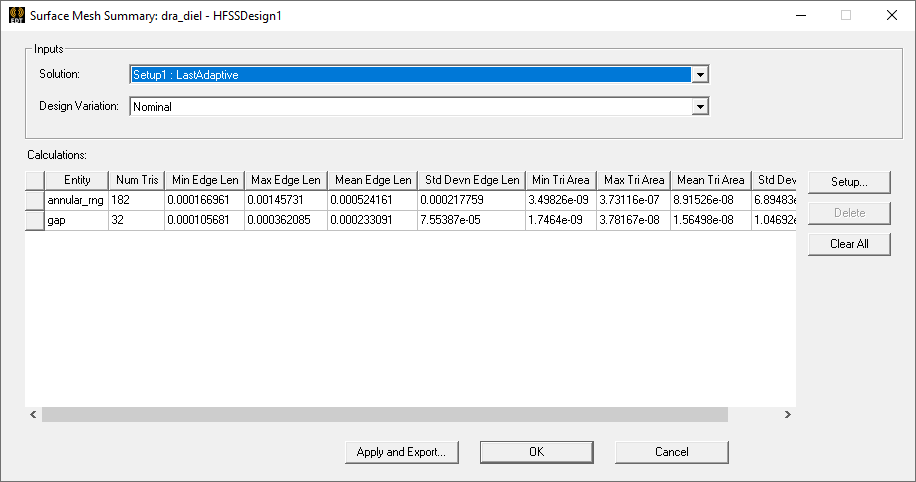
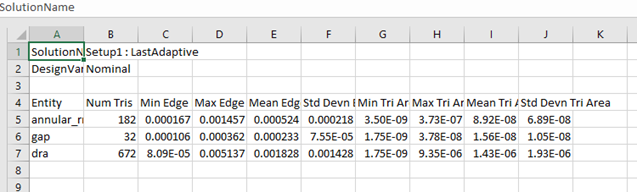
Statistics include Num Tris, Min Edge Length, Max Edge Length, Mean Edge Ledge, Standard Deviation Edge Length, Min Triangle Area, Max Triangle Area, Mean Triangle Area, and Standard Deviation Triangle Area.
You can add additional rows, select selected rows, or clear all rows. Selecting only one row in the Surface Mesh Summary dialog enables the Apply button in the Setup Calculation dialog box. You can then make selections, then click on the Apply button, to use the selection to overwrite the content in the selected row by the entities chosen from the Setup Calculation dialog box.
The Apply and Export and Export buttons allow you to write out a comma separated (.csv) file of the statistics. Clicking either OK or Apply and Export saves the current data rows in the panel. The difference between the two buttons is:
-
Clicking OK saves the data and then closes the dialog box.
-
Clicking Apply and Export saves the data, then opens the Save As dialog box for .csv file export. After you click Apply and Export, the dialog box remains open and the button context is converted to Export, which means there is no new data to save.

The .csv file can be viewed in a spreadsheet as follows.