Viewing Properties of 3D Components
The Properties displayed for a selected 3D component depend on how you select that component. For a complete display of Properties, right-click the selected component (Project Manager, History Tree, or Modeler window) and click Properties on the shortcut menu. Alternatively, click Edit > Properties using the menu bar. This action displays a window with tabs for all component properties.
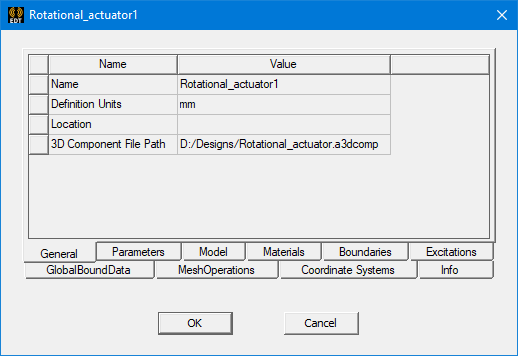
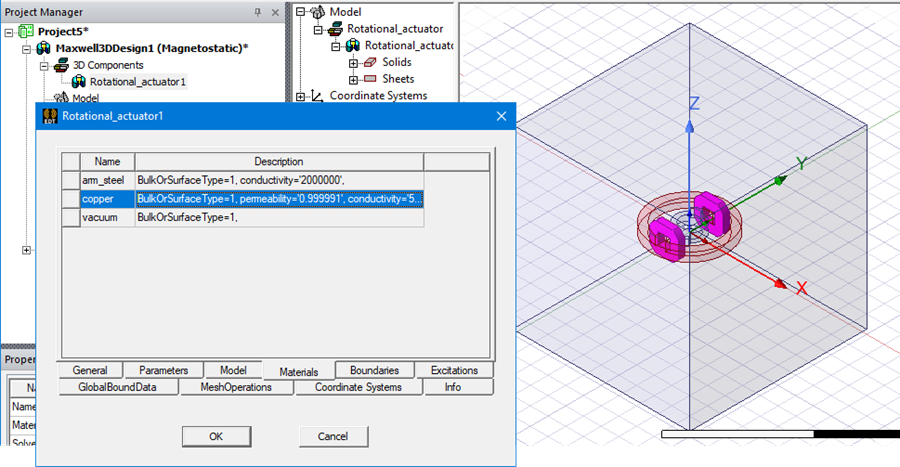
If you choose the Materials tab, you can then select any listed material, and the parts of the component made of that material are highlighted in the Modeler window.
Selecting a 3D component in the Project Manager or the history tree displays tabs for General, Materials, and Component Data in the docked Properties window.
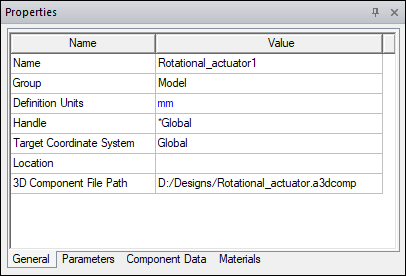
Note that the Handle property lists the handle coordinate system that was selected as reference when the 3D component was created; from this window, it can be changed to any coordinate system in the 3D component.
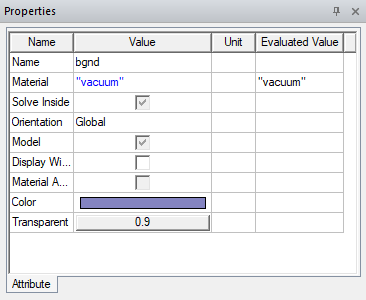
Selecting a 3D component object in the Modeler window displays the Attributes tab in the docked Properties window:
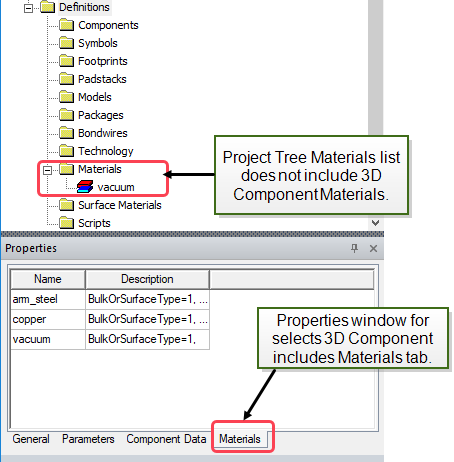
Component materials do not appear in the Project Manager's Definitions list. If you select the icon for an inserted component, the docked Properties window contains a Materials tab that shows the materials defined for the selected component.