GPU Installation and Setup
This chapter describes the GPU installation and setup for Windows and Linux.
Setup for Windows
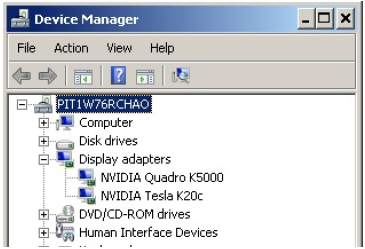
- After you install GPU cards and Nvidia graphics drivers downloaded directly from the Nvidia website, you should be able to find the cards in Windows Display Manager.
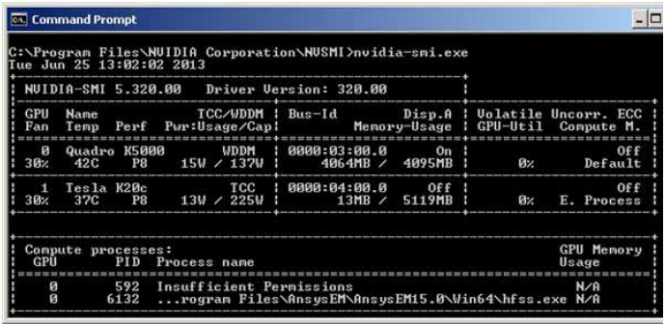
- You should run nvidia-smi.exe at C:\Program Files\NVIDIA Corporation\NVSMI to check if GPU cards are installed successfully. The executable nvidia-smi.exe should exist after the display driver is installed.
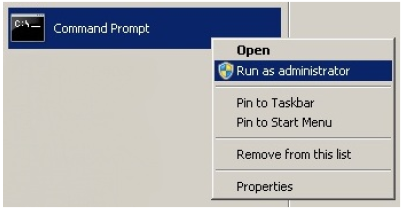
- To further set up the configuration of GPU cards, open a command window as an administrator.
To improve the performance of GPU acceleration,
it is recommended that you turn off the Error Correction Code (ECC) support
by the -e 0 option of nvidia-smi. New ECC settings will be effective
only after system reboot.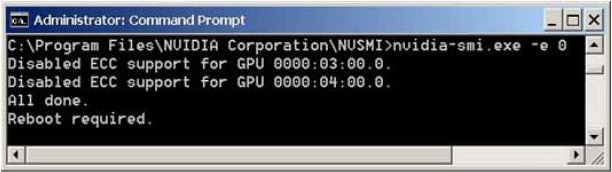
- (Optional) For remote execution of GPU
accelerated jobs (e.g., through Windows Remote Desktop Connection or RSM
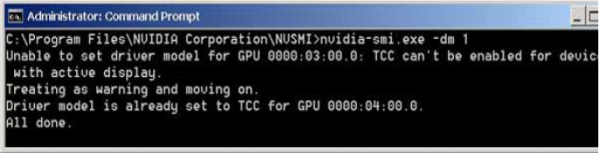
options ), it is necessary to turn on the Tesla Compute Cluster
(TCC) mode by the -dm 1 option of nvidia-smi. New TCC settings will be
effective only after system reboot. This step is unnecessary if you run
GPU acceleration from a local machine.
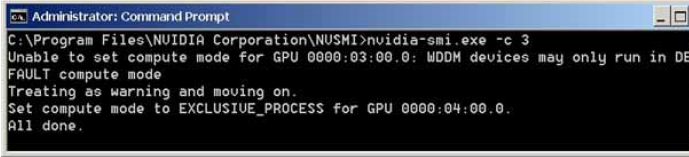
- (Optional) For users who want to run multiple GPU-accelerated jobs on one machine through distributed mode, it is required to install Nvidia Tesla cards with EXCLUSIVE_PROCESS support. Using the -c 3 option of nvidia-smi, one can set GPUs in a system to be Exclusive_Process. HFSS Transient relies on this compute mode to assign each simulation job to a dedicated GPU card. Please note that GeForce cards do not support EXCLUSIVE_PROCESS. Therefore, they should not be used for GPU-acceleration of HFSS Transient in distributed mode.
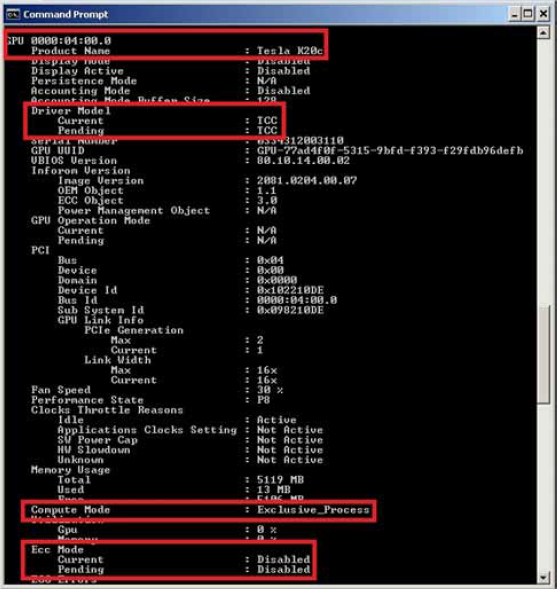
- (Optional) Using -q option of nvidia-smi, one can check if the compute mode is set properly.
- (Optional) For HFSS Transient to run in GPU-distributed, it is necessary to check if the dynamically linked library nvml.dll exists in its default directory C:\Program Files\NVIDIA Corporation\NVSMI. If not, its path should be added to the Windows environment variable Path.
- The setup for a Windows GPU system is complete through Steps 1 to 7.
Setup for Linux
- After you install Nvidia GPU cards and graphics drivers downloaded directly from the Nvidia website, you should be able to find the cards by the command.
/sbin/lspci | grep -i nvidia
You can also use the following command to check if GPU cards can be recognized by the system.
/usr/bin/nvidia-smi
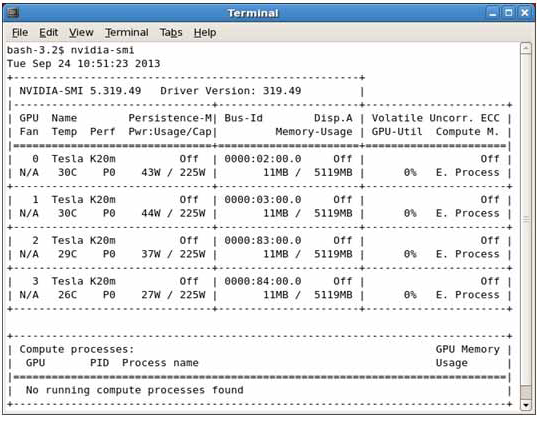
- (Optional) The setting of GPUs to disable ECC (for performance), enable TCC (for remote execution), and enable Exclusive_Process (for GPU-distributed) are similar to Windows. You need the administrative right to make such changes.
sudo nvidia-smi -e 0
sudo nvidia-smi -dm 1
sudo nvidia-smi -c 3
- (Optional) On Linux Maximus platforms, the environment variable CUDA_VISIBLE_DEVICES can be set in the shell file ~/.bash_profile to toggle the visibility of GPU cards as CUDA devices. If the variable does not exist, all CUDA devices are visible in a system by default.
- (Optional) In order to let Ansys Electronics Desktop solvers access the dynamically linked library libnvidia-ml.so in GPU-distributed, one must check if the library exists in its default directory /usr/lib64. If not, its path should be added to the Linux environment variable PATH through a shell startup file.
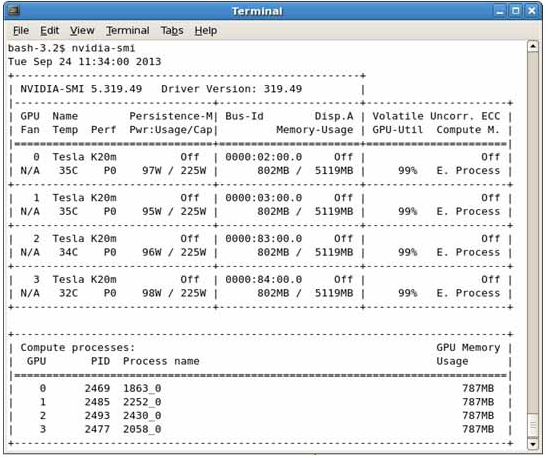
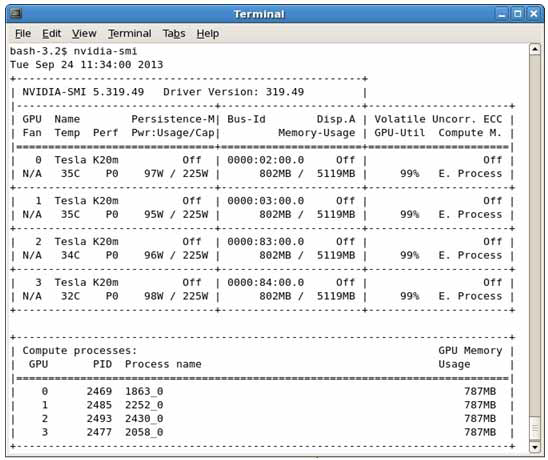
The setup for a Linux GPU system is complete through Steps 1 to 4. As an example, the following figure illustrates four distributed hf3d processes running on four Tesla K20m cards.