Select Tx/Rx Antennas for SBR+ Solutions
The SBR+ solution type allows you to create parametric antennas for a streamlined workflow in Ansys Electronics Desktop HFSS, which helps support ADAS and other similar application areas with large scene models. To allow for more efficient simulations, SBR+ Tx/Rx Antenna Selection lets you specify how each antenna is to be used in the simulation, as either Transmit, Receive, Transmit and Receive, or Off (Tx, Rx, Tx/Rx, or Off). This can dramatically reduce the number of antenna-to-antenna coupling pairs that must be simulated for a given scenario using SBR+ so that full NxN coupling analysis is not required. Even though SBR+ can handle these larger scene models more efficiently than some other approaches, if you select the specific Tx-Rx roles for each antenna you can obtain dramatically shorter runtimes because each transmitting antenna requires a separate ray trace. Near field Analysis for SBR+ Solutions is available if you specify Tx or Rx/Tx roles.
When antenna are assigned NxN full coupling among all sources as in all previous SBR+ region applications, HFSS SBR+ averages the values of cross coupling S matrix terms Smn and Snm to force them to be the same. When all antenna are assigned to TxRx, Smn and Snm might not be both available in the final solution. As a result, when the TxRx feature is assigned, such averaging is performed only when HFSS SBR+ detects that both Smn and Snm are present.
Prerequisites
To Assign Transmit and Receive Assignments for Antennas in SBR+
- Right-click the Excitations icon in the Project tree, and click, Select Tx/Rx... or click HFSS>Excitations>Select Tx/Rx...
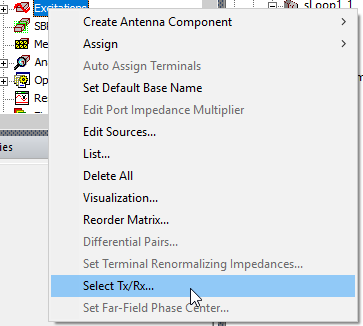
This opens the Select SBR+ Tx/Rx dialog.
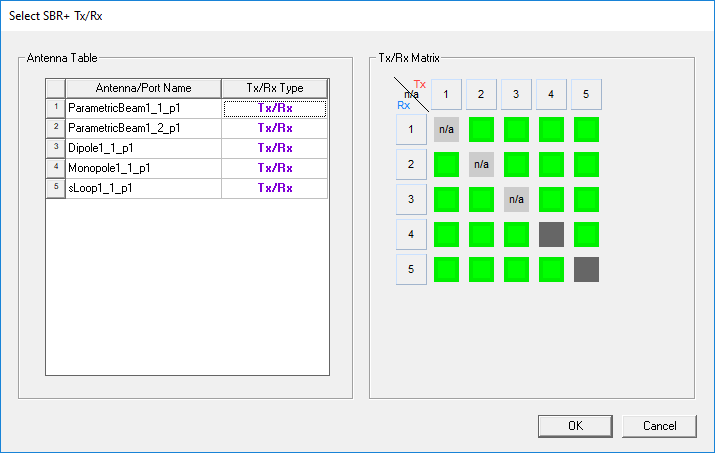
The left panel contains the list of all available antennas/ports available and their configured Tx/Rx Types, and the right panel contains the matrix (the S-param matrix) of active/inactive indicators for each transmit/receive (tx/rx) pair configured for the simulation. You can resize the dialog both horizontally and vertically to show more antennas in the list and more cells in the matrix. Scrollbars appear for both the table and the matrix if there are too many antennas/ports to fit in the dialog size.
Default types are set to “Tx/Rx” for all antennas/ports, with all Tx/Rx matrix cells set to active. This corresponds to a full NxN coupling configuration. If you want full NxN coupling for an SBR+ simulation there is no need to open or configure the Tx/Rx Selection settings.
Beta Feature HFSS Interactive Dialogues. If you enable this feature, you can edit the design outside the Select Tx/Rx dialog, and the dialog will update. The supported edits include:
Antenna Table Updates:
New source is created: added to the last row of antenna table. Default Tx/Rx type is “Tx/Rx”.
Sources are deleted: remaining sources retain the original order on the table, with deleted sources removed.
Source name changes: corresponding source name on the table updates to the new name.
Tx/Rx Matrix Update
New source is created: a new row and column will be added to the matrix. Depending on the number of Tx and Rx channels in the matrix, the number of buttons added to the matrix will adjust itself to form the new matrix. Default button state is on, except the buttons that have the same source of Tx and Rx.
Sources are deleted: corresponding Tx and Rx of those sources in the matrix are deleted.
Source Tx/Rx type changes: row and column visibility updates based on the change of Tx/Rx matrix.
Note: The dialog supports undo and redo for creating, deleting and renaming elements. After undo/redo, added elements will recover to default Tx/Rx type and button state.
- For the Antennas table, you can assign each antenna/port a type of Tx, Rx, Tx/Rx, or Off. This is done via a drop-down menu selection on the table cells under the Tx/Rx Type column. For convenience, the selection list includes All Tx/Rx and All Off selections.
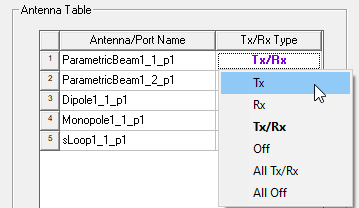
The text color changes with the Tx/Rx Type selection as follows: Tx = red, Rx = blue, Tx/Rx = purple, Off = black.
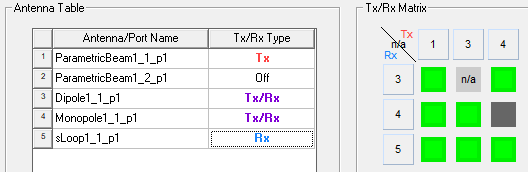
The Tx/Rx Type also determines which rows and columns are displayed in the Tx/Rx Matrix panel on the right. Transmit antennas appear as columns across the top (notice the red Tx label), and receive antennas appear as rows down the left side (notice the blue Rx label), just as shown in the S-parameters matrix (available under Results>Matrix Data). If you set the type to Tx, an antenna/port will only show its Tx column in the matrix, and the Rx row has all its cells set to inactive and is not shown. Similarly if you set the type to Rx, the Tx column for that antenna/port in the matrix has all its cells set to inactive and hidden.
Antenna rows/columns are numbered to match those used in the table on the left. The order of both corresponds to the order of the antennas/ports in the output data, and may be different than the alphabetical order shown in the project tree under the Excitations folder.
In the Tx/Rx matrix, tooltips are shown when the mouse is hovered over any cell in the matrix to show the corresponding antenna/port names and active/inactive status.
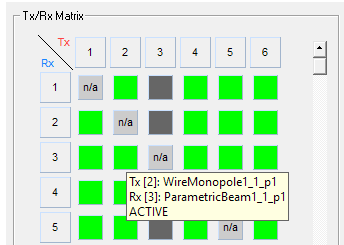
A green indicator means this Tx/Rx combination is active and the SBR+ simulation compute results for the interactions between this antenna port pair; dark grey means it is inactive for the simulation. Any self-coupling cells are marked with "n/a" as not applicable for the SBR+ solution type and may not be modified, which includes the diagonal matrix cells as well as any self-coupling cells for multi-port antennas.
- To toggle a Tx/Rx combination as active/inactive simply click on the corresponding cell in the matrix. The color will toggle between green (ACTIVE) and dark grey (inactive).
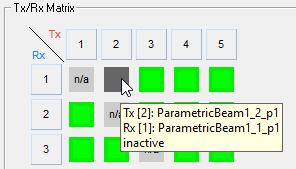
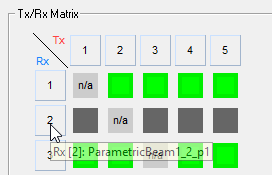
- To toggle an entire Tx column or Rx row, click one of the numbered header cells. Clicking a Tx column has the effect of turning this Tx either on or off to all receivers, and likewise, clicking an Rx row has the effect of turning this Rx on or off to all transmitters.
 Note:
Note:Turning an entire row or column off (making it inactive) achieves a similar end to specifying an antenna as either Tx only or Rx only.
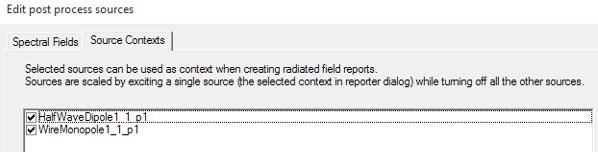
The Tx/Rx roles you select in the SBR+ Tx/Rx Selection dialog can impact the post-processing sources available for the simulation. For example, suppose you configure an antenna/port to be Rx or Off.
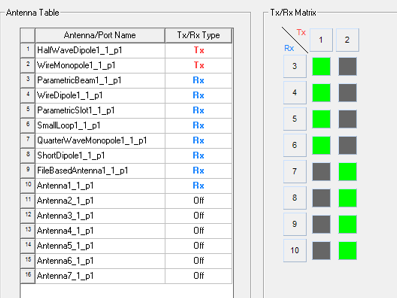
Then that item will not be available as a post-processing source context under Edit Sources. Only Tx or Tx/Rx antennas/ports will appear on the Source Contexts tab, since those are the only antennas/ports configured to produce radiating fields (ie, transmitting).
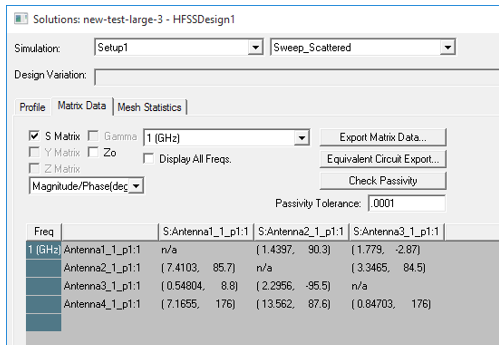
- Upon completion of the simulation, the results in the S-parameter matrix data display will correspond directly to the Tx/Rx Matrix configuration, with simulation results only computed for ACTIVE (green) cells. All other inactive and "n/a" cells will show "n/a" results for those same entries in the S-parameter matrix since no SBR+ simulation data was computed for those coupling pairs.
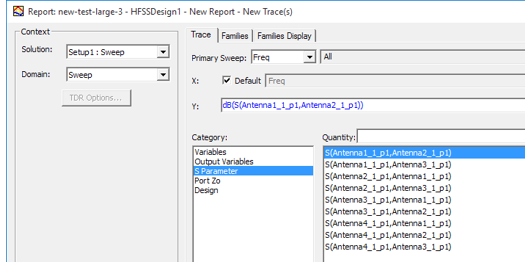
- In the Create Report dialog box, you see only the active Tx/Rx coupling pairs listed as the available report quantities, not the full list of NxN coupling matrix pairs (unless configured as full NxN coupling).