HFSS RADARpost ACT Toolkit
The RADARpost ACT extension post processes HFSS simulation results to generate Range Profiles, 2D Range Profiles (Waterfall Plots), ISAR Images and Doppler-Range plots. Select the type of report and corresponding post processing parameters (windowing, dB/mag, Velocity Ambiguity), and the report names used as the source for the data. The format of the data reports can automatically be generated using the RADARpre ACT extension but does not require the use of the RADARpre extension as long as the data is formatted correctly.
Data can be post processed using either S-parameters or RCS results from a simulation, with the exception that waterfall plots are only valid for plane wave excitations (RCS results). The data should be organized as a separate plot for real and imaginary data, with frequency as x-axis (or row if data table). For reports requiring multiple plane wave incident angles (such as waterfall and ISAR), each incident angle should be a different trace (or column of data table). If multiple look angles are present, the 1D Range profiles will require an additional user input to specify the look angle over which to post processing the range profile. Users can also select a windowing function to be applied to the post processed data. An up sampling of 4x is automatically applied to all data during post processing. All data and post processing is assumed to be done in the XY plane.
The HFSS RADARpost toolkit is implemented in Ansys ACT.
Before launching the wizard, load an appropriate HFSS SBR+ design with one or more antennas.
To launch the Wizard:
- Click View>Extensions command to open the Extensions window.
- Click Wizard to open the ACT Start Page.
If you have not loaded the RadarPost extension, use the Manage Extensions feature to do so.
- Click Launch Wizards to the show
the active Radarpre toolkit, and click to execute wizard.
The RADARpost wizard displays.
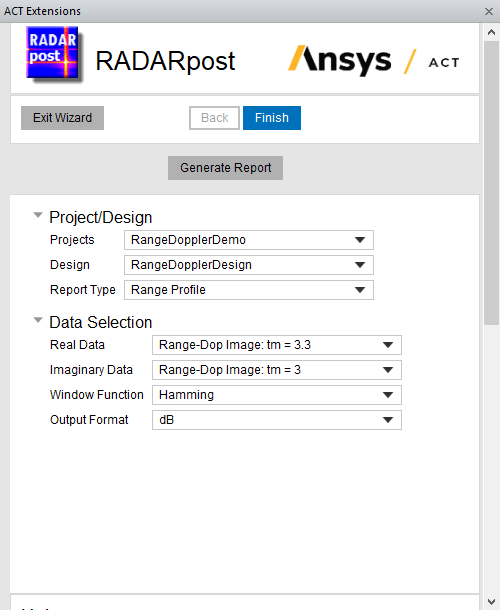
You can scroll down to view the Help overview.
Using the RADARpost Wizard
The RADARpost Wizard contains areas for selecting the Project/Design and Radar Requirements.
- If there is more than one suitable pre-loaded design, select the Project/Design.
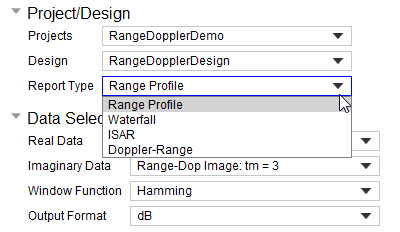
- You then select the Report type as Range Profile, Waterfall, ISAR or ADAS Scenario.
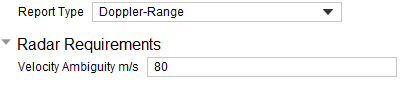
- If you select Doppler-Range, you also must specify the Radar Requirements.
- Specify the Data Selection Parameters by selecting from the drop down menus:
Real Data:
Imaginary Data
Window Function
Output format as linear or dB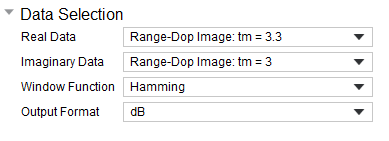
If you select Doppler-Range, you also can choose whether to Use LS-DSO Solution (Required for SAR or Multi-Frame Doppler Range).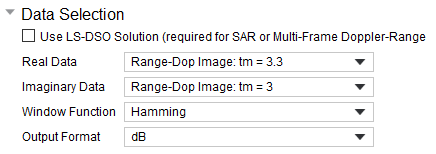
- Click Generate Report
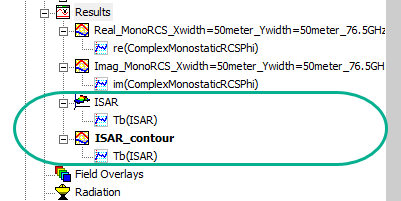
The RADARpost creates two new reports, based on the data of the existing SBR+ solution,
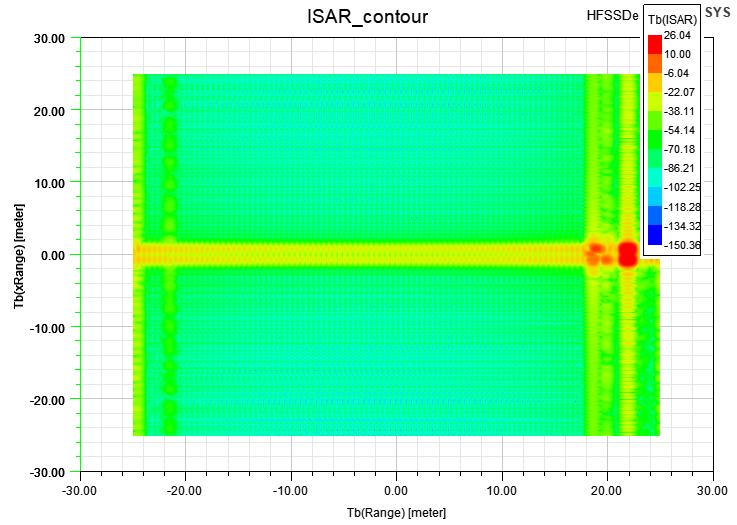
The following is an example ISAR Report.
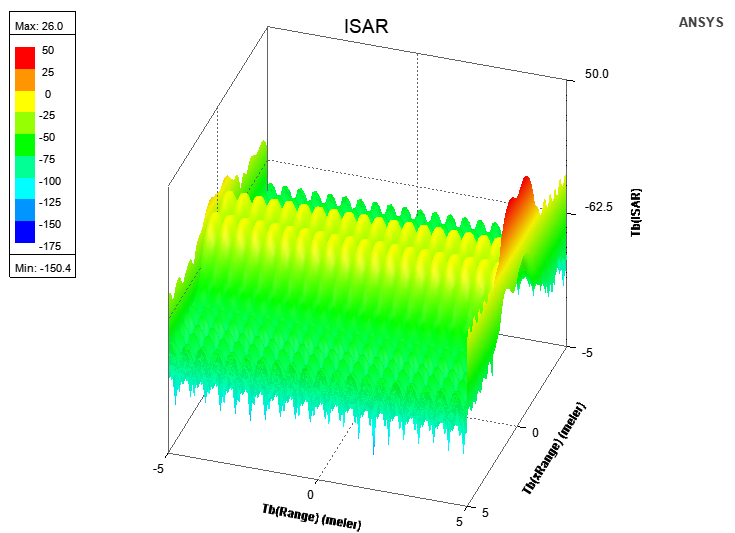
The following is an example ISAR Contour report.