Example with Interior Source for Near Field Links
HFSS includes an option to add this external near field link as "interior" source. When you select Interior Source you select a data file (.and/.nfd) and HFSS then automates a series of setups, such as near field geometries, mesh operation setup and solution setup, similar to what current Linked Design does. This interior source has the same effect as if its equivalent external near field design is linked to that target design. This interior source also allow relative coordinate system definition.
First we will bring up the Near Field Wave Options panel and then, assign Near Field Wave.
- Click HFSS>Excitations>Assign>Linked
Field>Near Field....
The Incident Wave Source dialog box appears. Select Interior Source.
The Interior Source settings are as shown in the following figure.
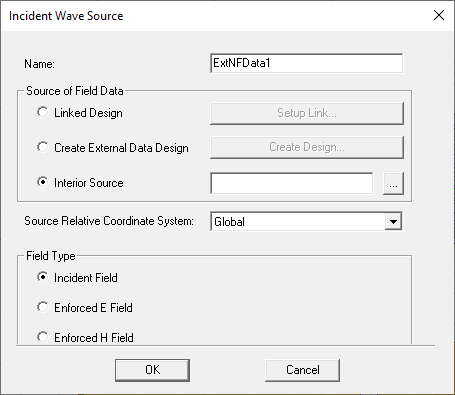
- Click ... to open a browser to select the .and file with the near field data.
The Select External Near Field Description File dialog box appears.
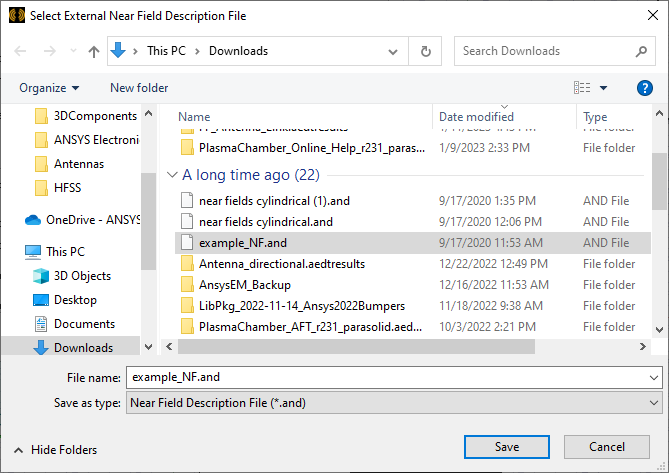
Select a previously prepared Near field description file (*.and) and Save.
HFSS then creates the near field geometry as specified in the .and file. It also creates a corresponding mesh setup and solution setup if design doesn’t have them.
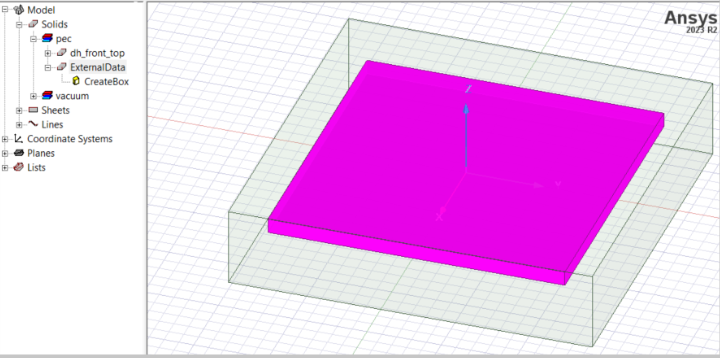
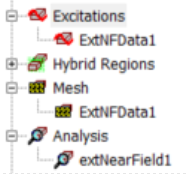
The Project tree shows the Linked Field External Near Field Data, the new mesh, and a setup for the near field interior source.
Editing the Interior Near Field Source
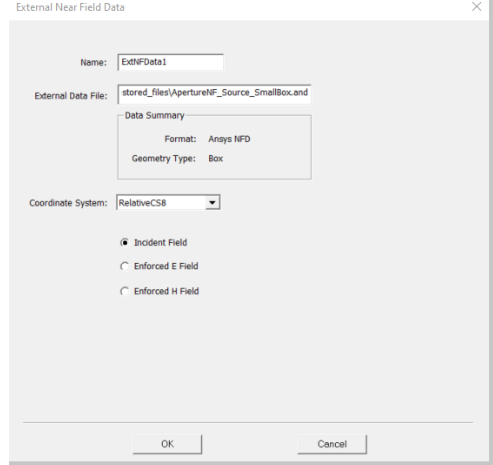
You can edit this interior near field source by either double clicking the excitation or through the right-click menu. A different configuration dialog appears, where you can change the data file, the coordinate system, and the field type.