
Adding a Frequency Sweep (HFSS)
For Driven solution types.
To generate a solution across a range of frequencies, add a frequency sweep to the Advanced solution setup (an Auto Setup includes a discrete sweep by default). HFSS performs the sweep after the adaptive solution. If an adaptive solution is not requested, the sweep is the only solution generated. You can also disable a sweep, so that you can run only the adaptive solution (or a ports-only solution) without the sweep, then later reactivate the sweep definition.
To add a frequency sweep:
- Click HFSS>Analysis Setup>Add Frequency Sweep .
A dialog appears which lists the solution setups.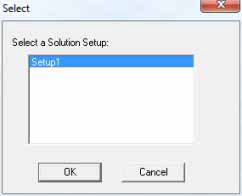
Select the solution setup to which the
sweep applies. To
bypass this dialog right-click the desired setup in the Project tree
and select Add Sweep from the shortcut menu, or select a Setup in the Project tree and on the Simulation tab, click the Sweep icon: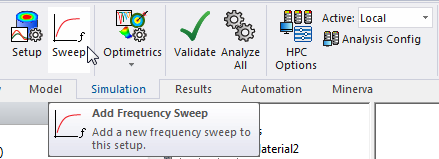
The Edit Frequency
Sweep dialog box appears.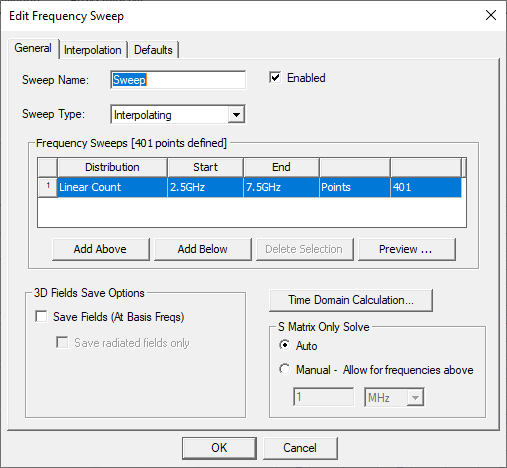
- Specify the following sweep parameters:
- Sweep Name.
- Enabled check box.
- Sweep type - Discrete, Fast, or Interpolating (the default). Each selection affects the tabs and options available. If a port is not assigned, Interpolating selection does not appear. The 3D Fields options are slightly different for each sweep type.
- Frequency Sweeps. You specify sweeps in terms of Distribution type, which can be Linear Step, Linear Count, Log Scale, Single Point, or Single Point Sweep, which adds a set of 10 Single Point Sweeps, defaulting from 1 GHz to 10 GHz in increments. The Add Above, and Add Below buttons permit you to add additional sweeps, including mixed sweep types. This feature provides flexibility. For example, you can define sweeps with log scale at lower frequencies, and linear step at higher frequencies. You can edit the Distribution, Start and End fields for any sweep.
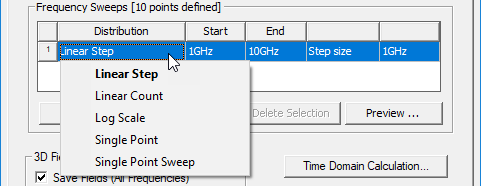
If you have added more sweeps, you can Delete a selected distribution.
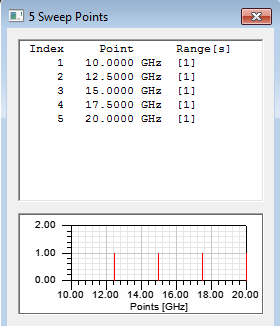
The Preview button displays the sweep(s) as currently defined.
- If you plan to perform a Full-Wave SPICE analysis, click Time Domain Calculation tool to obtain assistance determining a suitable frequency sweep range for the solutions. Also see the Requirements for Full-Wave SPICE.
- If you expect to use the same settings often, you can got to the Defaults tab and click the Set Defaults button. To use previously saved settings, click the Use Defaults button.
Once you have created a sweep, an icon for the sweep appears in the Project tree under the associated setup. Selecting the sweep icon causes the docked properties dialog to show the name, start, stop, step size, and sweep type. It also includes an Enabled check box.
Edit, Copy and Paste Existing Sweeps.
You can select an existing sweep, use the Edit commands to Copy it, and then and Paste the sweep into the Project tree. (By default, the copy is named Sweepn, where n increments with each new sweep.) You can edit the new copies of the sweep to make desired changes. For example, you can change a specific parameter, or for a distributed solve, you could assign different start and end points for each copy of the setup.
The Paste command for sweeps is design sensitive (that is, you cannot paste between Driven and Eigenmode designs) and context sensitive (for example, a sweeps can only be pasted in a setup.) Dependent setups are pasted along with the copied setup. You are warned if the dependent setup is already in the design and setup is not pasted again.
For a solve setup with zero passes, no sweeps, and that is not ports only, validation produces a warning message.