
File Menu
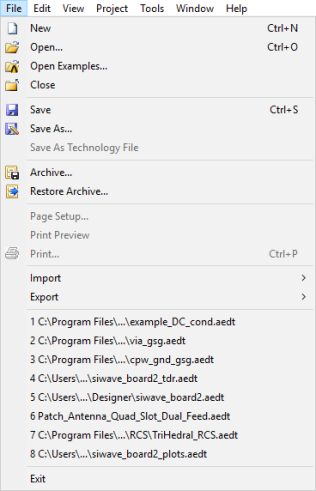
File menu items are common operations on files and projects. You can search the Help to find information on any of the commands that appear on Ansys Electronics Desktop menus.
- Click New (or type n) to set up a new project.
- Click Open (or type o) to open an existing project.
- Click Open Examples to open an example project.
- Click Close (or type c) to close the selected project. If the project has changed since the last save, you will be prompted to save the project before closing.
- Click Save (or type s) to save the selected project.
- Click Save As (or type a) to save the selected project under a different name or in a different directory.
- Click Save As Technology File (or type t) to save the selected top-level design as a technology file (*.asty). You must have a design selected to activate this menu item. You cannot export a technology file from a project or from a subcircuit.
- Click Archive to archive the selected project and any selected additional files. If the project has changed since the last save, you will be prompted to save the project before closing.
- Click Restore Archive (or type r) to restore a previously archived project.
- Click Page Setup (or type u) to set up formatting to print the active window in the Design Area.
- Click Print Preview (or type v) to display a preview of the print job.
- Click Print (or type p) to print the active window.
- Click Import to open a submenu and select a file for import.
- Click Export to open a submenu and select a file for export.
- Click the name of a project (or type its number) to open a project from the listing of recently opened projects.
- Click Exit (or type x) to exit Ansys Electronics Desktop. If any project has unsaved changes, you will be prompted to save the project before closing.