
Edit Menu for 3D Modeler
When a Modeler window is active in the Design Area, the Edit menu is similar to the following image:
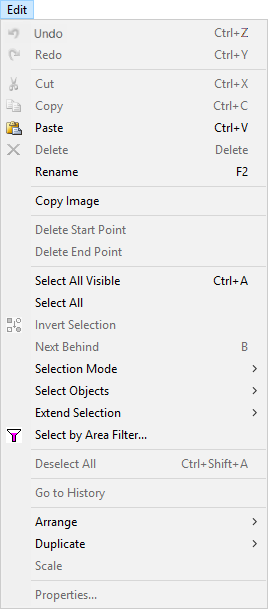
Comands will be available or not available for clicking depending on what is currently selected or on whether any operations have been performed, undone, or redone. The 3D Modeler's Edit menu contains the following options:
- Undo – allows you to undo the last action, which is specified after the word "Undo."
- Redo – allows you to redo an undone action, which is specified after the word "Redo."
- Cut / Copy / Paste – allows you to copy and paste elements.
- Delete – deletes a selected element.
- Rename – renames a selected element.
- Copy Image – copies the visible design area to the clipboard, in bitmap format.
- Delete Start Point / Delete End Point – allows you to delete start points and end points.
- Select All Visible / Select All – selects either all objects or all objects visible in the design area.
- Invert Selection – selects the opposite of the current selection.
- Next Behind – selects the object behind a selected face, edge, vertex, or object.
- Selection Mode – changes the selection mode.
- Select Objects – opens a submenu that allows you to select objects and shapes by name, material, and type.
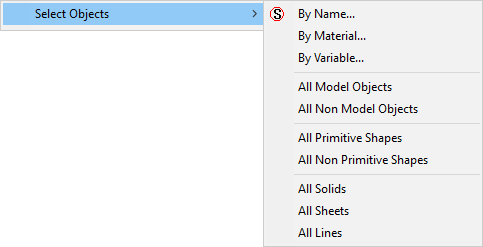
- Extend Selection – opens a submenu that allows you to extend your current selection.
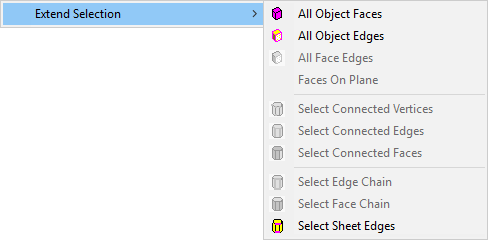
- Select by Area Filter – opens the Select By Area Filters window.
- Deselect All – deselects all selected objects.
- Go To History – selects the History Tree entry for the selected object.
- Arrange – allows you to move, rotate, or mirror the selected object.
- Duplicate – allows you to duplicate the selected object along a line, along an axis, or mirrored to the selection.
- Scale – allows you to scale the selected object.
- Properties – opens the relevant Properties window for the selected object.