
Creating a Coupling Link
Creating a coupling link involves the following steps:
- Adding an HFSS or HFSS 3D Layout link
- Assigning ports
- Activating sweeps
The HFSS or HFSS 3D Layout design must be in the same project as the EMIT design to which it is being added.
Adding a Coupling link
To add an HFSS or HFSS 3D Layout link:
- Do one of the following:
- Click EMIT > Add Coupling Link.
- In the Project Tree, right-click Coupling and select Add Coupling Link.
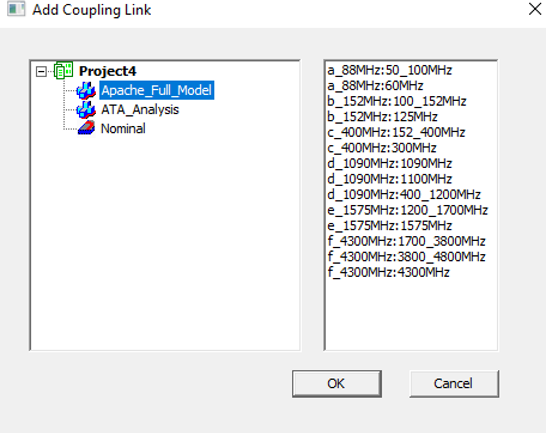
- The Add Coupling Link dialog box displays information about the designs that are available for linking in the project:
- Select the design that you want to link to in the left pane and click OK.
If you do not want to open the Coupling Editor after each link is added, then you can change this behavior in Tools > Options > EMIT by deselecting Show Coupling Editor for new link.
The HFSS or HFSS 3D Layout design is then added to Coupling folder in the Project Manager.
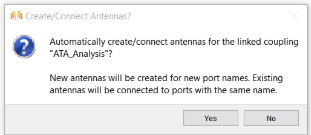
When you click OK, the Coupling Editor opens and asks if you’d like to create new antennas for each port in the HFSS or HFSS 3D Layout design. If you choose Yes, a new antenna is created in the EMIT design and associated with each of the ports. Choosing No leaves the ports unassigned to antennas and you can then associate the ports with EMIT antennas manually in the Coupling Editor.
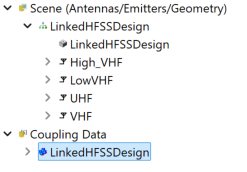
The linked design will appear below the Coupling Data node in EMIT's Coupling Editor. This contains the sweep information from the HFSS design and the simulated S-parameter data (if applicable). If Yes was selected, EMIT's Coupling Editor also shows a group node with a name matching the linked design and all the antennas created as children of this group node. The antenna names match the port names used in the HFSS design. A CAD model of the HFSS design is also imported as an obj model in EMIT (for visualization purposes only).
Right-clicking on the HFSS (or HFSS 3D Layout) project node results in the following options:
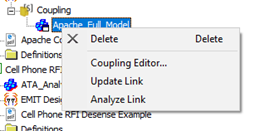
- Coupling Editor – opens the Coupling Editor.
- Update Link – updates the linked design in EMIT with any changes that have been made in the HFSS design.
- Analyze Link – runs the linked design. Note that the design is analyzed regardless of whether any changes have been made to the design that would require a new analysis.
If the far field patterns were linked with EMIT, the antenna's Type will be Linked Design and a few additional parameters will be shown:
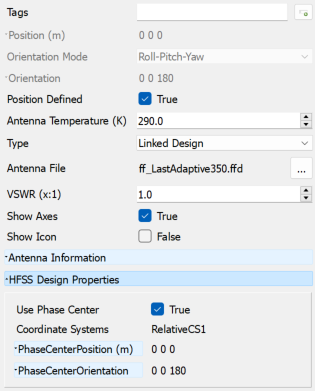
- Use Phase Center – If True, the antenna in EMIT will be positioned at the location of the reference coordinate system. If False, the EMIT antenna will be located at the linked design's corresponding port position.
- Coordinate Systems – The port's reference coordinate system in the linked design. This is the coordinate system that is located closest to the port center position.
- Phase Center Position – The location of the reference coordinate system in the linked design, relative to the global origin.
- Phase Center Orientation – The orientation of the reference coordinate system in the linked design, relative to the global origin.