
Adding Variables and Parameter Defaults from Components
To define a new variable or parameter default from a component:
- Display a component's Properties window one of three ways:
- Double-click the component.
- Select the component and click Edit > Properties.
- Select the component, right-click and select Properties.
The Properties window appears.
- Select the Parameter Values tab.
The Parameter Values tab displays.
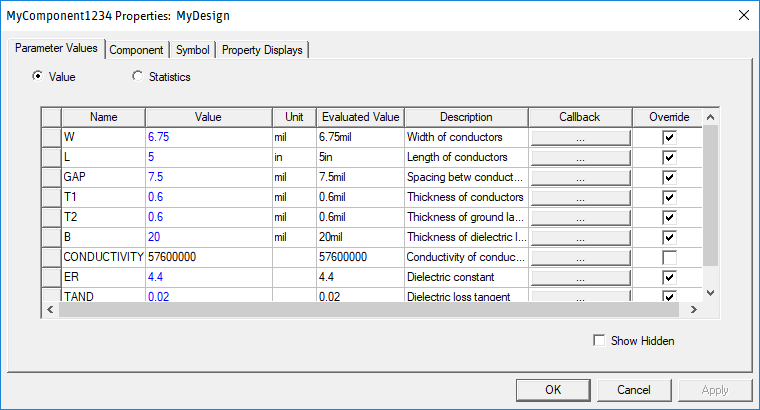
- Select the Value radio button.
- Select the Value field for the parameter you want to set equal to a local variable.
- Type the variable name. The name may not be the same as an intrinsic variable or constant.
Variable names may include alphanumeric characters and underscores ( _ ).
Important:If you wish to define a Project Variable, you must begin the name with a dollar sign ($).
When you enter a name beginning with $, you will only be allowed to define it as a Project Variable.
- Press Enter.
The Add Variable window appears.
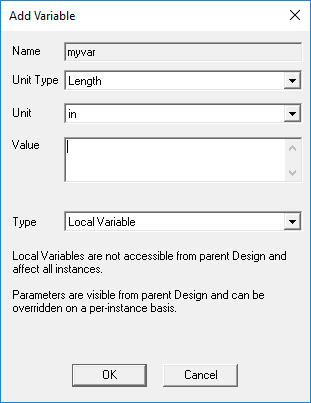
- Select a Unit Type and Unit using the drop-down menus.
- Enter a Value.
The Value can be a number, variable, or mathematical expression. The quantity entered will be the current (or default) value for the variable. If the mathematical expression includes a reference to an existing variable, this variable is treated as a dependent variable. The units for a dependent variable will automatically change to those of the independent variable on which the value depends. Additionally, dependent variables, though useful in many situations, cannot be the direct subject of optimization, sensitivity analysis, tuning, or statistical analysis.
Warning:If you include the variable’s units in its definition in the Value text box, do not include the variable’s units when you enter the variable name for a parameter value.
- From the Type drop-down menu, select Local Variable or Parameter Default.
Note:
If you wish to define a Project Variable, your variable name must begin with a dollar sign ($).
- Click OK to exit the Add Variable window.
- Click Apply to save your changes.
- Click OK to exit the Properties window.