
Setting Up a Parametric Analysis
A parametric setup specifies all of the design variations that Optimetrics drives the software to solve. A parametric setup is made up of one or more variable sweep definitions, which are a set of variable values within a range that you want the software to solve when you run the parametric setup.
You can define more than one parametric setup per design.
Once you have created a parametric setup, you can copy and paste it, and then make changes to the copy, rather than redoing the whole process for minor changes.
To add a parametric setup to a design:
- Click
 .
.
- Alternatively, right-click Optimetrics in the Project Manager and then click Add > Parametric on the shortcut menu.
- Select the Simulation tab in the ribbon, and select Parametric
from the drop-down menu under the Optimetrics icon:
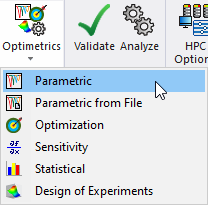
The Setup Sweep Analysis dialog box appears.
- Add a variable sweep definition.
After you define a parametric sweep, a shortcut menu becomes available when you right-click the setup name in the Project Manager.
Sweeping or using a complex variable is not allowed in any optimetrics setup, including optimization, statistical, sensitivity, and tuning setups.