
View the Results of the Analyses
When the analyses have completed, the reports that have been set up become valid.
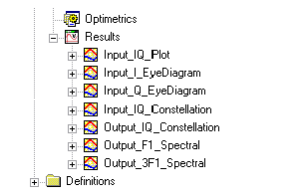
- From the Project Manager window, expand the Results
icon:
- Right-click the Input_IQ_Plot
report and select Modify Report to open the setup for the Rectangular
Plot report:
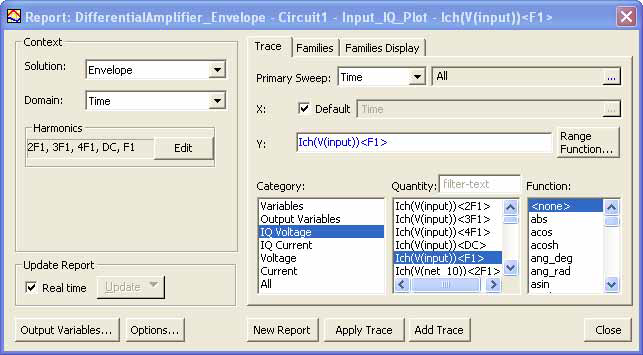
The IQ source drives input node input in our circuit. This window shows the setup for the In-quadrature (I) trace. The Q trace has a similar setup.
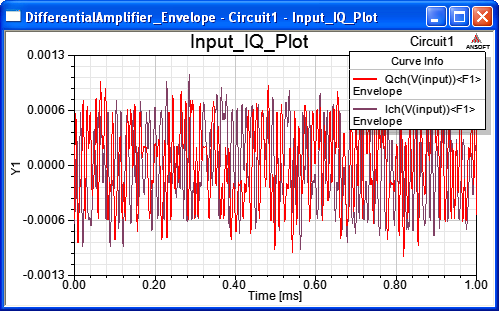
- Double-click the Input_IQ_Plot report to view the input I-Q data against time:
- Right-click the Input_I_EyeDiagram report and select Modify report:
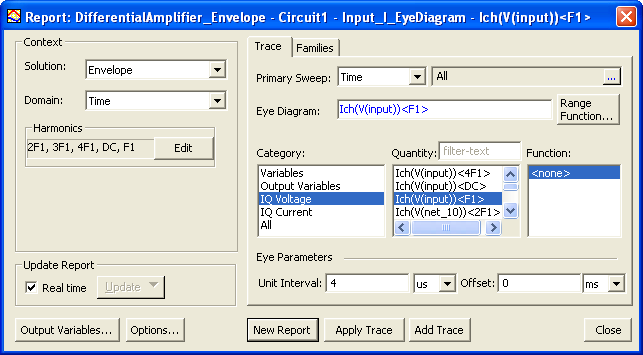
- The Unit Interval is equal to the symbol rate of 4ms.
- Double-click the Input_I_EyeDiagram report to view the I (in-quadrature) data as an eye diagram:
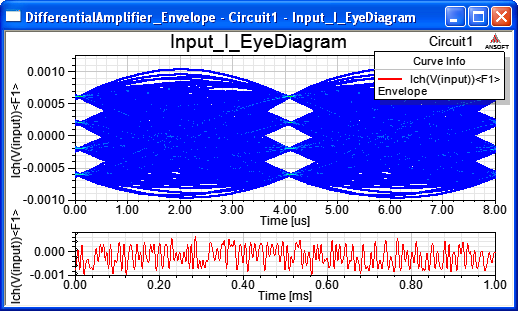
- The diagram illustrates the levels of amplitude (0.0006V, 0.0002V, -0.0002V,and -0.0006V) in the I-channel.
- Right-click the Input_Q_EyeDiagram report to view the Q (quadrature) data as an eye diagram:
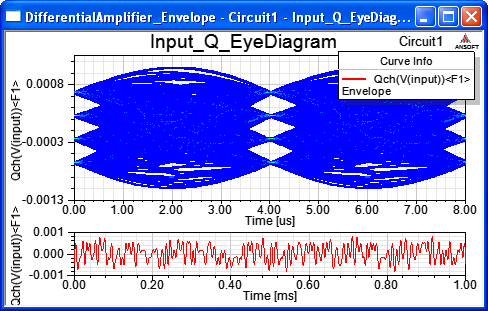
- This eye diagram was also created using a Unit Interval of 4ms.
- The diagram illustrates the levels of amplitude in the Q-channel, identical to those for the I-channel (0.0006V, 0.0002V, -0.0002V,and -0.0006V).
- Right-click the Input IQ Constellation report:
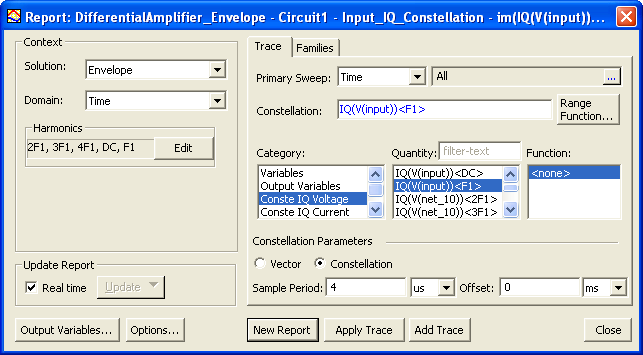
- In the Constellation Parameters group box, Constellation has been selected rather than Vector. This choice displays just the constellation points and not the transition vectors. The Sample Period is the same as the unit interval (4ms)
- Double-click the Input_IQ_Constellation report to view the input IQ data plotted as a constellation chart:
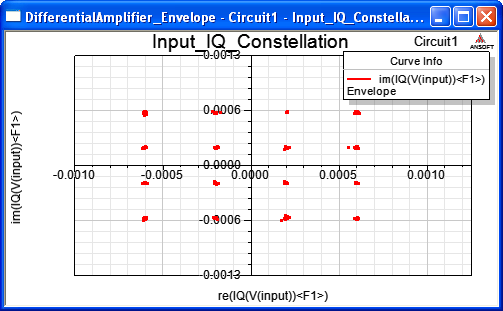
- The constellation diagram illustrates the clustering of the input I (real) and Q (imaginary) data points.
- Right-click the Output_Constellation and select Modify Report to open the definition:
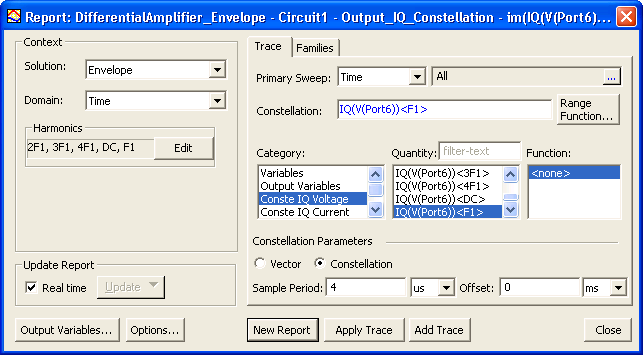
- The output node on our circuit is Port6. The sample period is 4ms as before.
- Double-click the Output_IQ_Constellation report to view the output data as a constellation chart:
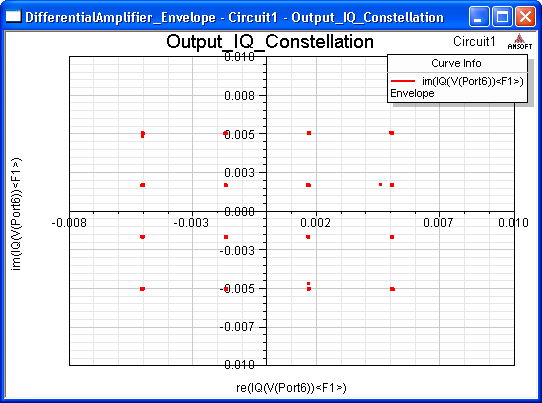
- The chart is not rotated, so no phase distortion is present.
- Right-click the Output_Spectral report:
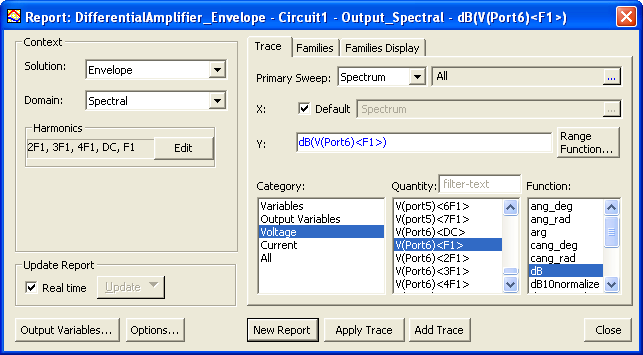
This window shows the setup for the F1 spectrum. The F3 setup is essentially the same.
- Right-click the Output_Spectral report to view the spectral result for the output at the first harmonic (F1) and the third harmonic (F3):
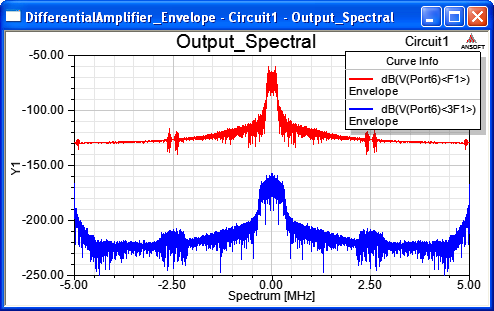
- This complex baseband representation is centered at 0Hz (DC).
- The spectrum at 3GHz (3F1) is approximately 100dB lower than the spectrum for the fundamental 1Ghz (F1).