
Validating Connectivity and Return Paths
Users can select and view objects that are physically connected to a component in a geometry. The objects can be viewed in the Design List and Editor Layout window, which can in turn be resized to zoom in on just the objects chosen. This workflow allows the user to trace and highlight connected paths across layers in a design in order to validate connectivity and return paths. And then, within this feature, examine complex geometry through selection, net highlighting, transparency, Z-scaling, and cross-sectioning in the 3D view.
To select objects physically connected to a specific object:
- Select the pertinent objects.
-
Right-click and select Nets > Select Physically Connected. Alternatively, click Layout > Nets > Select Physically Connected in the menu bar.All connected objects are selected.
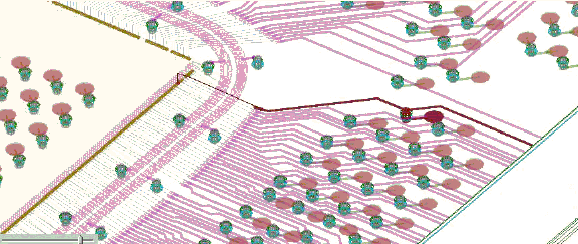
To view connected objects in the Design List and the Layout window:
- Right-click on one of the objects and select List Selection. The Design List opens with only its Layout tab.
- From the window's list, select the row of every object chosen in the Editor Layout window. Click Shift and Ctrl if appropriate.
- Click Fit Selected. The Layout window zooms in on the selected objects.
Not all geometry types work with the Select Physically Connected command. Connections through solderballs, planar bondwires, and very simple instances of 3D-extrusion are supported. Bondwires with 3D geometry and most 3D-extrusions cannot be tracked.