
Layout Editor Context Menu
When a Layout Editor design is active, right-click in the design to open the Context Menu menu. There are multiple varieties of this menu depending on the type of design being edited (Circuit, HFSS 3D Layout, etc). The following descriptions are a superset of the commands that may appear on the Context Menu menu, though they may appear in different order on the menu than the order in which they are presented here. For more information, search the Help or use the Help Index to find information on any of the commands that appear on the Context Menu menu for the Layout Editor.
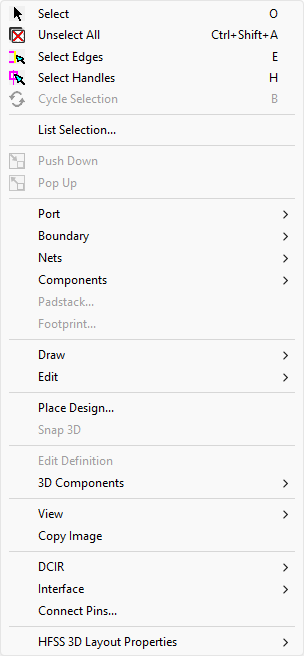
Select — sets cursor mode to selection of objects.
Unselect All — unselect all objects in the layout.
Select Handles — sets cursor mode to selection of object handles.
Select Edges — sets cursor mode to selection of object edges.
Cycle Selection — cycle selection of two or more objects that overlap. Each time you click Cycle Selection, a different one of the overlapping objects is selected.
List Selection — Opens the Design List window.
Push Down — switches the active CS to the next lower level.
Pop Up — switches the active coordinate system (CS) to the next higher level. Relative CSs can be created within other relative CSs to form multiple relative levels.
Snap to Nearest Signal Layer — snaps the selected object to the nearest signal layer. Enabled when the active selection is a layout subdesign object.
Port — opens a drop-down menu containing commands for operating on ports.
Boundary — choose to Create PEC, Create RLC, or Remove a boundary.
Nets — opens the Layout Editor Nets drop-down menu.
Components — choose to Create or Dissolve a component.
Padstack — opens the Edit Padstack Definition window. Enabled when the active selection includes a padstack.
Footprint — opens the Footprint Editor. Enabled when the active selection includes a footprint.
Draw — opens the Layout Editor Draw drop-down menu.
Edit — opens the Layout Editor Edit drop-down menu.
Place Design — opens the Place Design window. Select two components to activate.
Snap 3D — after selecting a 3D component, select to change the component's 3D origin to the electrical connection point (for pins or vias) or the center of the Layout geometry or edge, in the absence of an electrical connection point.
Edit Definition — creates a separate, editable version of the selected component.
3D Components — opens a drop-down menu containing commands for rotating or restricting the orientation of a selected 3D component.
View — opens the Layout Editor View drop-down menu.
Copy Image — create a global copy of the selected objects on the clipboard for pasting into a different application.
DCIR — opens a drop-down menu containing DCIR elements to add to a design (i.e., Voltage Source, Current Source, Terminal and Voltage Probe). The same elements are available from the Layout ribbon.
Interface — opens a drop-down menu containing interface ports and ground point to add to a design (i.e., Create Interface port, Create Ground, Add Interface Ports at Unconnected Pins and Add Grounds at Unconnected Pins). Interface ports/grounds are also available from the Layout ribbon.
Connect Pins — after selecting one component and one subdesign (or a subdesign close to a component with matching pins), opens the Pin Connectivity window.
Activate — causes the activation of one or more selected components.
Deactivate (Open) — temporarily converts the component into an open circuit. Activate restores a deactivated component to the circuit.
Deactivate (Short) — temporarily converts the component into a short circuit. Activate restores a deactivated component to the circuit.
IC Mode Commands
The following options appear when the IC mode environment is active.
List Selection — Opens the Design List window.
Port — opens a drop-down menu containing commands for operating on ports.
Boundary — choose to Create PEC, Create RLC, or Remove a boundary.
Nets — opens the Layout EditorNets drop-down menu.
Components — choose to Create or Dissolve a component.
Padstack — opens the Edit Padstack Definition window. Enabled when the active selection includes a padstack.
Draw — opens the Layout Editor Draw drop-down menu.
HFSS 3D Layout Properties — opens a drop-down menu that allows you to define HFSS 3D Layout Properties.
Shortcut Ribbon (IC Mode)
The shortcut ribbon is unique to IC mode. Right-click anywhere in the Layout Editor to view an additional toolset atop the expected shortcut menu.
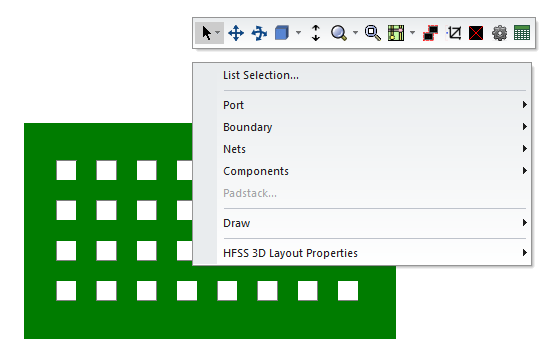
The shortcut ribbon provides quick access to a variety of features, which differ depending on whether an element in the Layout Editor is currently selected.
Shortcut Ribbon Buttons - No Selection

- Select - choose from applicable selection modes (i.e., Select, Select Edge, Select All, Unselect All, and Cycle Selection). Refer to Selection Modes in the Layout Editor.
- Pan - Click+hold and drag to move around on the Layout Editor. Refer to Panning the View.
- Rotate - Click+hold and drag to rotate the Layout Editor along the X, Y, and Z axes. Refer to Rotating the View.
- Reset orientation - reset the current view to several default orientations (i.e., Top, Bottom, Left, Right, Front, Back, Trimetric, Dimetric, and Isometric). Refer to Apply an Orientation to the Current View.
- Stretch Z - opens the Set Layer Thickness Scale Factor window, which allows users to change layer thickness, or check the Dynamic box.
- Dynamic zoom - choose from several modes (i.e., Zoom, Zoom Area, Zoom In, Zoom Out, and Previous Zoom), then click+hold and drag to scale the Layout Editor accordingly. Refer to Zooming In and Out.
- Fit All - reset the current view and zoom modes to best view all of the design elements at once. Refer to Fitting All Objects in a View Window.
- Display Mode - choose from several display modes (i.e., Display Default maintains current transparency settings, Display Sketch adjusts to display a wireframe of the design, Display Solid maintains the wireframe settings per layer).
- Wrap Geometry - all geometry elements are compared to the set Tolerance. Every element that meets or falls within the value is wrapped. Refer to Wrap Geometry in IC Mode.
- Remove small metal islands - all elements of the design are compared to the set Tolerance. Any piece of metal the same size or smaller than the set value is removed from the design. Refer to Removing Small Islands in IC Mode.
- Settings - opens the Geometry Simplification Settings window, which gives user access to most of IC mode's unique settings. Refer to The Geometry Simplification Settings Window.
- Layout list - opens the Design List window, displaying all of the designs current primitives (i.e., via the Layout tab) and nets (via the Nets tab).
Shortcut Ribbon Buttons - Selection

- Group Vias - choose from four methods to group the selected vias (i.e., Persistent, Non-Persistent, Combine, and Dissolve). Refer to Via Grouping in IC Mode.
- Snap Vias - align the selected vias. Refer to Via Snapping in IC Mode.
- Snap Primitives - align the selected primitives. Refer to Primitive Snapping in IC Mode.
- Wrap Geometry - all geometry elements are compared to the set Tolerance. Every element that meets or falls within the value is wrapped. Refer to Wrap Geometry in IC Mode.
- Remove small metal islands - all elements of the design are compared to the set Tolerance. Any piece of metal the same size or smaller than the set value is removed from the design. Refer to Removing Small Islands in IC Mode.
- Settings - opens the Geometry Simplification Settings window, which gives user access to most of IC mode's unique settings. Refer to The Geometry Simplification Settings Window.
- Fit All - reset the current view and zoom modes to best view all of the design elements at once. Refer to Fitting All Objects in a View Window.
- Zoom to selection - reset the current view and zoom modes to best view the selected design element.
- Show Physically Connected Filtering - every element physically connected to the selected element is immediately highlighted. Refer to Viewing Physically Connected Elements in IC Mode .
- Erase - remove the selected element from the design.
- Flatten Component - flatten the heiarchy of the selected components.
- Union - combines selected polygons, removing internal boundaries.
- Subtract - remove all selected polygons except the first placed, as well as all parts of the original polygon that were intersected.
- Intersection - remove all selected polygons except for the intersecting region.
- Duplicate the selected items along a line - create a copy of the selected component on either the same layer or across multiple layers (i.e., select either In Layer or Across Layers....
- Convert Polygons to Circles - selected polygons are compared to the set Minimum Area Ratio. Every polygon that meets or falls within the value is formed into a circle. Refer to Convert Polygons to Circles.