
Adding Sources, Probes, and Terminals
The DC IR workflow wizard’s Configure DC IR Analysis window can be used to generate any of the new element types attached to pin groups of existing components. Alternatively, the new elements can be generated on the Layout tab.
Both source types (voltage or current) and voltage probes are modeled as two terminal elements, similar to circuit ports, and are generated in a similar way. Sources can be connected to padstack instances, pin groups, or user-specified points in the model space.
Adding Voltage Sources, Current Sources, and Voltage Probes
The following example explains how to add a voltage source to the project. Complete the same steps to add as many voltage sources, current sources, voltage probes, or DC terminals as necessary.
DC terminals are not currently supported within the IC Mode environment. The terminal icon will not appear in either the menu or ribbon.
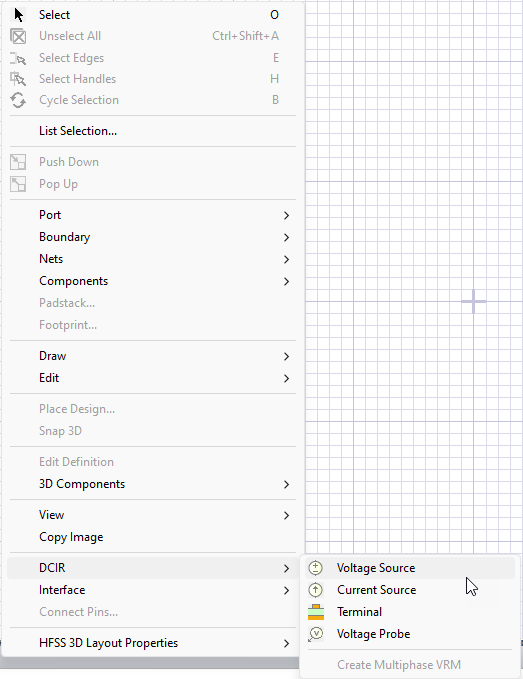
- From the Layout Editor, do one of the following to add a voltage source, current source, voltage probe, or DC terminal.
- From within the design area, right-click and select the appropriate element.
- From the Layout ribbon, select the appropriate element.

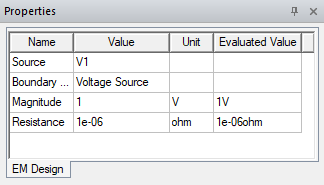
Note: DC terminals can also be attached to pin groups or pins. Select a pin group or pin, then click the Terminal icon. A DC terminal is generated on each selected item that does not already have an associated terminal of some kind.Element properties can be edited in the Properties window.
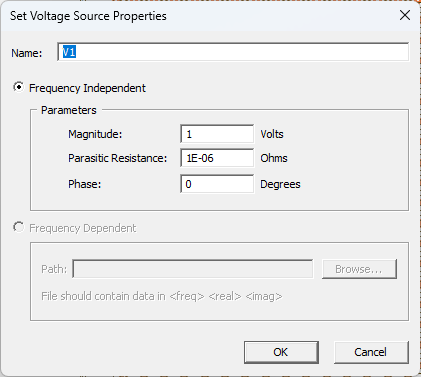
Or right-click the source within the Project Manager window and select Properties to edit from within the source's respective Properties windows.
- From within the design area, right-click and select the appropriate element.
- Click the location where you want to place the element. The element appears in the Project Manager window (i.e., under DC Terminals or Sources).
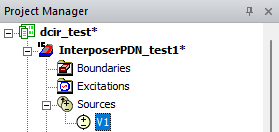
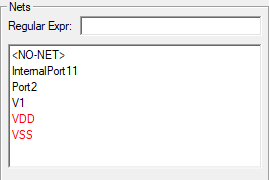
The element also appears in the Nets window (e.g., V1).
Element properties can be edited in the Properties window.
Or right-click the source within the Project Manager window and select Properties to edit from within the element's respective Properties windows.