
Starting Twin Builder and Creating a New Project
Twin Builder can be started like all Windows applications - by using the Start menu on the Windows task bar.
-
Click Start, and select Programs > Ansys EM Suite version > Ansys Twin Builder version.
By default, opening Twin Builder creates a new project named Projectn and inserts a new design named TwinBuildern, where n is the order in which each was added to the current session. A project is a collection of one or more designs saved in a single *.aedt file.
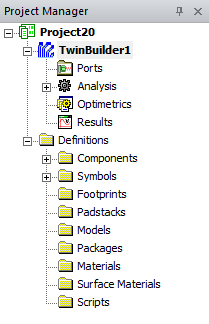
The new project, which appears in the Project Manager window, contains a file structure that organizes design elements such as Ports, Analysis, Optimetrics, and Results. Project Definitions such as Components, Symbols, Models, Packages, Materials, and Scripts are also listed.
The Project Manager window shows the projects loaded into Twin Builder. Each project may consist of one or more designs. The Project Manager window contains details about all open Twin Builder projects in a form known as the project tree, as shown below:
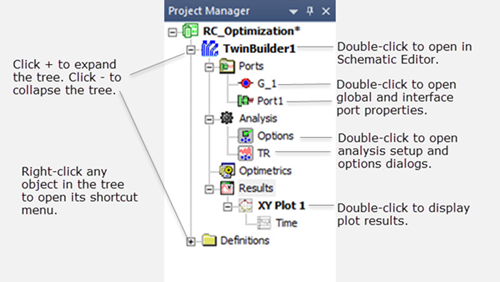
The top node listed in the project tree is the project name. Expand the project icon to view all the Twin Builder design information and definitions for the project. If there are multiple designs in a project, each design’s ports, analysis setup, and results are displayed as entries in a separate sub-tree.
The label of the selected Project Tree element that is active (that is, has focus) may be rendered in bold text; or a small “window” icon may display next to the selected Project Tree element. The icon will be gray if the editor or plot window associated with the selected element is closed, or not in focus. Clicking the gray icon will open the window and bring it into focus.
Right-clicking a folder or item opens a shortcut menu that allows you to perform various operations. For example, right-clicking the analysis icon for a design displays a menu similar to this:
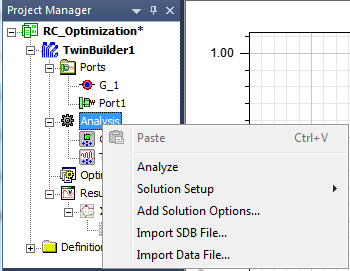
Virtually all project editing and management can be done from the Project Manager window using the right mouse button shortcut menus. Many of these menus are also available from the main menu bar in the Twin Builder menu.
Once you insert a Twin Builder design into a project, it is listed as the second node in the project tree. It is named TwinBuildern by default, where n is the order in which the design was added to the project. Expand the design icon in the project tree to view all of the specific data about the model, including its solution and post-processing information.
The TwinBuildern node contains the following project details:
Ports
Displays the interface and global ports added to a Twin Builder design.
Analysis
Displays the solution setups and solution options for a Twin Builder design. A solution setup specifies how Twin Builder will compute the solution. The solution options provide settings such as the integration formula, iterations, and maximum and minimum errors.
Optimetrics
Displays any Optimetrics setups added to an Twin Builder design.
Results
Displays any post-processing reports generated.
Refer to The Project Manager Window in the main Twin Builder help for more information.
- To rename the design, right-click Twin Buildern in the project tree, and choose Rename on the shortcut menu.
- Type a name of your choosing, and then press Enter to complete the change.
|
Note |
To use the example files provided for this Tutorial, choose File > Open Examples from the main menu and navigate to the example *.aedt files in the Tutorial Examples folder in C:\Program Files\AnsysEM\<version>\Win64\Examples\Twin Builder\Modelica Tutorial. |