
Model Parameters
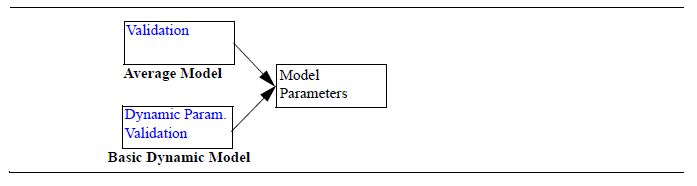
The Model Parameters page shows the extracted values of the parameters, their allowed range, default values, and a brief description.
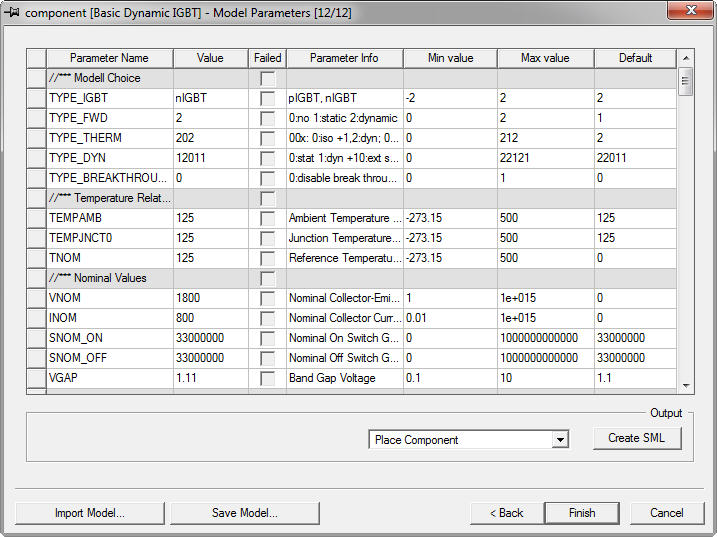
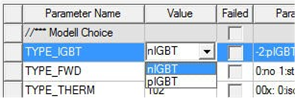
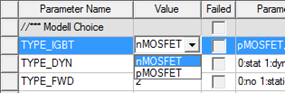
Select the N- or P-type of an IGBT or Power MOSFET. By default, an N-type IGBT component is created. To create a P-type IGBT, click the value field of the TYPE_IGBT line and switch the value to pIGBT or pMOSFET.
Note:
You cannot change this setting after the characterization is finished and the new component is created.
To complete the device characterization process:
- To complete the characterization process and place the model in the schematic:
- Click Finish. The Model Parameters dialog box closes.
- Click and drag the component to a location on the schematic.
- Click the mouse at the desired location to place the component.
- Press Esc to exit placement mode.
The component has now been successfully characterized and placed on the schematic. A copy of the component definition is available in the Components tab of the Component Libraries window.
- To complete the characterization process and create a test circuit for the characterized component:
- Select a type of test circuit in the combo box. The test circuits that are available for a particular component depend on the type of the component and its configuration.
- Click Finish. The Model Parameters dialog box closes, and the test circuit with the characterized component appears in a new project window.
- To complete the characterization process and create a stand-alone SML model of the device:
- Click Create SML to create a parameterized IGBT or Power MOSFET component. The Save As dialog box appears.
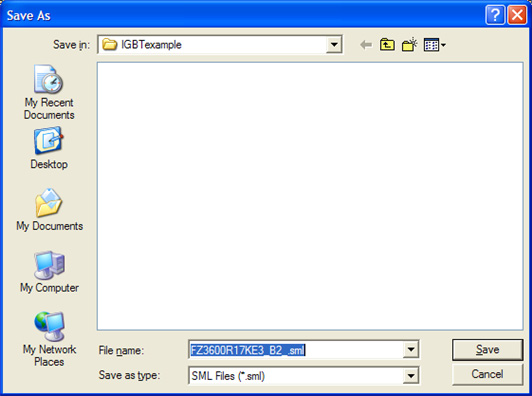
- The component name specified in the Component Information dialog box is the file name.
- Browse to the location you want to store the component model and click Save. A stand-alone SML model is now available for import or to distribute.
- Click Finish to complete the Characterize Device wizard and place the component on the schematic, or click Cancel to complete the wizard without placing the component.