LPV Wizard
Use the LPV Wizard option under Twin Builder > Toolkit to process the thermal step response training data of a local state-space (SS) Linear Parameter Varying (LPV) Reduced Order Model (ROM).
Procedure
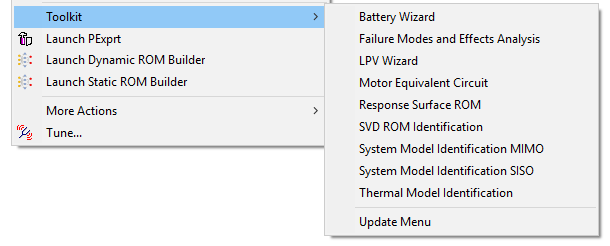
- Select Twin Builder > Toolkit > LPV Wizard. The LPV Wizard dialog box appears.
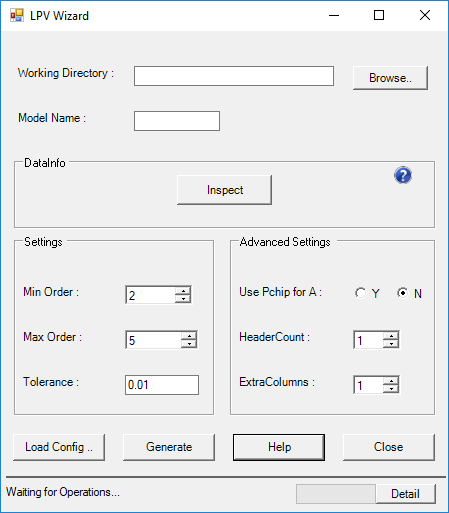
- Click Browse and designate your working directory in the Working Directory field.
-
Add a Model Name. This is the generated Modelica name. You don't have to add the .mo suffix; when your model generates, it will be added. Use alphanumeric characters only.
- In the DataInfo section, click Inspect to review your dataInfo.txt file, including these elements:
- InputNames – The names of the inputs.
-
stepValues – The ROM builder assumes that the step response training data represents a unit step response. If this is not the case, and if it will take a certain amount of (heat) step power or energy to achieve the temperature rise, you must enter that constant amount into the stepValues field. This value must equal the number of inputs.
-
parameterNames – The names of the scheduling parameters.
-
parameterValues – The values of the scheduling parameters.
-
outputNames – The names of the outputs; the number of outputs should match the list of output names.
- In the Settings section, populate these fields:
-
Min Order – Enter the minimum order for the single scheduling parameter LPV. The value must be equal to or greater than 2.
-
Max Order – Enter the maximum order for the single scheduling parameter LPV. The value must be equal to or less than 5, as a local state-space LPV ROM is best suited for low-order input-output representations.
-
Tolerance – Enter the tolerance for step convergence.
- In the Advanced Settings section, populate these fields:
-
Use Pchip for A – Select Y to use Pchip interpolation for the initial interpolation step; select N to use positive interpolation. Using positive interpolation in the initial step can help assure stability throughout every interpolation step. All subsequent interpolation steps utilize Pchip interpolation.
-
HeaderCount – Enter the number of lines to designate as header rows at the top of each input file. These rows will be ignored. Make sure that this number is consistent in all training data files, or your final results could be inaccurate.
- ExtraColumns – If you have columns in your training data files that LPV Wizard should ignore, enter that number of columns in this field. For example, when generating training data from Fluent, the first column often represents the time index, which should be ignored as this information is not needed by the ROM builder. In this case, setting ExtraColumns to 1 instructs the parser to ignore the first column of training data.
-
Click Load Config to load the configuration file, which contains the settings above in a valid configuration format.
-
Click Generate to create or update the configuration (.lpvcfg) files in the working directory, and to generate the SS-LPV ROM macromodel in Modelica format.