
Viewing a Matrix Table
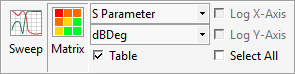
To view the S, Y or Z matrix:
- Use the parameter drop-down menu to select S Parameter, Y Parameter, or Z Parameter.
- Click Matrix.
- Enable the Table check box.
The settings in the ribbon will look like this:
The S, Y, or Z matrix displays.

- Maximum values are highlighted in red stripes. If Select Transpose is enabled, transposes are highlighted in red stripes as well.
- Minimum values are highlighted in blue stripes.
- Selected cells appear in solid blue. If Select Transpose is enabled, the transpose is highlighted in blue as well.
- Double-clicking a cell switches to a matrix cell view, in which values for all frequencies for that cell are displayed. The double-clicked frequency is highlighted with solid red shading.
- Complex values are compared using their modulus. When multiple frequencies or variations are selected, the data display depends on the Multiple Frequency Statistics setting.