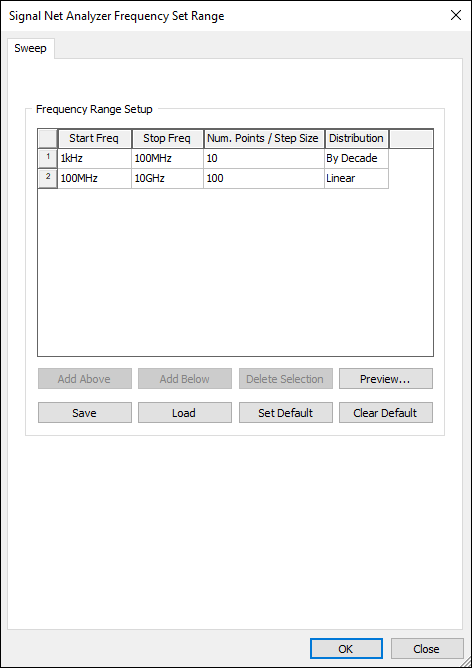
Changing Signal Net Analyzer Options
You can change the Signal Net Analyzer frequency range and coupling distance settings.
To modify these settings from SIwave:
- Click Simulation.
- Use the Signal Net Analyzer drop-down menu to select Signal Net Analyzer Options.
- Use the radio buttons to select either a Single frequency or a Frequency range.
- If you selected a range, click Set Range. Otherwise, proceed to Step 12.
- Enter a value for Start Frequency.
- Enter a value for Stop Frequency.
- Specify the Number of Solution Points.
- Use the Distribution drop-down menu to select the method for distributing points. You can select either:
- Linear – the difference between the start frequency and the stop frequency is calculated and is divided by the number of solution points.
- By Decade – distributes the number of points specified logarithmically, over each decade.
- If appropriate, add and remove rows using the Add Above, Add Below, and Delete Selection buttons. You can also Save your settings as an SIwave Frequency Sweep Distribution File (*.sfsdf) or Load a previously saved file.
- If appropriate, click Preview to view the frequency list.
- Click OK to return to the Signal Net Analyzer Options window.
- Use the Z0 Computation Frequency drop-down menu to select a frequency.
- Specify the coupling distance used to locate coupling between traces during load of the SNA main grid, and during impedance plot & transient plot. The default setting is Coupling distance of 8 times the corresponding trace width. Change this by selecting User defined Coupling distance and entering a value, in mils.
- Click OK to save your settings.
The Signal Net Analyzer Options window appears.
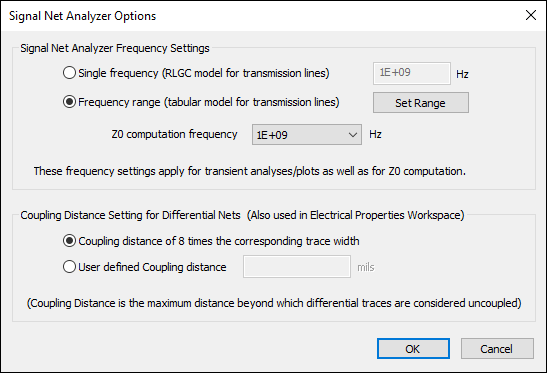
The Signal Net Analyzer Frequency Set Range window appears.