
Importing GDSII Files
To import an existing GDSII file design into SIwave:
- Click Import > GDSII.
- Select the file you want to open. By default, files with .gds and .strm extensions are displayed.
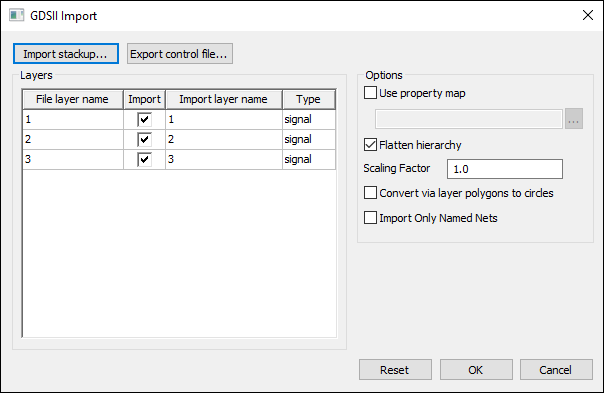
- Click Import stackup and options to import the information from an xml control file or a layer mapping file into the window. The layer choices and information in the window are replaced with the layer information from the imported file.
- Click Export control file to write to an xml control file based on the information in the window to the location specified.
- From the Layers panel:
- Select the Import check box to specify which layers to import.
- Modify the Import layer name if needed.
- Modify the Type if needed. This identifies the layer type that will be used to place each layer in the file. Use via type to identify a layer as a "via layer" that can be used to create vias in the design. When a GDSII layer is marked to be a via, the objects on the layer will be used to create vias that connect from the previous layer to the following layer (as found in the grid control of the import window). The top and bottom layer cannot be marked as via layers because there are not two layers to connect, and there also may not be more than one consecutive via layer.
- From the Options panel:
- Click Use property map and the browse button to specify a Property Mapping File.
- Click Flatten hierarchy to flatten the hierarchy in the original GDSII design or preserve it.
- Click Convert via layer polygons to circles to simplify via creation by converting polygons to circles on layers marked as via layers. SIwave finds the center of the polygon and treats it as the center of the circle. The radius is the distance to one vertex from the center. A polygon is converted to a circle only when the difference in area between the polygon and the circle is less than 10 percent of the area of the circle.
- Click OK to import the file.
- Select a design to be imported, and click OK.
The Open window appears.
The GDSII Import window appears.
The Choose EDB Design window appears.
Property Mapping File
The format for the .txt property mapping file is:
<stream id> <object type> <destination property name>
If you specify a property mapping file, the GDSII import creates properties with id and object type combinations found in the map file using the property name specified. The import creates properties on id and object type combinations not found in the mapping file with the name STREAM PROPERTY #<strmid>.
Valid objects types are: Dot, Line, Path, Polygon, Rect, Text, ArrayInst, and ScalarInst.
If you do not specify a mapping file, the import interprets properties values as a list of properties separated by the property separator character with the form:
<property name> = <property value>
For example, height=10, width=20 yields two properties, the first named height with a value of 10, and the second named width with a value of 20.
Lines in the file that are blank and lines beginning with the comment character # are ignored.
Sample Property Mapping File
|
#Stream |
ID |
Object Name |
|
1 |
Rect |
instP11 |
|
2 |
Polygon |
poly1 |
|
3 |
Path |
sigName |
|
4 |
Text |
pad32 |
|
5 |
Pin |
io_term |