
Importing DXF Files
To import an existing DXF file design into SIwave:
- Click Import > DXF.
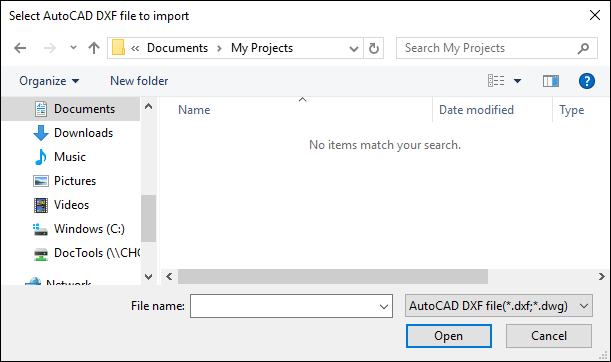
- Select the file you want to open. By default, files with .dxf and .dwg extensions are displayed.
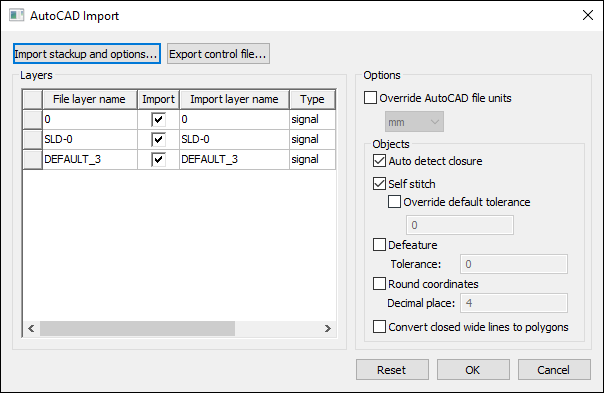
- Click Import stackup and options to import the information from an xml control file or a layer mapping file. The layer choices and information in the window are replaced with the layer information from the imported file.
- Click Export control file to write to an xml control file based on the information in the window to the location specified.
- From the Layers panel:
- Select the Import check box to specify which layers to import.
- Modify the Import layer name if needed.
- Modify the Type if needed. This identifies the layer type that will be used to place each layer in the file. Use via type to identify a layer as a "via layer" that can be used to create vias in the design. When a GDSII layer is marked to be a via, the objects on the layer will be used to create vias that connect from the previous layer to the following layer (as found in the grid control of the import window). The top and bottom layer cannot be marked as via layers because there are not two layers to connect, and there also may not be more than one consecutive via layer.
- From the Options panel:
- Select the Override AUTOCAD file units check box to modify the units.
- Select Auto detect closure to check polylines to see whether or not they are closed. If a polyline is closed, a polygon is created in the design.
- Select Self stitch to cause multiple straight line segments to be joined to form polylines. Tolerance is used to decide if two coordinates are the "same" and should be considered for joining. If the resulting polyline is closed, a polygon is created. You have the choice of two different tolerances for self stitching: Default Tolerance and explicit Tolerance. Default tolerance is a geometric tolerance based on the extents of the project being imported. You can Override default tolerance and enter a value for explicit tolerance to expand the tolerance based on your knowledge of the dxf project being imported.
- Select Defeature to remove certain small features in the imported geometry to reduce complexity. The features that are removed include multiple points placed within the specified distance, thin or narrow regions ("thins" and "spikes"), and extraneous points along straight line segments. Specify the distance in the Tolerance box.
- Select Round coordinates to round all imported data to the specified number of decimal places.
- Select Convert closed wide lines to polygons to import wide polylines as polygons. You have more flexibility to change the shape of such an object when it is imported as a polygon.
The Open window appears.
The AutoCAD Import window appears.
The following DXF entities can be imported as 2 dimensional objects from AutoCAD:
- Arc
- Solid
- Circle
- Block
- Ellipse
- Array of blocks (MInsert)
- 2D Polyline, Polyline, and Line
Click OK to import the file.