
Importing Altium Designer R10 ODB++ Design
To import an existing ODB++ design from Altium Designer R10 into SIwave:
- Click Import > ODB++ Design.
- To import a file:
- Select File from the ODB++ archive type drop-down menu.
- Select the ODB++ design you want to open. Click Browse to select a design file. By default, files with .tgz extensions are displayed.
- To import a directory:
- Select Directory from the ODB++ archive type drop-down menu.
- Select the ODB++ design you want to open. Click Browse to select a design directory.
- Click the Use RLC part value file check box if you want to use a part value file. Click Browse to select an existing part value file. By default, files with .rlc extensions are displayed.
- Click the Use XML control file check box if you want to use a control file. Click Browse to select an existing control file. By default, files with .xml extensions are displayed.
- Choose Import to complete the selection.
The Import ODB++ Design window appears. You can import a file or directory.
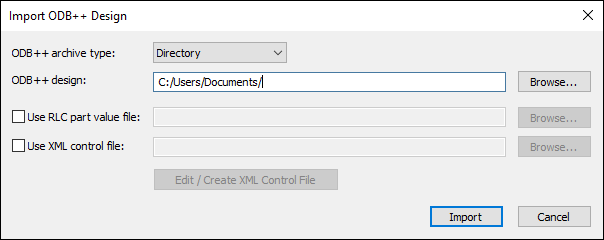
To edit the selected control file or create a new XML control file, click the Edit/Create XML Control File button. The XML Control File Editor opens. Make an appropriate additions or modifications, assign a name for a new control file, and click Save.