
Generating Circuit Elements
To generate circuit elements:
- Click Tools > Generate Circuit Element on Components.
The Circuit Element Generation Dialog window appears.
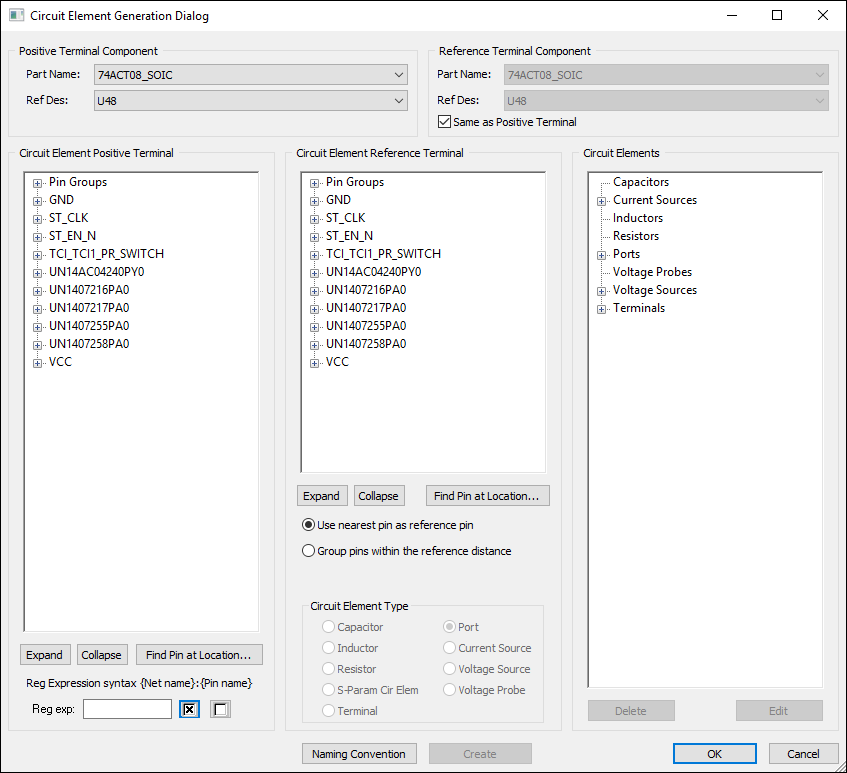
- From the Positive Terminal Component area, use the Part Name and Reference Designator drop-down menus to select the positive component.
- From the Reference Terminal Component area, use the Part Name and Reference Designator drop-down menus to the select the reference component. Alternatively, check the Same as Positive Terminal check box to select the same component.
- From the Circuit Element Positive Terminal area, select the pins or nets you want to set as the positive terminals. Expand and collapse items in the tree using the plus signs (+), or use the Expand and Collapse buttons. If you want to find a pin using its X and Y coordinates, click Find Pin at Location. You can also select pins for the positive terminal using regular expressions.
- From the Circuit Element Reference Terminal area, select the pins you want to set as negative terminals. Expand and collapse items in the tree using the plus signs (+), or use the Expand and Collapse buttons. If you want to find a pin using its X and Y coordinates, click Find Pin at Location.
- The radio buttons allow you to select distance options. You can Use nearest pin as reference pin, or Group pins within the reference distance.
- From the Circuit Elements area, select the circuit element you want to generate.
- From the Circuit Element Type area, select the circuit element's type.
- If you want to specify the naming conventions, click Naming Convention. Otherwise, the default for that element's type will apply.
- Click Create.
If you select a net as the positive terminal, a circuit element is created for each pin in the positive terminal.
If you select Group pins within the reference distance, you must specify distance and units. Distance is assumed to be from pin center to pin center. A pin group will be created with all pins within that distance. A port will be created with this pin group as the negative terminal. If no pins are found within that specified distance, you will be prompted to increase the distance.
The new element is listed in the Circuit Elements box. For each selected pin or pin group in the Circuit Element Positive Terminal, a port is created. The ports are visible in the Modeling workspace; positive terminals are displayed in red, while negative terminals are displayed in green.
To delete a generated circuit element:
- From the Circuit Elements area, select the element you want to delete.
- Click Delete Selection.
To modify a generated circuit element:
- From the Circuit Elements area, select the element you want to modify.
- Click Edit.
A properties window appears with options specific to the circuit element type.
Using Regular Expressions to Select Pins
The syntax for regular expressions is net name:pin.
To use regular expressions, enter the name of the nets and pins you want to select in the Reg exp field, using wild cards when appropriate.
The following regular expressions are supported:
|
* |
Matches any sequence of characters. |
|
? |
Matches any character. |
These match a text pattern and use special constructions to represent strings or single characters. Examples:
net* selects all pins in nets that start with "net"
net*:1* selects pins with names starting in "1" within nets starting with "net"
A*:3? selects pins 31, 32, 33, 34,... in nets A1, ACC, AGND, AGND2,...