Exporting an HFSS Project
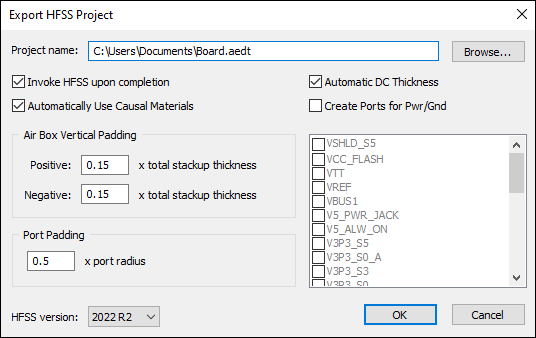
To export the model as an HFSS project (*.aedt):
- Click Export.
- From the 3D Exports area, click Export to HFSS 3D.
- From the Project Name field, enter a path and name for your project, or click Browse to select one.
- Check options as appropriate:
- Invoke HFSS upon completion – starts HFSS once the project has been exported.
- Automatically use Causal Materials – enables HFSS to automatically use causal materials.
- Automatic DC Thickness – enables HFSS to automatically define DC thickness.
- Create Ports for Pwr/Gnd – when selected, you can use the check boxes below to select power/ground nets from which to create ports.
- From the Air Box Vertical Padding area, specify the surrounding air box thickness. Air box thickness is given as a factor of the total layer thickness.
- From the Port Padding area, specify the port padding.
- Use the HFSS version drop-down menu to select the version of HFSS you wish to export.
- Click OK to export the file.
The Export HFSS Project window appears.