
Exporting a Q3D Project
Q3D Extractor projects may be immediately solvable, depending on how you set up the ALinks project. Keep the following in mind:
- Each conductor in the generated 3D model must have at least one source terminal and exactly one sink terminal.
- The IC die contact surfaces of wire bonds and flip-chip solder bumps are identified as current sink terminals by ALinks.
- The PCB contact surfaces of solderballs in BGA designs are identified as current source terminals.
If any conductor in the 3D model does not satisfy these criteria, and the Mark floating objects as non-model option is selected, all solid objects in this conductor are defined as non-model objects. Such objects are invisible by default and are not included in the solution process. They can, however, be changed into model objects using the 3D modeler.
Assign bondwire models to WIREBOND layers, and solderball models to appropriate padstacks, to allow ALinks to set up Q3D Extractor projects as completely as possible.
If a plane geometry is sliced in ALinks, there is a good chance that floating conductors will be present in the resulting 3D model. If the Mark floating objects as non-model option is selected, objects that make up floating conductors are identified as non-model objects; if they are required for a Q3D Extractor solution, you must change the floating objects to model objects using the 3D Modeler, and then assign boundaries appropriately.
To export a model as a Q3D Extractor project (*.aedt):
- Click Export.
- From the 3D Exports area, click Export to Q3D Extractor.
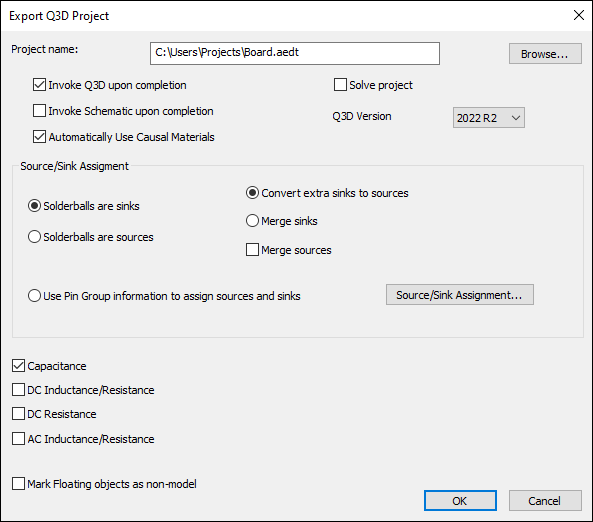
- From the Project Name field, type the path and file name for the export, or click Browse to select a destination.
- Use the Q3D Version drop-down menu to select the version for export.
- Select an appropriate options:
- Invoke Q3D upon completion – check this option to open Q3D Extractor after export.
- Invoke Schematic upon completion – check this option to invoke Q3D Extractor as a Project Schematic. Note: This option requires checking AC Inductance/Resistance.
- Automatically Use Causal Materials – check this option to enable Q3D Extractor to automatically use causal materials.
- Solve project – check this option to start the solution process after Q3D Extractor is opened. Note: For UNIX machines, the qp3d executable must be in the path.
- From the Source/Sink Assignment area, determine whether solderballs are sinks or sources.
- If you wish to use pin groups to export the portion of the design that includes the pin group, select User Pin Group information to assign sources and sinks.
- From the Source/Sink Assignment area, select whether to Convert extra sinks to sources or Merge sinks.
- If you need to change terminal designations, click Source/Sink Assignment.
- Instruct Q3D Extractor to compute the
selected matrices once the project is exported. Options include: Capacitance, DC Inductance/Resistance, DC Resistance, and AC Inductance/Resistance.
- If you select DC Inductance/Resistance, the DC Resistance option becomes unavailable.
- If appropriate, select Mark floating objects as non-model to make the objects without sources and sinks as non-model. They are not included in the simulation.
- Click OK to create the project.
The Export Q3D Project window appears.
The Terminal Assignment window appears. All bondwire and solderball terminals are displayed. To make an assignment, select an item in the list, select Source, Sink, or Float, and click Apply.
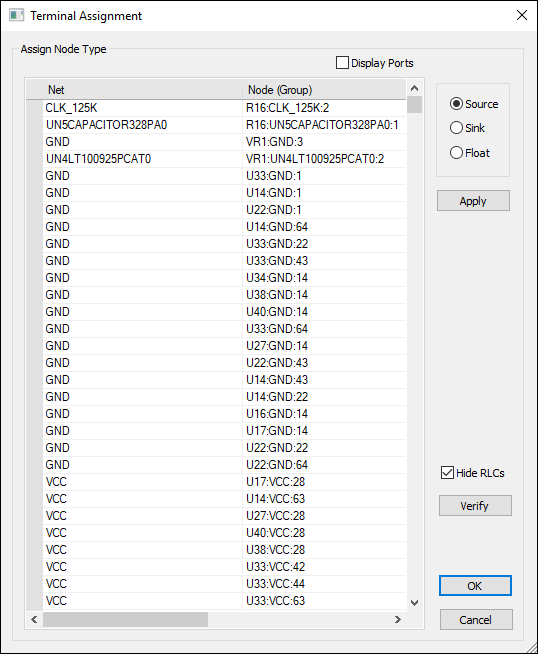
Click OK to save and return to the Export Q3D Project window.