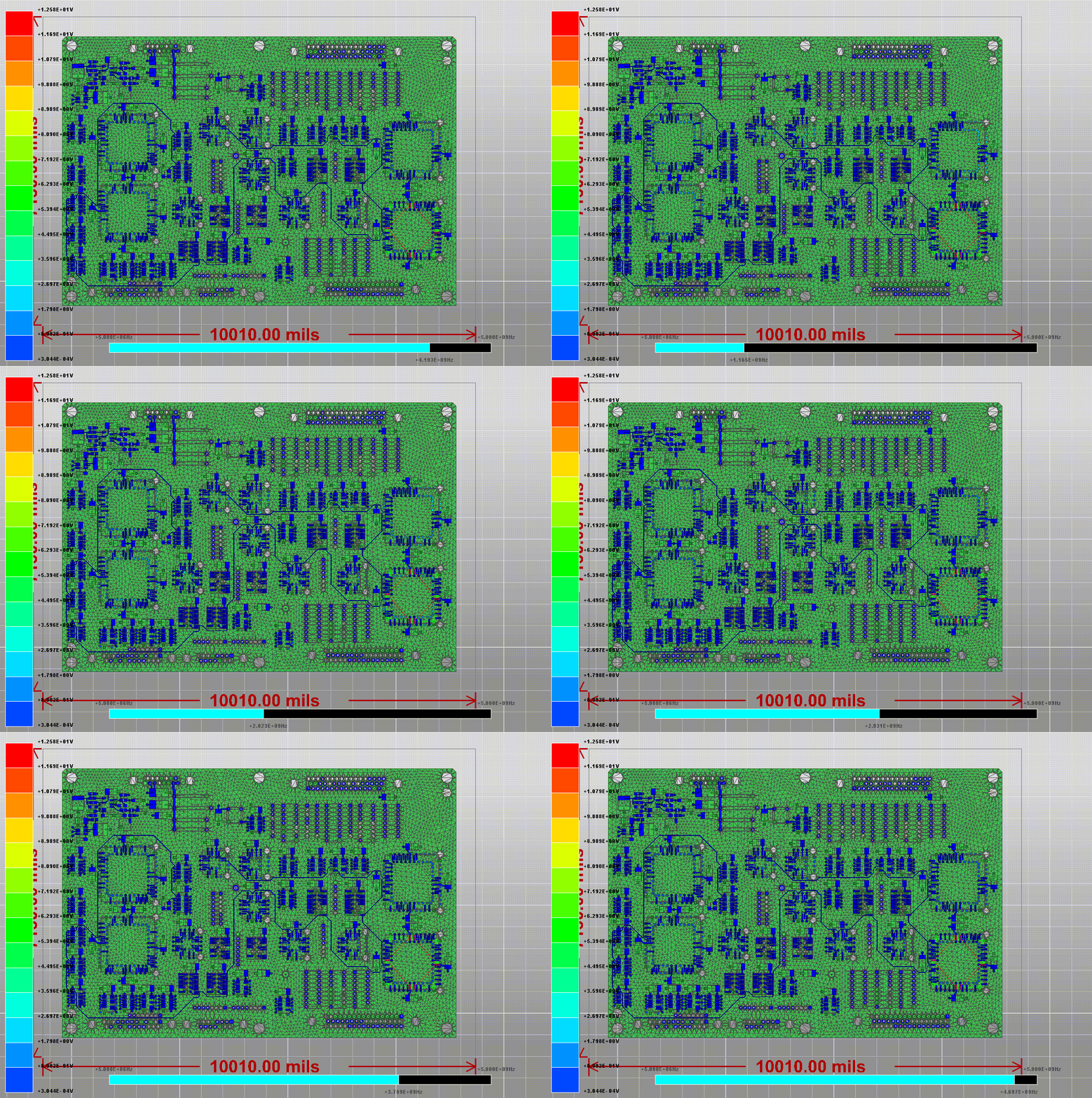
Exporting a Frequency Sweep Animation
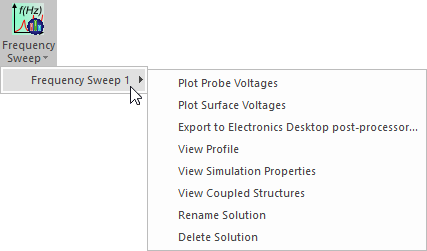
Navigate to the Frequency Sweep Results menu:
- Click Results.
- From the SIwave area, select Frequency Sweep > [Simulation Name].
- Select the result type you want to view (either Plot Probe Voltages or Plot Surface Voltages).
The Frequency Sweep Results window appears.
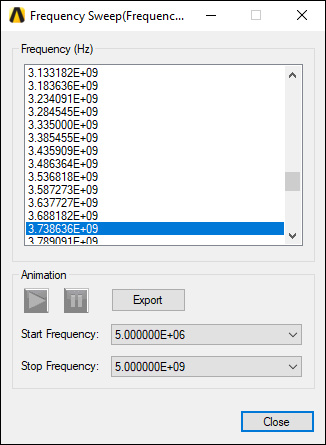
Use the Play and Pause icons to view the results as an animation in the Modeling workspace.
To export an animation:
- Use the Start Frequency drop-down menu to select the first frequency in your animation.
- Use the Stop Frequency drop-down menu to select the final frequency in your animation.
- Click Export.
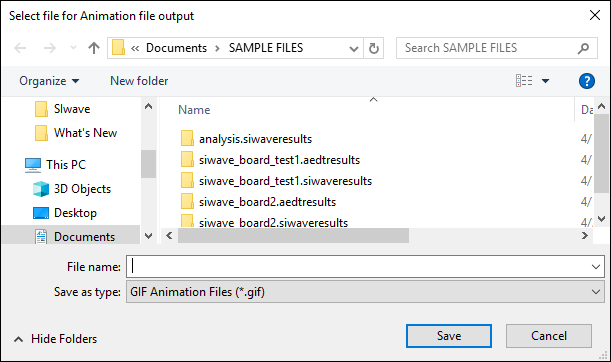
- Select a location for the file.
- From the File name field, enter a name for the file.
- Use the Save as type drop-down menu to select either GIF Animation Files (*.gif) or Audio-Video Inteleave Files (*.avi).
- Click Save.
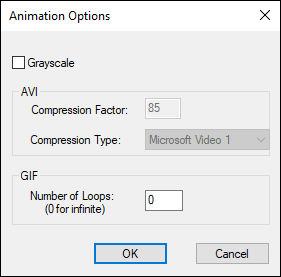
- To replace colors in the file with 256 shades of gray, check the Grayscale check box. Grayscale animations use less memory than full color animations.
- For .avi files:
- Specify the Compression Factor.
- Use the Compression Types drop-down menu to select from the following: INTEL Indeo, Cinepak, Microsoft Video 1, or None.
- For .gif files, specify the number of times you want to play the animation in the Number of Loops box. The default (0) loops indefinitely.
- Click OK.
The Select file for Animation file output window appears.
The Animation Options window appears.
The animation is exported to the specified format.