
Drawing a Trace
To draw a trace:
- Click Home. From the Draw Geometry box, click the Draw Trace icon (
 ).
). - Click the point where you want to start the trace.
- Drag the cursor to an appropriate length and direction of the trace.
- Click to end each line.
- Double-click to end the trace.
To view additional options, right-click while drawing a trace.
A menu appears.
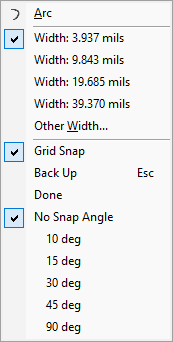
This menu allows you to select an arc and also modify the trace width.
To create an arc:
- Select Arc.
- Choose the location of the arc center and click it.
- Choose the location of the arc's end point and click it.
- Finish drawing the trace.