
Defining HFSS 3D Layout Sweep Options
To define HFSS 3D Layout options for simulation:
- Click Simulation > HFSS 3D Layout.
- Select the Sweep tab.
- Enter the Simulation name.
- Optionally, click on the check box to Use Q3D to solve DC point.
- Enter the value for Start Frequency.
- Enter the value for Stop Frequency.
- Specify the Number of Solution Points.
- Select the method for distributing points from the Distribution option. You can select either:
- Linear – the difference between the start frequency and the stop frequency is calculated and is divided by the number of solution points.
- By decade – distributes the number of points specified logarithmically, over each decade.
- To preview all the frequency points, click the Preview button. The Frequency List Preview window appears showing all the points.
- Click Save to save the grid values to a file. The Save As window appears. Select the location to store the saved file. Enter the name for the file in the File name field. Select the file type from the Save as type list. You can save files with .sfsdf (SIwave Frequency Sweep Distribution File) extensions. Click Save.
Click Load buttons are to load the grid values from a file. The Open window appears. Select the file you want to open. You can open saved .sfsdf (SIwave Frequency Sweep Distribution File) files. Click Open.
- Click the Set Default button to set the current grid settings as a default value for that simulation type. When a default value has been set, the window for that simulation type will always be populated with those settings when the window is opened.
- Click the Clear Default button to remove the default setting and return the population of the grid to its normal behavior.
- Select the type of sweep you want from the Sweep Selection box. You can select either:
- Discrete
- Interpolating - If you select this option, you will have to specify the Relative error for S.
- Click OK.
The Simulation Setup window appears, with the General tab selected.
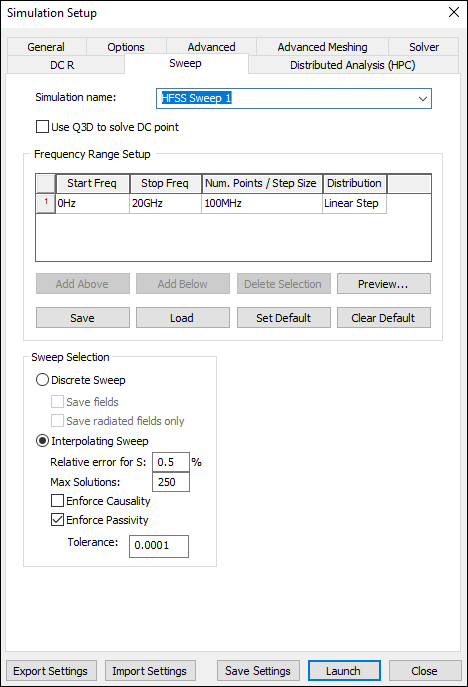
If you accessed this tab from the SYZ Sweep options window, the frequency range cannot be specified because it is defined in the SYZ setup.
An interpolating sweep estimates a frequency response for an entire frequency range by solving at a relatively small number of frequency points within that range. Between the actual solution frequencies, the frequency response is obtained by rational interpolation. HFSS adaptively chooses the frequency points at which it computes the field solution. After a new frequency point is solved, a new interpolating fit is generated. This is compared to the interpolant from the previous step, and the maximum difference between the two is determined. If the difference exceeds the requested tolerance, then a new frequency point is chosen for a solution. The interpolating sweep is complete when the difference between successive interpolants is less than the error tolerance criterion.