
Defining HFSS 3D Layout Meshing Options
To define HFSS 3D Layout meshing options for simulation:
- Click Simulation > HFSS 3D Layout.
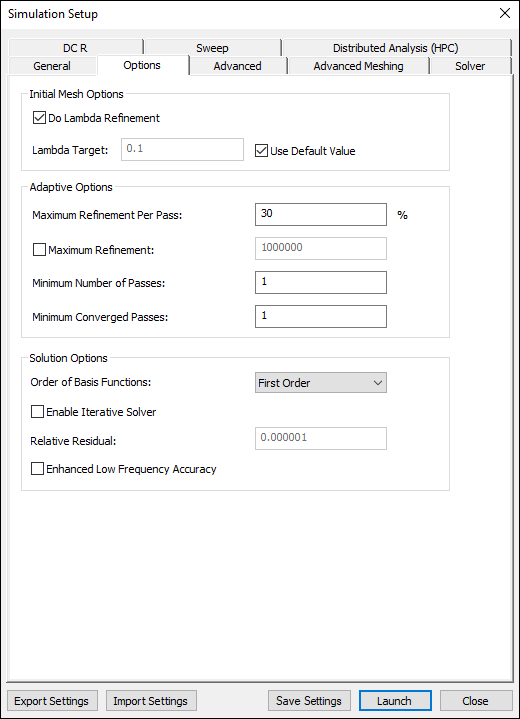
- Select the Options tab.
 Note:
Note:If you selected Use Auto Settings on the General tab, the Options tab will be unavailable.
- Specify the Initial Mesh Options that define the initial mesh:
- Select Do Lambda Refinement to refine the initial mesh based on the material-dependent wavelength.
- Enter a value for the Lambda Target. This represents the fraction of the wavelength that determines the refined tetrahedra edge length, e.g. if the value is 0.1, then an edge length of 0.1*lambda is used as the refinement target.
- Click Use Defaults to use the default settings. The Target defaults depend on the Order of Basis Function selections (e.g., for driven solutions and a first order basis function, the default target is 0.3333; HFSS will refine the mesh until most element lengths are approximately one-third wavelength).
- Specify the Adaptive Options.
- Enter a value for the Maximum Refinement Per Pass. This determines how many tetrahedra are added at each iteration of the adaptive refinement process. The tetrahedra with the highest error will be refined. The value is a percentage.
- Select the Maximum Refinement check box to specify the maximum number of tetrahedra that can be added during an adaptive pass. By default, this unchecked, to that there is no maximum.
- Enter a value for the Minimum Number of Passes that you would like HFSS to perform. This value is a stopping criterion for the adaptive solution; if the maximum number of passes has been completed, the adaptive analysis stops. If the maximum number of passes has not been completed, the adaptive analysis will continue unless the convergence criteria are reached.
- Enter a value for the Minimum Converged Passes. An adaptive analysis will not stop unless the minimum number of converged passes has been completed. The convergence criteria must be met for at least this number of passes before the adaptive analysis will stop.
- Specify the Solution Options.
- Use the Order of Basis Functions drop-down menu to select Zero Order, First Order, Second Order, or Mixed Order.
- If appropriate, use the check box to Enable Iterative Solver. When this is enabled, the Relative Residual value can be changed.
- If appropriate, use the check box to enable Enhanced Low Frequency Accuracy.
- Click OK.
The Simulation Setup window appears, with the General tab selected.