
Defining HFSS 3D Layout General Options
To define HFSS 3D Layout options for simulation:
- Click Simulation > HFSS 3D Layout.
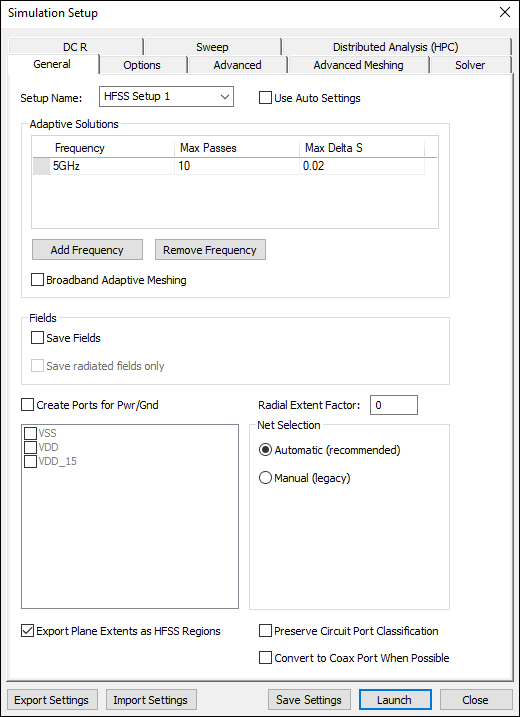
The Simulation Setup window appears, with the General tab selected.
 Note:
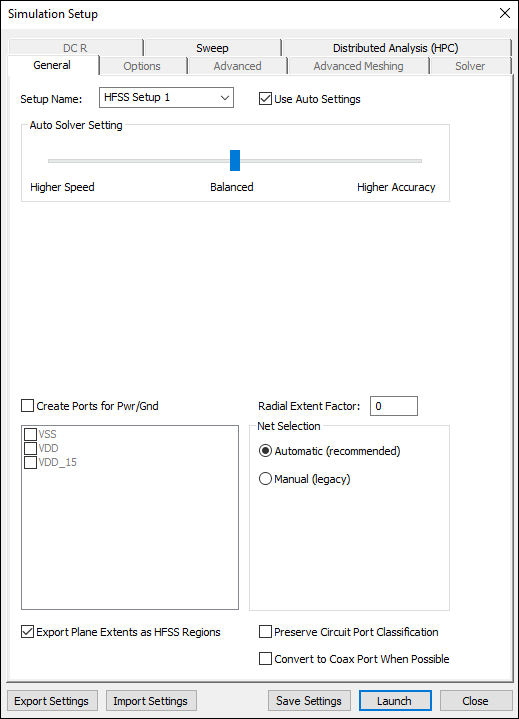
Note:Selecting Use Auto Settings disables the Options, Advanced, Advanced Meshing, Solver, and DC R tabs. It also removes the Adaptive Solutions and Fields areas in favor of an Auto Solver Setting slider. Use this to select Higher Speed, Balanced, or Higher Accuracy.
Specify the General options:
- Enter the Setup Name. This must be unique.
- From the Adaptive Solutions area:
- Specify the solution Frequency and units at which to generate the solution. If a frequency sweep is solved, an adaptive analysis is performed only at the solution frequency.
- Enter the Max Passes that you would like HFSS to perform. This value is a stopping criterion for the adaptive solution; if the maximum number of passes has been completed, the adaptive analysis stops. If the maximum number of passes has not been completed, the adaptive analysis will continue unless the convergence criteria are reached.
- Enter a value for the Maximum Delta S to specify the magnitude of the change of the S-parameters between two consecutive adaptive passes. The Maximum Delta S is a stopping criterion for the adaptive solution. If the magnitude of the change of all S-parameters are less than this value from one iteration to the next, the adaptive analysis stops. Otherwise, it continues until the requested number of passes is completed.
- If appropriate, use the check box to enable Broadband Adaptive Meshing.
- From the Fields area:
- Select Save Fields to save the calculated 3D field solutions associated with all port modes at the chosen frequencies. You can also select Save radiated fields only.
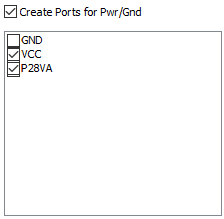
- Select the Create Ports for Pwr/Gnd check box to add ports to the designated nets. Then select the nets from the list.
- Specify the Radial Extent Factor (sizing parameter for port radius).
- From the Net Selection area, select how nets in the project will be exported:
- Automatic – method selects nets based on the same criteria algorithm used for determining nets to include in an SIwave SYZ simulation (any nets where we will automatically generate coaxial ports are also included).
- Manual – selects nets using the same criteria used in release 2015 (uses the same logic as the MCAD exports).
- Make optional selections:
- Export Plane Extents as HFSS Regions – export the design's plane extents as HFSS regions in the HFSS 3D Layout project
- Preserve Circuit Port Classification – all ports are exported as circuit ports, ignoring other selected options (e.g., Convert to Coax Port When Possible)
- Convert to Coax Port When Possible – circuit ports with a positive terminal connected to a pin and a negative terminal connected to a pin group on the same component are exported as coaxial ports
- Click Launch to start the SYZ extraction.
Note:Consult the HFSS 3D Layout help for additional information on extents, circuit ports, and coax ports in 3D Layout simulations.
The procedure is complete.