
Defining HFSS 3D Layout Distributed Analysis (HPC) Options
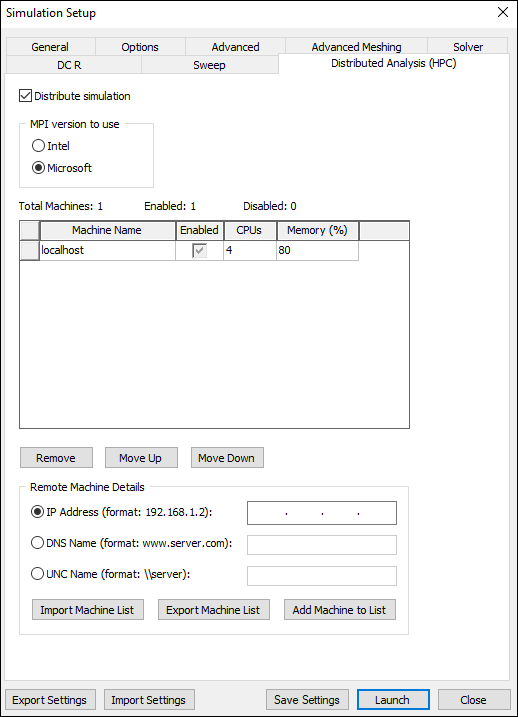
To specify a distributed analysis over multiple machines, click the Distributed Analysis (HPC) tab:
- Click Simulation > HFSS 3D Layout.
- Select the Distributed Analysis (HPC) tab.
- To enable distributed analysis, click the Distribute simulation check box.
- For MPI Version to use, select either Intel or Microsoft.
- Use the window panels to specify the remote machines to be added to or removed from the simulation. You can add machines from a file, and save the machine list to a separate file.
- Use the Enabled boxes to enable one or more machines for the distributed analysis. You can enable or disable the listed machines according to circumstance. Above the table, the window gives a count of the total machines along with how many are enabled/disabled. The HFSS solver in 3D Layout supports automatic settings and assigns resources automatically, based on the best use of them for the current analysis.
- For each machine to add manually, specify the IP Address, the DNS Name, or the UNC Name. The remote machines must have the same version installed in the same OS and version, and have the RSM service active.
- Use the Move Up and Move Down buttons to sequence the list of machines. Tasks are assigned to machines starting with the first enabled machine in the list.
- After you have specified the remote machine details, you can Import Machine List. The Select machine list file to load window appears. Select the file you want to import, and click Open.
- To export the machine list as a text file, click Export Machine list. The Select machine list file output file name window appears. Select the file you want to export, and click Save.
- Click OK.
The Simulation Setup window appears, with the General tab selected.
Each line of the file can contain a machine specifier of the form:
<MachineName>: Enabled: <NumCores> : <Mem%>