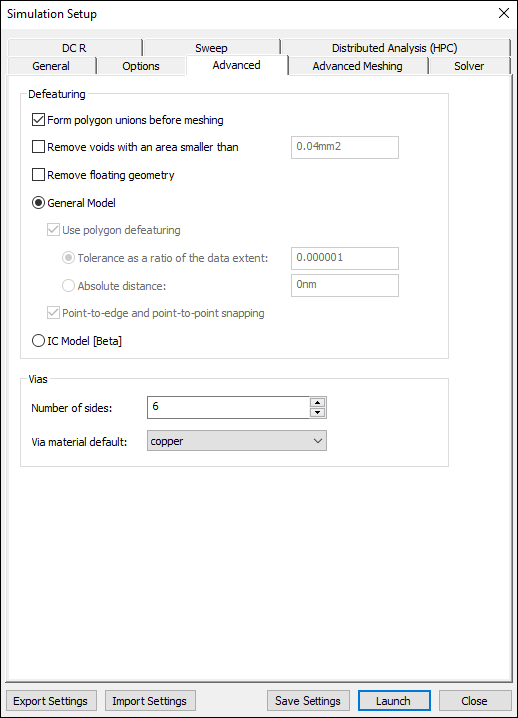
Defining HFSS 3D Layout Advanced Options
To define HFSS 3D Layout options for simulation:
- Simulation > HFSS 3D Layout.
- Select the Advanced tab.
- If appropriate, enable the Form polygon unions before meshing check box to specify whether all objects are combined or "unioned" before meshing takes place. This can simplify the mesh; it can, however, also remove internal boundaries that may be desirable. "Unioning" is a complex operation and sensitive to almost coincident edges; it some instances, a union may produce undesirable results. Inspecting the mesh is a simple way to verify the operation.
- If appropriate, enable the Remove voids with an area smaller than check box and enter a value.
- If appropriate, enable the Remove floating geometry check box.
- Select either the General Model or IC Model (Beta).
- If applicable, specify the General Model options:
- Select the Use polygon defeaturing check box to remove very close points, points that don't contribute to the geometry of an edge (e.g. collinear), and very thin intrusions. When used with "unioning", it can be helpful in healing geometry that isn't snapped together.
- Enter a value for the Tolerance as a ratio of the data extent. This is specified as a ratio of the overall data extent; this value must necessarily be very small.
- Enter a value for the Absolute distance for polygon defeaturing.
- If appropriate, enable Point-to-edge and Point-to-point snapping.
- Select the Number of sides to use when creating the 3D representation of vias; if less than 3, the via is modeled as a flat ribbon. Vias may be modeled as a simple 'wirebond' or as a 3D ribbon or solid. The values specified in the analysis setup only apply to vias that do not have specific property overrides; all properties explicitly specified for a via take precedence over these values.
- Select the Via material default. When a material has not been specified in the padstack definition and there is no override in the properties for a via, then this material will be associated with the via mesh.
- Click OK.
The Simulation Setup window appears, with the General tab selected.