
Cosimulation using TDR Wizard
TDR Wizard initiates a cosimulation with Ansys Electronics Desktop Circuit/Schematic from SIwave. By default, TDRwizard uses a Nexxim netlist that points to an S-parameter touchstone file generated from SIwave. You can also use a schematic approach that has a Ansys Electronics Desktop-SIwave dynamic link. TDR Wizard automates the creation of pin groups for power/ground pins and adds ports on the signal and power nets. The selected nets are given page ports in Ansys Electronics Desktop that correspond to the nodes in the S-parameter file for netlist mode or the ports in SIwave for schematic mode. The driver side of nets is attached with TDR probes and the receiver side with Resistor/Capacitor /IBIS Buffer/Open/Short. The results show the time domain impedance waveforms at the TDR probes.
Unless the design includes a dynamic link (e.g., a Circuit netlist, Touchstone, or State Space file), any ports generated during cosimulation are deleted after a solution is generated.
To run a cosimulation in TDR Wizard:
- If appropriate, use the Nets workspace to select one or more signal nets for cosimulation. You can also select a signal net by clicking a pin or component connected to the net.
- Click Simulation > TDRWizard.
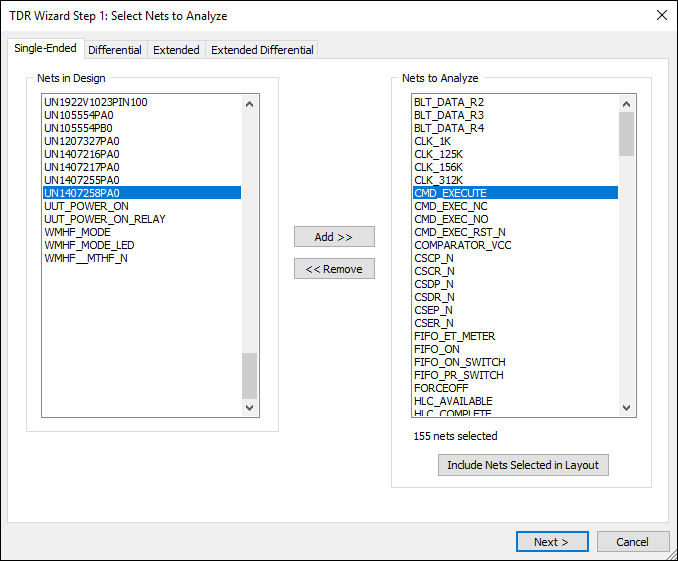
- Navigate using the Single-Ended, Differential, Extended, and Extended Differential tabs. Use the Add>> and <<Remove buttons to select nets for analysis.
- Click Next.
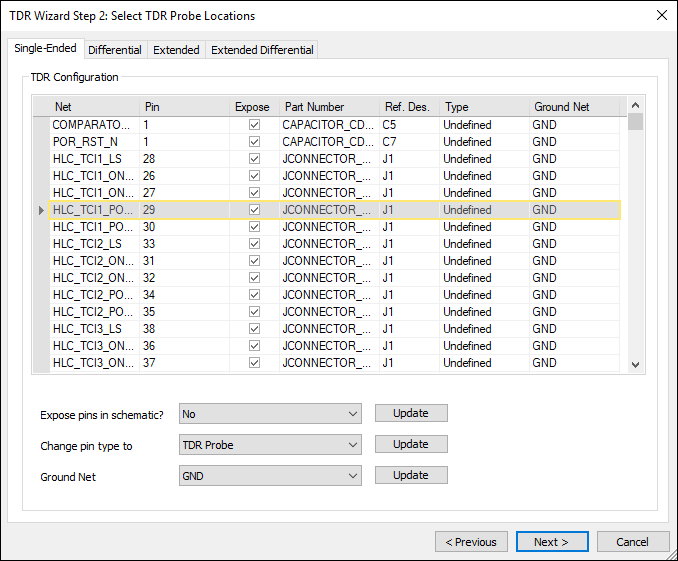
- Select rows and edit information:
- Expose – check this check box for any pin that should be an external connection to the Ansys Electronics Desktop circuit/schematic.
- Type – use this field to set pins as either TDR probes or terminations.
- Ground Net – use this field to select a pin's ground net.
- Click Next.
- Update the information as appropriate.
- Click Next.
- Verify your options and click OK.
The TDR Wizard Step 1: Select Nets to Analyze window appears, on the Single-Ended tab.
The TDR Wizard Step 2: Select TDR Probe Locations window appears.
The TDR Wizard Step 3: TDR Probe and Termination Configuration window appears.
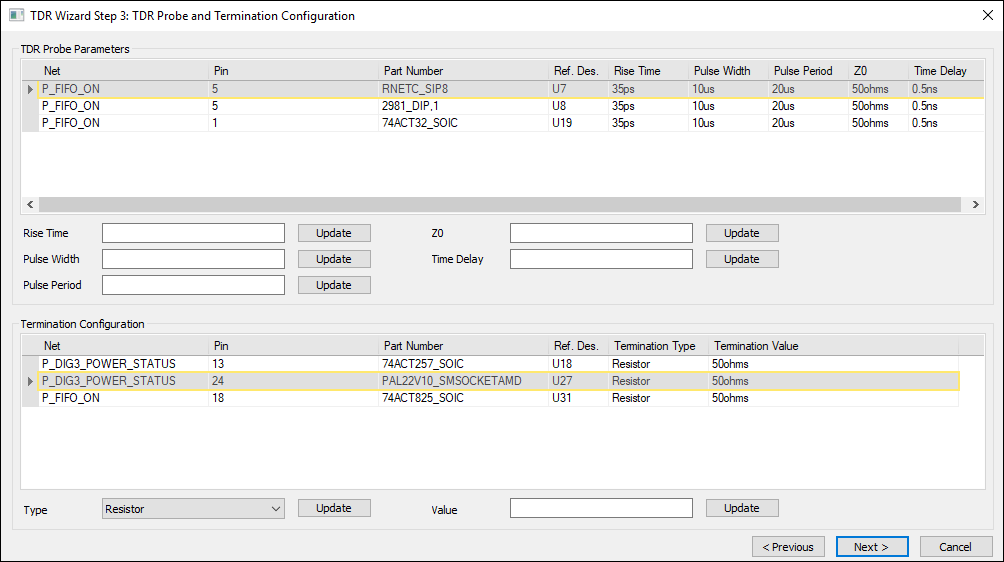
Probe pins display at the top of the window and termination pins display at the bottom.
The TDR Wizard Step 4: Transient Simulation Options window appears.
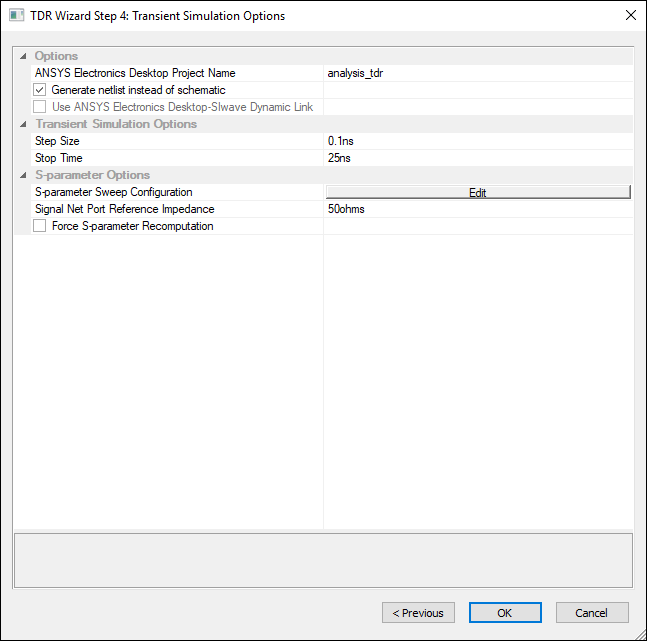
The Use Ansys Electronics Desktop-SIwave Dynamic Link option is only enabled in schematic mode. Generate netlist instead of schematic must be deselected in order to use the Dynamic Link.
When Dynamic Link is enabled, the schematic in Electronics Desktop will have a co-simulation block (also called a field solver block) that in turn triggers a solve in SIwave when Electronics Desktop is doing a solve. When Dynamic Link is deselected, the schematic in Electronics Desktop will have an SYZ parameter model block that points to a static touchstone file generated by SIwave just prior to the creation of the schematic in Electronics Desktop.
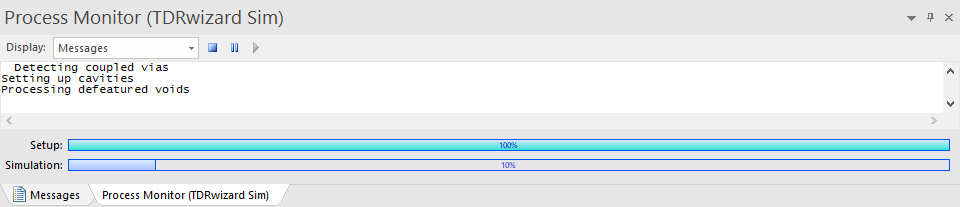
The Messages window updates with a Process Monitor tab that displays the progress.
When the simulation has finished in SIwave, Ansys Electronics Desktop opens to run the cosimulation. If the netlist option is selected, the net is automatically imported into Ansys Electronics Desktop Circuit/Schematic as a netlist with associated TDR probes and terminations, analyzed by SIwave to obtain the S-parameters, then handed off to Nexxim transient analysis for the time domain simulation. Time domain reports are displayed automatically in Ansys Electronics Desktop. SYZ results are also available in SIwave.