
Computing RLGC Subcircuits in SIwave
SIwave allows you to derive RLGC information from the S-parameters. After you compute the RLGC matrices, you can export the RLGC subcircuit.
To export a solution into an RLGC subcircuit in SIwave:
- Click Results.
- From the SIwave area, select SYZ > [Simulation Name].
- Click Compute RLGC Sub-Circuit.
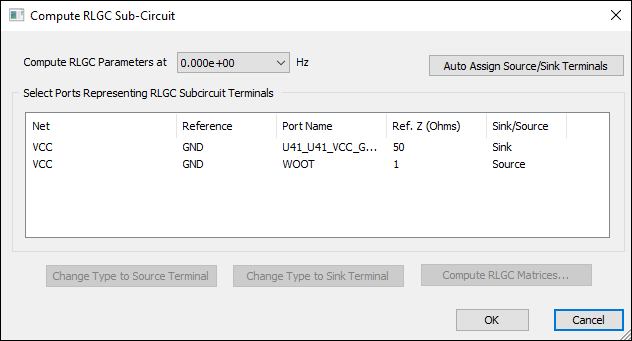
- Use the Compute RLGC Parameters at drop-down menu to select a frequency.
- To assign sources and sinks, select a net in the list and use the Change Type to Source Terminal and Change Type to Sink Terminal buttons. Alternatively, click Auto Assign Source/Sink Terminals to have SIwave identify and assign nets for you.
- Click ports in the list to select them. You must select at least one Sink and one Source.
- Click Compute RLGC Matrices.
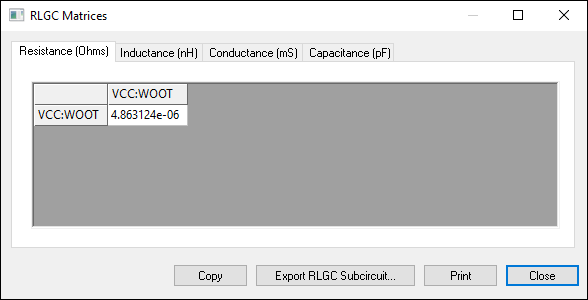
- Click any tab to view its details (Resistance, Inductance, Conductance, Capacitance).
- To copy data from a tab, click Copy.
- To print data from a tab, click Print.
- To export the subcircuit, click Export RLGC Subcircuit.
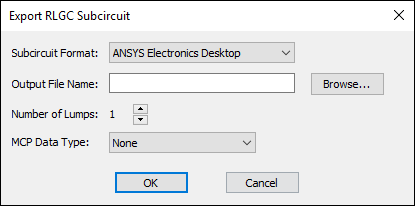
- Use the Subcircuit Format drop-down menu to select a format.
- Ansys Electronics Desktop
- Berkeley SPICE
- ESpice DML
- HSPICE
- IBIS Package Model
- Maxwell SPICE
- PSpice
- Twin Builder
- Spectre
- SPEF
- From the Output File Name field, type a file name and path, or click Browse to select one.
- Use the arrow buttons to specify the Number of Lumps to be included in the simulation. This can be any discrete value between 1 and 1000.
- Use the MCP Data Type drop-down menu to select DIE, PKG, or PCB.
- Click OK to export the RLGC matrices and return to the RLGC Matrices window.
- Click Close to close the RLGC Matrices window.
- Click OK to close the Compute RLGC Sub-Circuit window.
The Compute RLGC Sub-circuit window appears.
Note:
If you have two conducting objects touching each other, this treats them as one combined object. Nets are auto identified by finding the touching conductors.
The RLGC Matrices window appears, on the Resistance tab.
The Export RLGC Subcircuit window appears.
Options include: