
Changing Backdrill Settings
To open the Backdrill Settings window, click Advanced > Backdrill Settings.
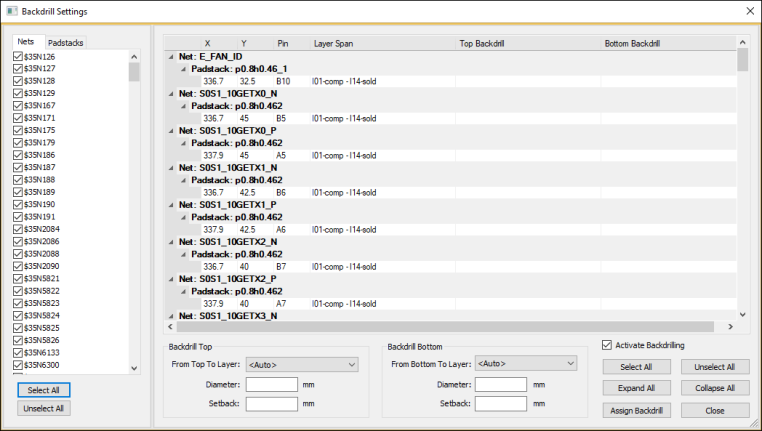
The left pane allows you to select or deselect nets and padstacks. The right pane displays vias associated with your selection.
Selecting a single backdrill via causes the modeling workspace to zoom in on it. When more than one via is selected, nothing is zoomed.
To enable or disable backdrilling project-wide:
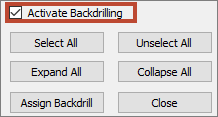
- Select or clear the Activate Backdrilling check box.
To assign a backdrill to one or more vias:
- Use the filters in the left pane to find the via(s) to which you want to add backdrills.
- Select the via(s) from the list on the right. Use Ctrl+click to select more than one via, or use the Select All button to select all vias in the list.
- From the Backdrill Top and Backdrill Bottom areas, enter the information for your backdrill:
- From Top to Layer – when creating a top backdrill, the backdrill begins at the top layer and ends at the layer you select. The Auto setting identifies the stub and selects an appropriate layer.
- From Bottom to Layer – when creating a bottom backdrill, the backdrill begins at the bottom layer and ends at the layer you select. The Auto setting identifies the stub and selects an appropriate layer.
- Diameter – the diameter of the backdrill.
- Setback – the diameter required at the top or bottom layer.
- Click Assign Backdrill.
The via list updates with the new backdrill information.
- Click Close.