
Editing Design Settings for Simulation
Before running a simulation, you may want to adjust the design settings:
- Click Simulation > Design Settings.
The Design Settings window appears. It consists of six tabs:
- DC Extrapolation
- Nexxim Options
- Export S Parameters
- Design Mode
- Lossy Dielectrics
- HFSS Meshing Method
- HFSS Adaptive Mesh
Adjust the settings as appropriate and click OK to apply. On any tab, you may select Save as default to preserve your settings on that tab as the default.
The sections below describe the available settings in greater detail.
DC Extrapolation Settings
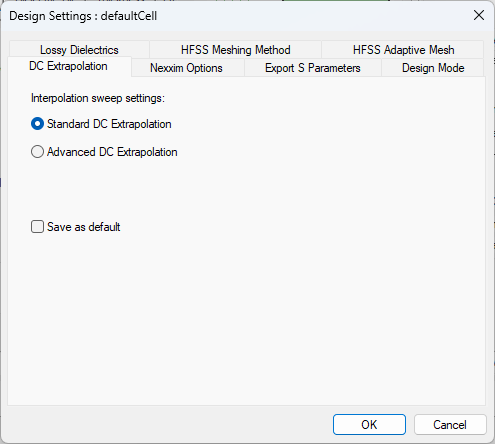
The DC Extrapolation tab allows you to select one of Standard DC Extrapolation or Advanced DC Extrapolation.
This setting changes the "ground rules" of the modeler and may have unexpected results.
Nexxim Options

The Nexxim Options tab allows you to select:
- Whether to Use circuit S-parameter definition (conjugate match for port impedances)
- Method used to transform time to spectral domain (FFT, Fourier Integration, or Fourier Transform)
Export S Parameters Settings
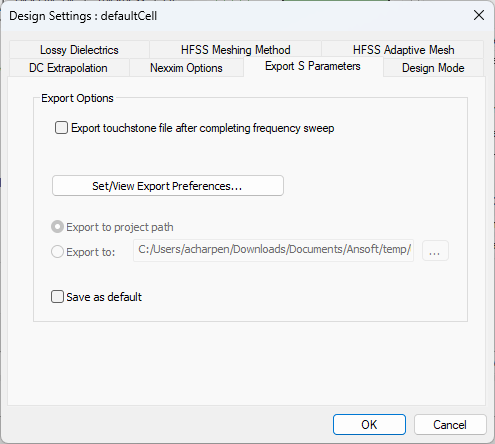
The Export S Parameters tab allows you to:
- Set/View Export Preferences – opens the SYZ Data Export Options window, from which you can export Touchstone or Broadband.
- Export touchstone file after completing frequency sweep – select Override and use the asterisk (...) button to select a destination other than the default.
Design Mode
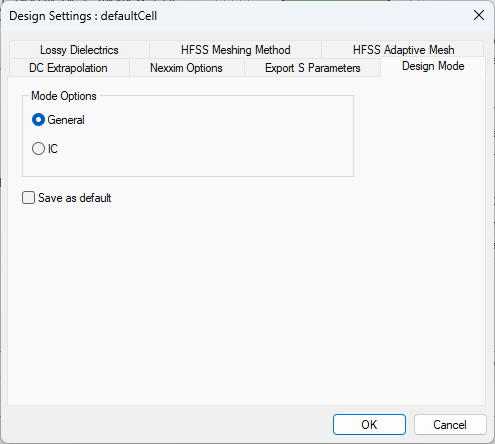
The Design Mode tab allows you to select General or IC (i.e., Integrated Circuit) mode.
Lossy Dielectrics Settings
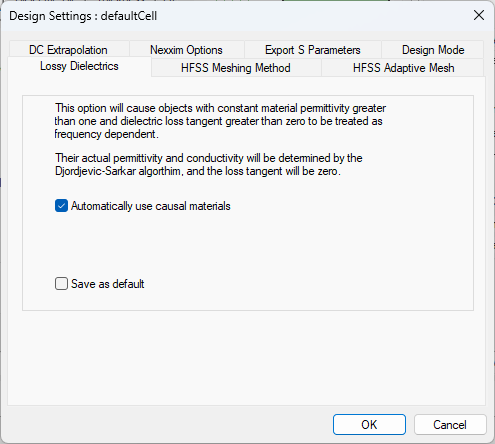
The Lossy Dielectrics tab allows you to Automatically use causal materials. This causes objects with constant material permittivity greater than one and dielectric loss tangent greater than zero to be treated as frequency dependent. Their actual permittivity and conductivity will be determined by the Djordjevic-Sarkar algorithm, and the loss tangent will be zero.
HFSS Meshing Method Settings
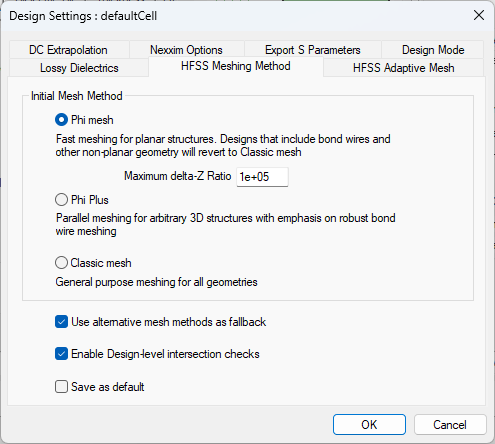
The HFSS Meshing Method tab allows you to select one of three meshes:
- Phi Mesh
- Phi Plus
- Classic Mesh
Additionally, you can select:
- Use alternative mesh methods as fallback
- Enable Design-level intersection checks
Consult the HFSS help for additional information about HFSS meshing.
HFSS Adaptive Mesh Settings
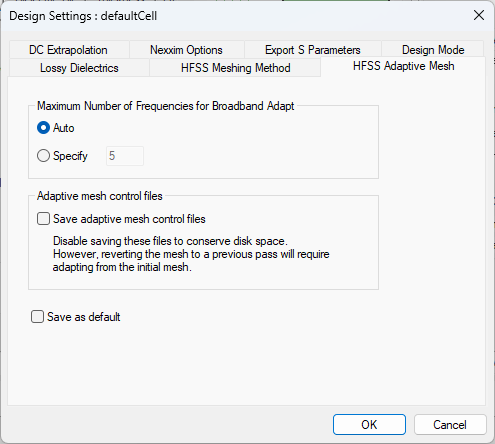
The HFSS Adaptive Mesh tab allows you to adjust settings for:
- Maximum Number of Frequencies for Broadband Adapt:
- Auto – select this radio button to have the maximum number automatically defined.
- Specify – select this radio button and enter a value for the maximum number of frequencies.
- Save Adaptive Mesh Control Files – this option is disabled by default to preserve disk space.