
Configuring Vias
Traces are separate conducting lines that make up an important part of the PCB layout.
Vias consist of a hole cut in the PCB to route a trace vertically from one layer to another, as well as the vertical pieces of conductor that make connections between layers. If a via is too big, it does not have sufficient room to route signal traces. If vias are made smaller, more traces can be drawn.
Launch the Configure Via window in Via Wizard one of the following ways:
- Select Project > Configure Via.
- From the Via Wizard pane, click Insert Config.
- From the Via Wizard pane, edit an existing via configuration by clicking the Edit button.
The Configure Via window appears.
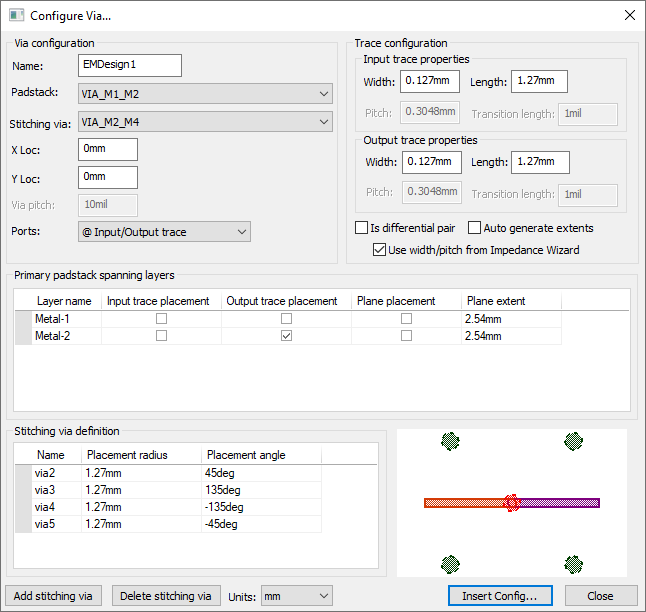
Specify the settings as appropriate:
- Name – enter a name for the via.
- Padstack – select a padstack from the list. New stacks can be added from the Padstack Editor.
- Ground Via – select a ground via from the list.
- X Loc – enter a value and unit.
- Y Loc – enter a value and unit.
- Via Pitch – specify the distance between two adjacent vias.
A smaller via pitch introduces more mutual coupling capacitance. Note:
The Via Pitch setting is only available when Is Differential Pair is selected.
- Ports – determine whether to insert ports at the input trace, output trace, both traces, or neither.
From the Trace Configuration area:
- Specify the width and length for both input and output traces.
- If applicable, specify the pitch and transition length for input and output traces.Note:
Pitch and Transition Length options are only available when Is Differential Pair is selected.
-
If applicable, use the check boxes to:
- Specify a differential pair.
- Select Auto Generate Extents. This is used to automatically compute the reference plane extents based on the length of traces above or below the said planes.
- Use the width/pitch calculated in Impedance Wizard. See: Calculating Trace Width and Pitch.
From the Stitching Via Definition area:
- Add Stitching Via – opens a dialog box that allows you to specify the radius and angle for a new stitching via. If you need to remote a stitching via, select it from the list and click Delete Stitching Via.
Click Insert Config to insert the configuration for use in Via Wizard.