Viewing Mode Data
The 2D Extractor computes distributed values of capacitance and inductance along the length of each line, which would require a ladder network model consisting of a large number of inductances and capacitances. To model the transmission line, the software uses modal transformation matrices to transform an n-conductor coupled line into an n-mode decoupled line, where each mode can be visualized as a specific pattern of voltages on the physical conductors.
To view Mode Data, either during or after the solution process:
- Access the Solutions window one of two ways:
- In the project tree, under Analysis, right-click the solution setup.
- Or, from the ribbon, click Results > Solution Data.
- The Mode Data tab contains three sub-tabs: View, Format, and Export. The View tab displays by default.
- Use the drop-down menu to choose from Original or Reduced matrices.
- Use the drop-down menu to select a frequency, or select the All Freqs check box.
- Click View Options to open the Set View Options window.
- From this window, you can set Matrix Visibility for Modal Characteristic Impedance and Propagation Velocities, as well as preferred units of measurement.
- Click OK to apply changes.
- Click the Format tab.
- Select either the Default or Custom display.
- If you select Custom, specify the matrix field Width and Precision in digits.
- Select the Use Scientific check box to display Mode data using scientific notation.
- Click the Export tab.
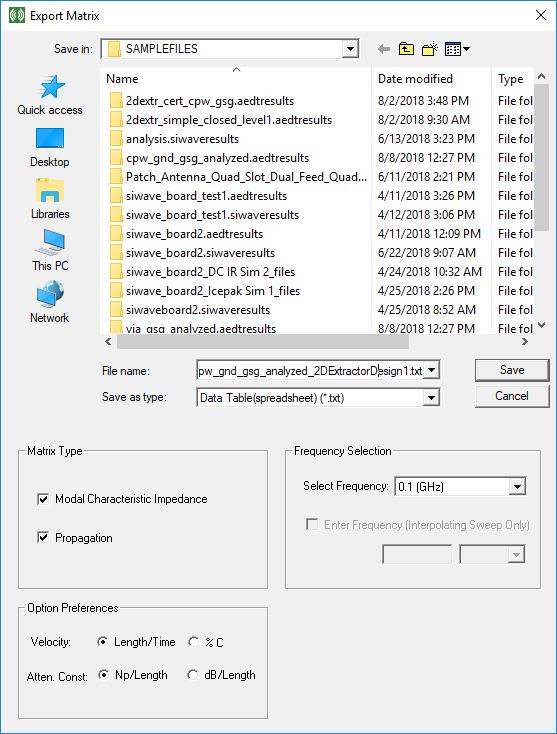
- To export Mode data, click Export.
- Select your desired options and click Save.
- Click Close to exit the Solutions window.
The right-click menu appears.
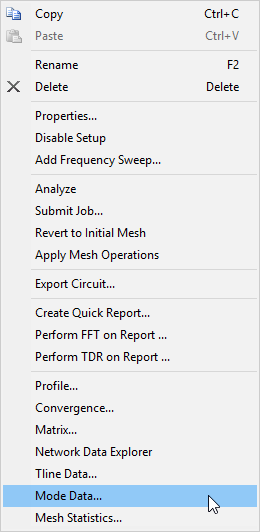
Select Mode Data...

Select the Mode Data tab.
The Solutions window appears, on the Mode Data tab.
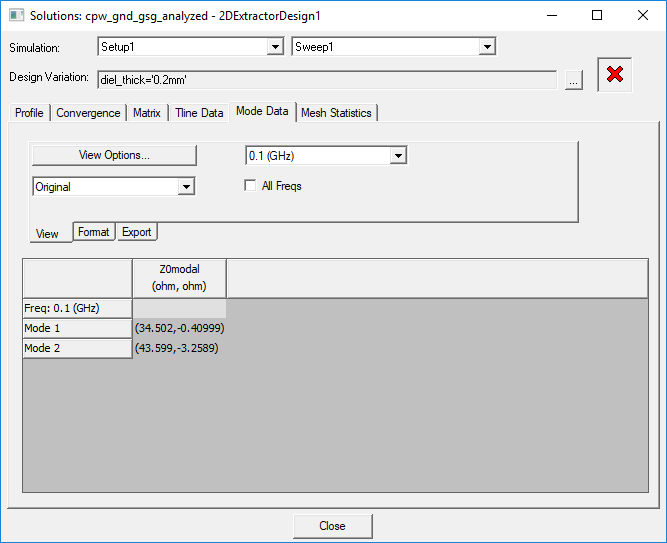
From the View tab:
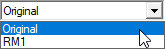
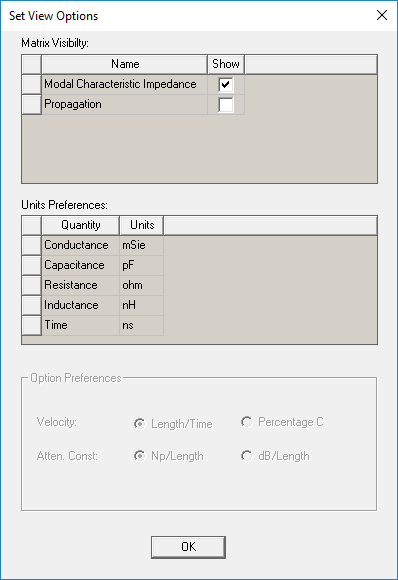
Selections persist during execution, but are reset to their defaults on exit.
The Format tab displays, with additional options.
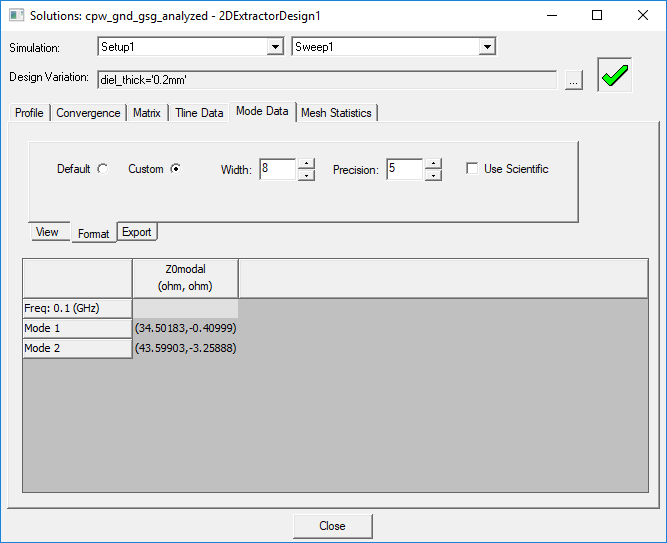
From the Format tab:
The Export tab displays.
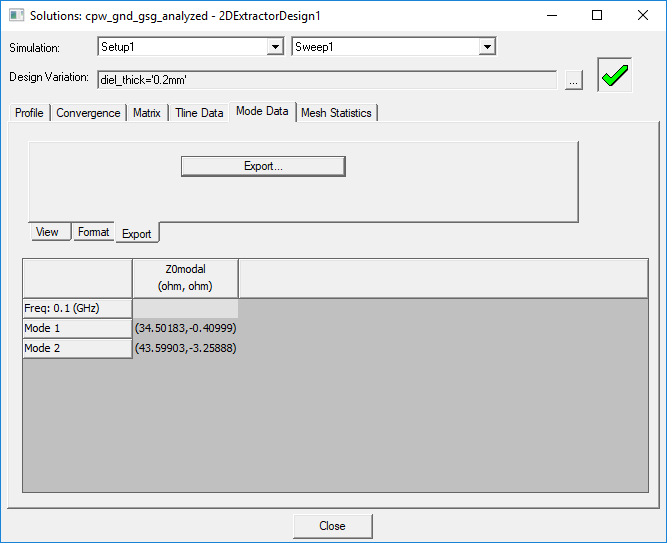
From the Export tab:
The Export Matrix window appears.