Using Reduce Matrix > Ground Net
The Ground Net reduction grounds the specified nets in your model. If you have objects not included in the matrix, they are already treated as grounded objects.
In capacitance (CG) matrices, grounded conductors are considered to have a potential of zero volts. The ground reference at infinity is also considered to have a potential of zero volts.
Grounded conductors in capacitance computations can be modeled in three ways:
- Through matrix reduction.
- By explicitly setting a conductor's voltage to zero.
- By assigning a conducting material to an object, and then not declaring it to be a conductor (that is, by defining it to be a passive conductor). These conductors are automatically set to zero volts during capacitance computations.
For inductance and resistance (IR) matrices, when a conductor is grounded, its source terminals are connected to its sink terminal. Current can flow in the newly created loops due to fields induced by the surrounding conductors. The fields produced by this loop affect voltage drops observed in surrounding conductors. Thus, the inductance matrix of the remaining conductors is altered by this operation.
Matrix reduction is the only way to model grounded conductors in inductance and resistance computations.
To define which nets in a structure are grounded:
- Click Q3D Extractor > Reduce Matrix > Ground Net.
The Reduce Matrix - Ground Net window appears, with a list of nets in the left pane.
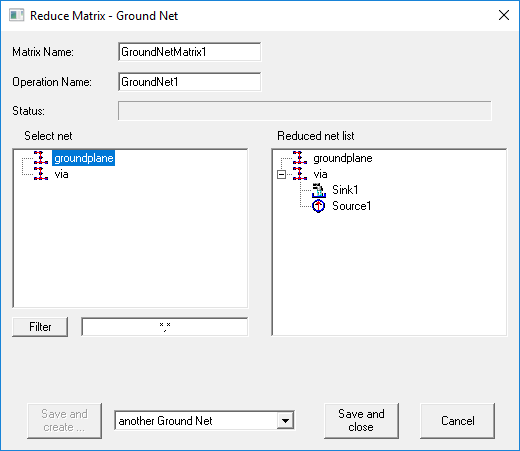
- Select the nets you want to ground. As soon as you click a net, it is removed from the terminal list and added to the Reduced Net List.
Important:
You cannot select all nets.
- If you have a long list of nets, you can filter the list by entering search criteria and clicking Filter. Use multiple search criteria with a comma separator (for example, "Redsource*, BlueSource*").
- Click one of the following:
- Save and Create to save and leave the Reduce Operation window open to add an additional operation. You must select the next operation from the drop-down menu before clicking this button.
- Save and Close to save the current operation and close the window.
- Cancel to close the window without making changes.
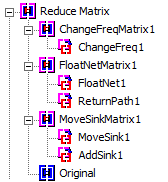
Operations that have been performed appear in the Project Manager: