
Setting 2D Extractor Options
To set 2D Extractor options in Electronics Desktop:
- Click Tools > Options > General Options.
The Options window appears, displaying General options.
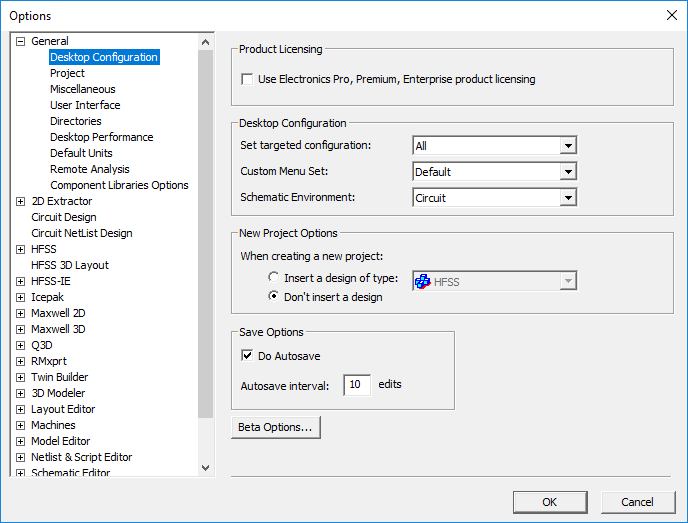
- In the left pane, expand 2D Extractor.
The 2D Extractor options expand. The 2D Extractor General options display by default.
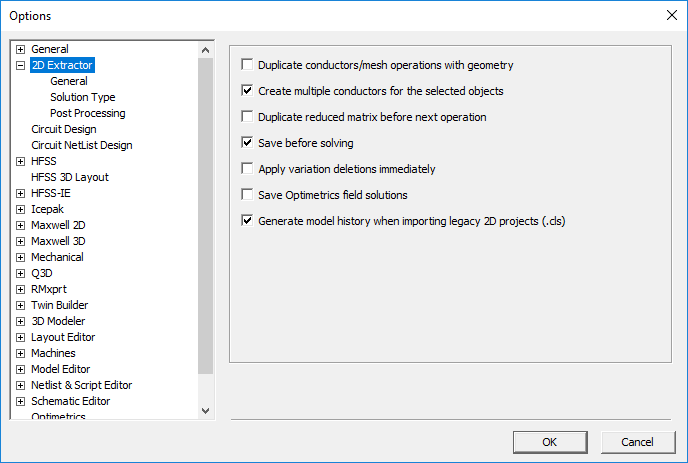
Use the tree in the left pane to select a group of options.
In 2D Extractor General options, you can set the following:
- Duplicate conductors/mesh operations with geometry – when enabled, conductors are copied along with the geometry.
- Create multiple conductors for selected objects – when enabled, if you select multiple objects and assign a conductor, multiple conductors are created (one for each body). When disabled, a single conductor is created and assigned to multiple objects.
- Duplicate reduced matrix before next operation – enables duplicating reduced matrices. See: Reduced Matrices.
- Save before solving – forces a full save before running the solver. If a simulation is started while another is running, you will be asked if you want solve without saving first. You can run multiple simulations, and if you have not edited the project in between solutions, crash recovery will work. In any case, you can start a new solve while running another without having to abort the current simulation.
- Apply variation deletions immediately – select to save disk space.
- Save Optimetrics field solutions – when enabled, saves the field solution data for every solved design variation.
- Generate model history when importing legacy 2D projects (.ds) – when enabled, Electronics Desktop generates a model history for legacy projects.
In 2D Extractor Solution Type options, select a Solution Type:
- Open – a surface ground does not enclose the design, and a balloon boundary condition is applied internally. In this case, you cannot create the surface ground conductor.
- Closed – you must create a surface ground conductor to enclose the design. No balloon boundary condition is applied. This solution type expects a surface ground to be present in the design. However, if there is no surface ground, you can still create an ideal ground, which allows your design to be validated.
See: Balloon Boundary.
In 2D Extractor Post Processing options, select a Default matrix sort order of either Ascending alphanumeric or User specified (default to creation order).