
3D Modeler Discovery Link
The 3D Modeler Discovery Link allows you to create a User Defined Model (UDM) from the geometry model in an Ansys Discovery project. Discovery Link can be used only if Discovery with the same version as Ansys Electronics Desktop is installed on the same machine. Discovery link is only available on Windows.
Discovery Link provides following functionality:
Browse and select Discovery project files (*.dsco) to import geometry directly.
Import geometry by connecting to an active Discovery session.
The Discovery geometry is imported as a UDM along with geometry parameters with units, rendering attributes and material assignments. Object, material, and parameter names with non-ASCII characters are not supported.
The Discovery geometries can be imported as faceted bodies if the design supports lightweight geometries.
A Discovery document referenced by a Discovery link is included in the project archive automatically.
You can break a Discovery link. In this case, all the parts in the UDM are converted to imported objects.
Importing Discovery geometry into Ansys Electronics Desktop
To select a Discovery file:
Select Modeler > Discovery Link > Browse or Browse Discovery in the Model ribbon.
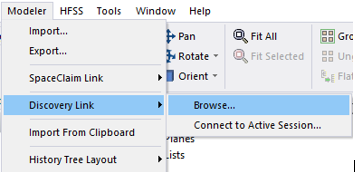
Navigate to and select a *.dsco project to load into the Modeler window.
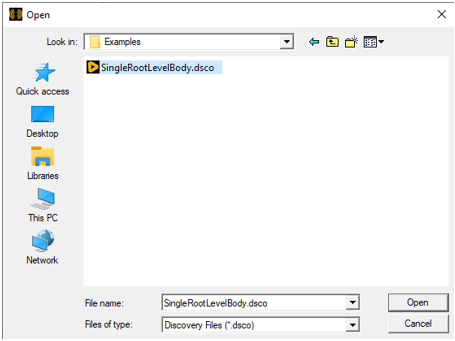
Click Open.
The progress bar displays import progress. When the model has loaded, it appears in the Modeler window, and in the History Tree as a User Defined Model (UDM).
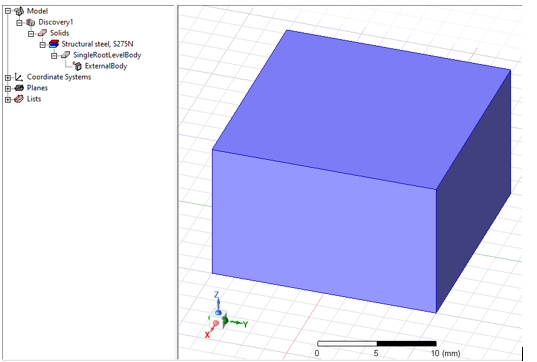
If there is an active Discovery session which is using the selected document, the created UDM will be linked to the active Discovery session. If there is not one, a new non-graphical Discovery session will be used, which makes the creating and refreshing slow. Afterwards, if an active Discovery session is launched and opens the document, the UDM will be linked to the active session.
Connecting to an active Discovery session.
If one or more Discovery sessions are running on the machine, Discovery link can connect to them to import geometry.
When you select Modeler > Discovery Link > Connect to Active Session or Connect to Discovery in the Model ribbon, the Active Discovery Sessions dialog box appears.
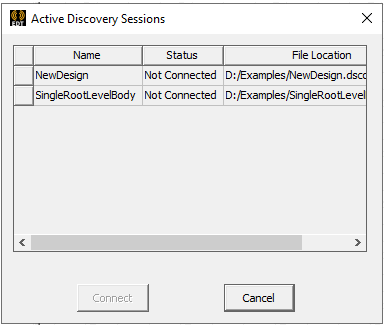
It shows all active Discovery sessions with their document names and connection status. Sessions which are not using a saved document are not included. You can select a session and click Connect to import geometry from that session. Once connected, that session will be used to regenerate the corresponding Discovery link UDM.
Property Window of Discovery link UDM
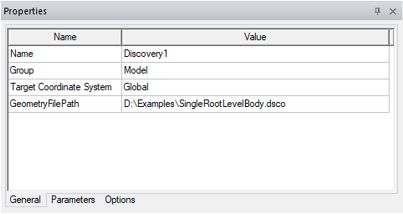
The Property window of a Discovery link UDM has 3 tabs.
The General tab shows general information such as Discovery document path.
The Parameters tab shows all parameters.
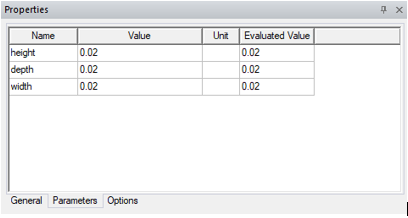
You can edit the parameters and send them back to Discovery to get the geometry updated accordingly.
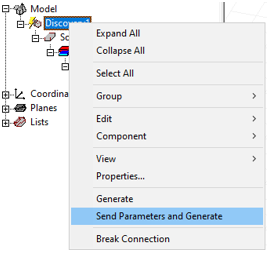
After editing the parameter, you will need to use Send Parameters and Generate in the context menu of the Discovery link UDM. If there is an active Discovery session linked, its model will be updated but not saved. If there is not an active Discovery session linked, the Discovery document will not be updated.
The Options tab shows supported options. See: Discovery Link Options.
Archive a Project containing Discovery link
If you want to share a project with Discovery link with other users, you need to archive the project, because the linked Discovery file is not included in the project file. When archiving, the Discovery documents corresponding to the links will be included in the project archive automatically. Once the archive file is unarchived, referenced Discovery documents will be put in restored_files subfolder in the project directory. All definition paths are updated to refer to the reference files in restored_files folder.
Break Connection with Discovery link
A Break Connection command is available in the context menu of the Discovery link UDM.
Break Connection converts the UDM bodies to imported objects. The UDM will be removed.
Any operations that you have performed on UDM bodies are preserved.
Parameters of the UDM are lost. You lose the ability to create parametric variations with Discovery parameters.
Attributes such as rendering attributes, materials, etc., are preserved.