
Stage Two: Healing after Geometry Import
Healing can only be performed on objects that have no drawing history other than "import". If necessary, object history can be deleted through Modeler > Purge History. If that causes a warning that another object will be deleted, you may need to purge the history of that other object first, or purge the histories of several objects simultaneously.
At any time after import, you can perform a Validation Check: Maxwell 3D > Validation Check. This will enable you to focus on bodies and body pairs that need attention before a mesh can be created.
- Select the objects that
have geometry kernel errors, such as
failing api_check_entity(), and the objects that have non-manifold features, i.e. mixed dimensionality. - Invoke Modeler > Model Analysis > Analyze Objects.
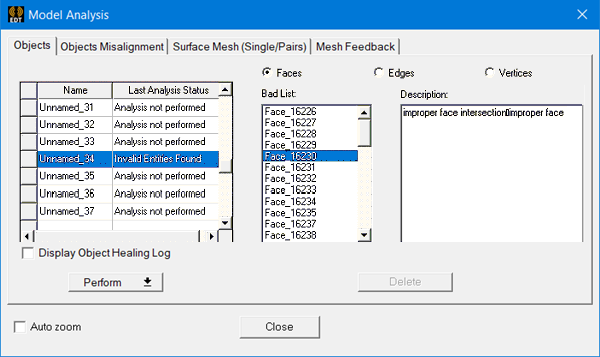
This will bring up an Options dialog to set thresholds for small feature detection and on completion, the Model Analysis dialog is displayed. All bodies in the model are shown in the objects grid along with their status. Bodies can have the following status:
- Good
- Null Body
- Analysis not performed
- Invalid entities found
- Small-entity errors
Invalid-entity errors are geometry kernel errors and non-manifold errors. Small-entity errors are small faces, sliver faces and small edges that are optionally detected based on user-defined parameters.
To fix invalid entity errors:
- Choose the bodies that have the "Invalid Entities Found" warning.
- In the same window, choose Perform > Heal Objects, with or without an optional setting for small-feature removal.
- If errors still persist, select the offending faces and edges and click on Delete.
In most cases, the bodies will be healed and the errors fixed.
This will replace the selected face/edge entity by a tolerant edge/vertex respectively.
In order to avoid unintended changes, it is good practice to do the following:
- At the bottom of the Model Analysis window, check the Auto Zoom to Selection option.
- Select one face or edge at a time.
- Decide for each face and edge whether you want to delete it.
In some cases the replacement of the face/edge by tolerant edge/vertex will fail. If the object remains invalid, you know at this point what parts of the object are invalid. You will need to change that part of the object manually, either in Ansys Electromagnetics drawing environment or in the original CAD tool, to make it pass. Often, the invalid entities are in small details that can be changed without noticeably affecting the results of the electromagnetic analysis. For example, it may be possible to create a small object, well placed in the "offending" region, and to unite it with or subtract it from the problematic object, such that the "offending" details no longer exist.