
Setting Up RMxprt Projects
An RMxprt project is a folder that includes one or more models, or designs. Each design ultimately includes a geometric model, material assignments, and field solution and post-processing information.
A new project called Projectn is automatically created when the software is launched, where n is a number. You can also open a new project by clicking File > New. In general, use the File menu commands to manage projects. If you move or change the names of files without using these commands, the software may not be able to find information necessary to solve the model.
To insert an RMxprt design:
-
Choose the desired Design Flow option. You can select either Maxwell Model Wizard or Generate RMxprt Solutions. If Maxwell Model Wizard is selected, you can create an RMxprt design aimed for Maxwell design creation only. You can import your own stator and rotor geometry, with or without material assignment. If Generate RMxprt Solutions is selected, you can select either General for various predefined generic rotating machine types, or Standard for other predefined machine types.
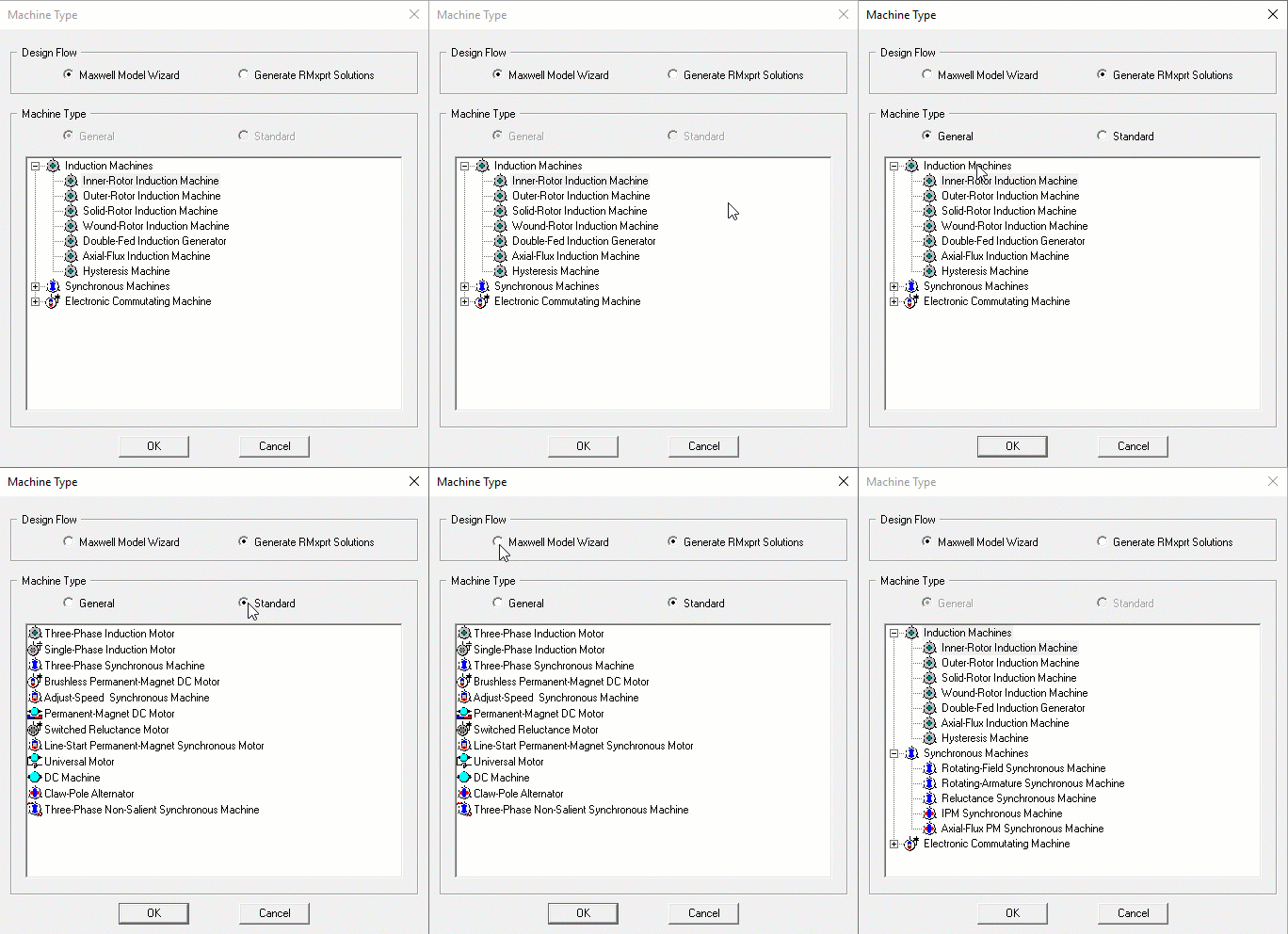
- Right-click on the design tree machine item, or from the RMxprt main menu, click on Machine Type to open the Machine Type<project_name> - <design_name> dialog box.